(Android) How to Use the BizGo! Air App
To use the geofence service, after installing the BizGo! Air app distributed from the MDM, you must operate the BizGo! Air app in the following two cases. This page describes the steps for each operation.
This assumes that a policy has already been assigned to the device.
- During initial setup
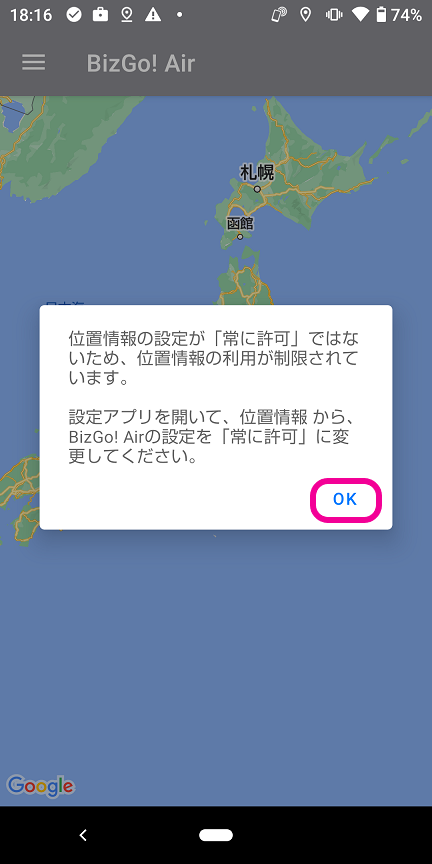
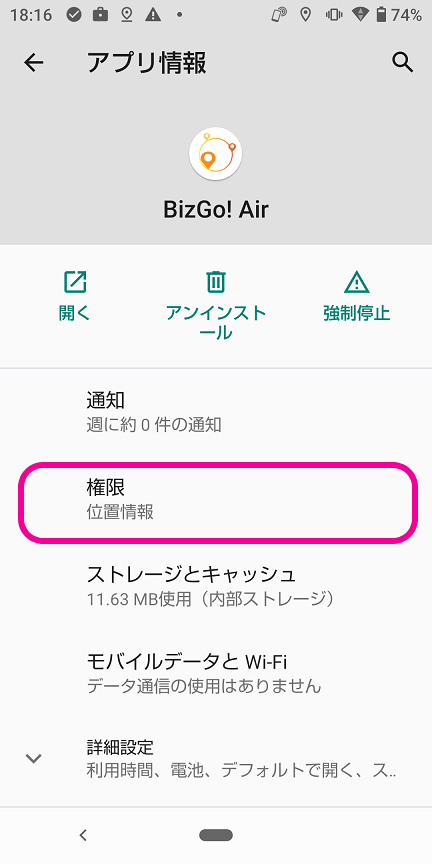
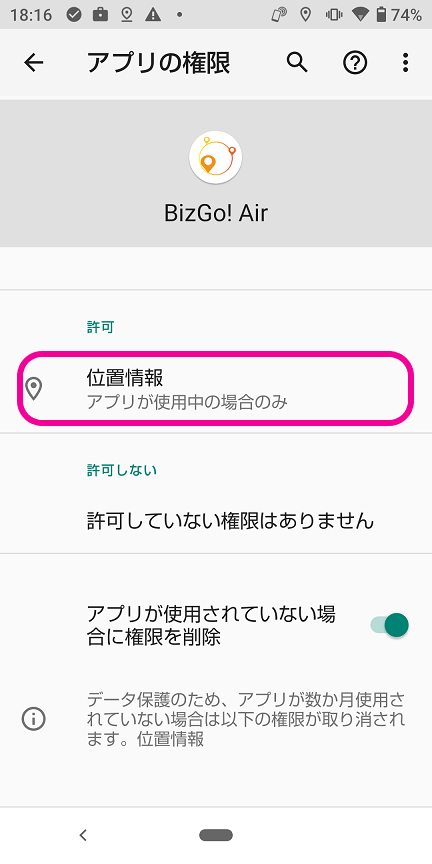
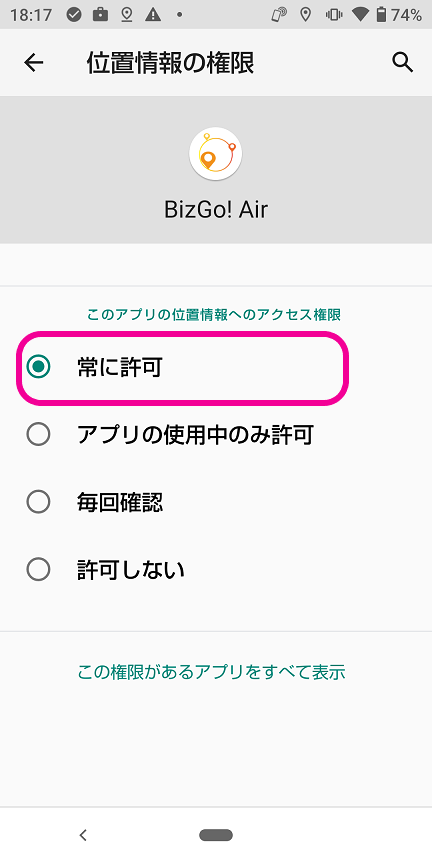
To use BizGo! Air, the location setting of the BizGo! Air app must be set to "Allow all the time". As the initial setup, launch BizGo! Air once and then change the location setting from the Settings app. - When the correct template is not applied (when the policy action is set to "Assign Template")
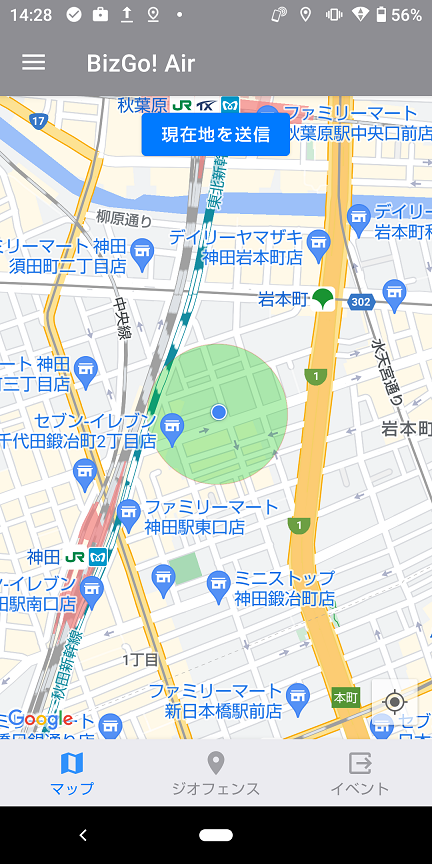
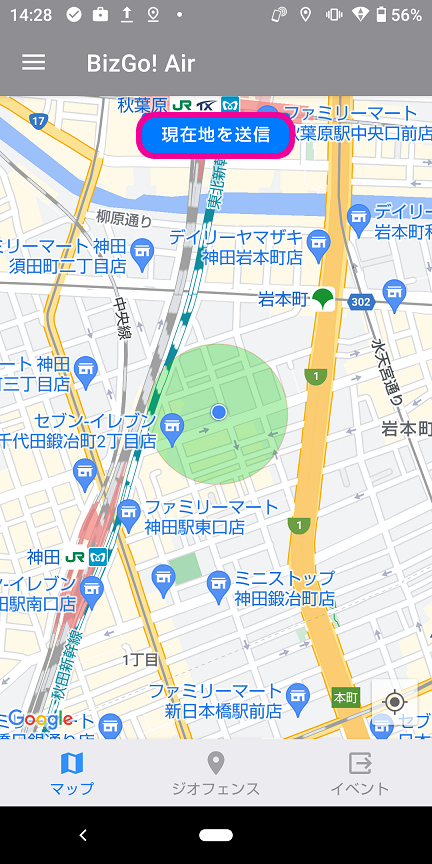
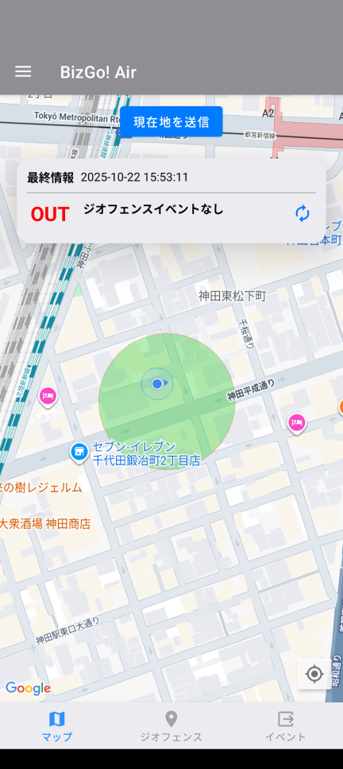
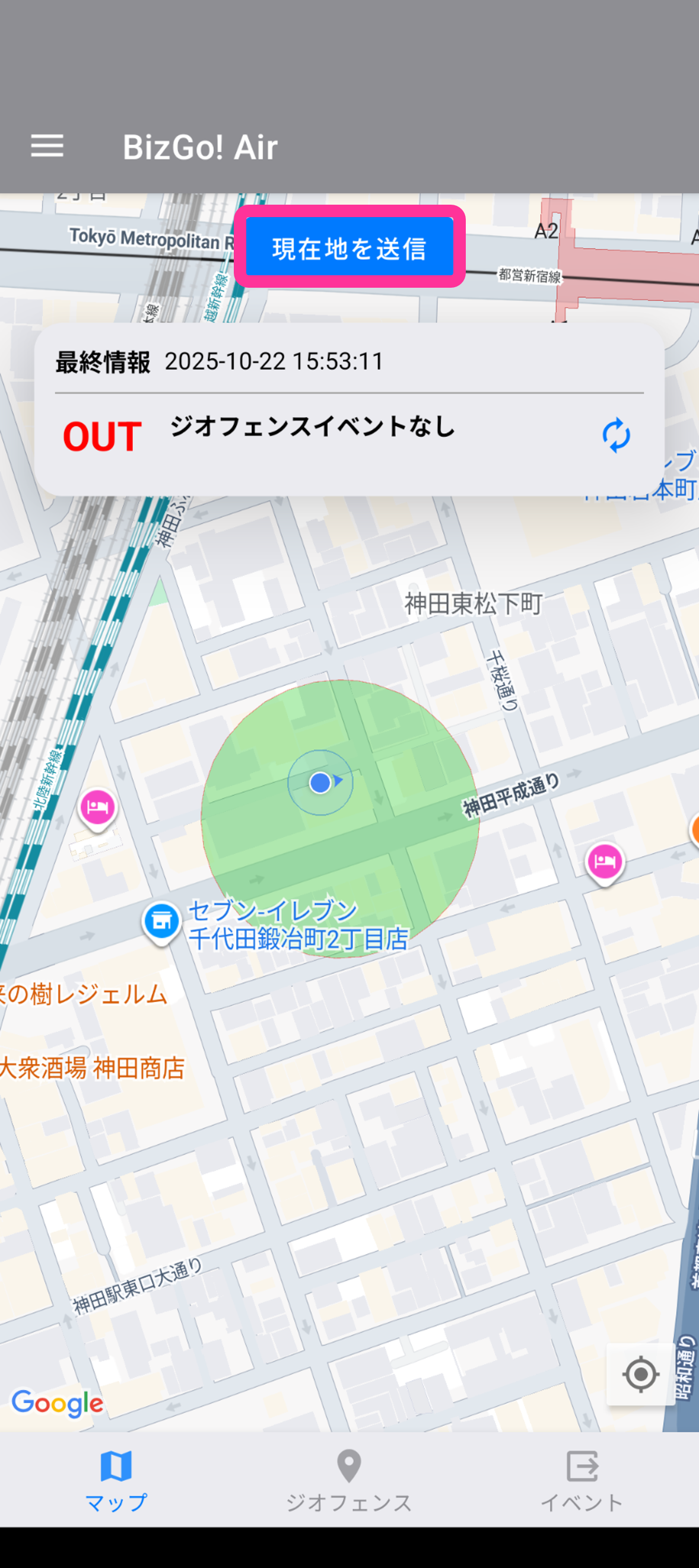
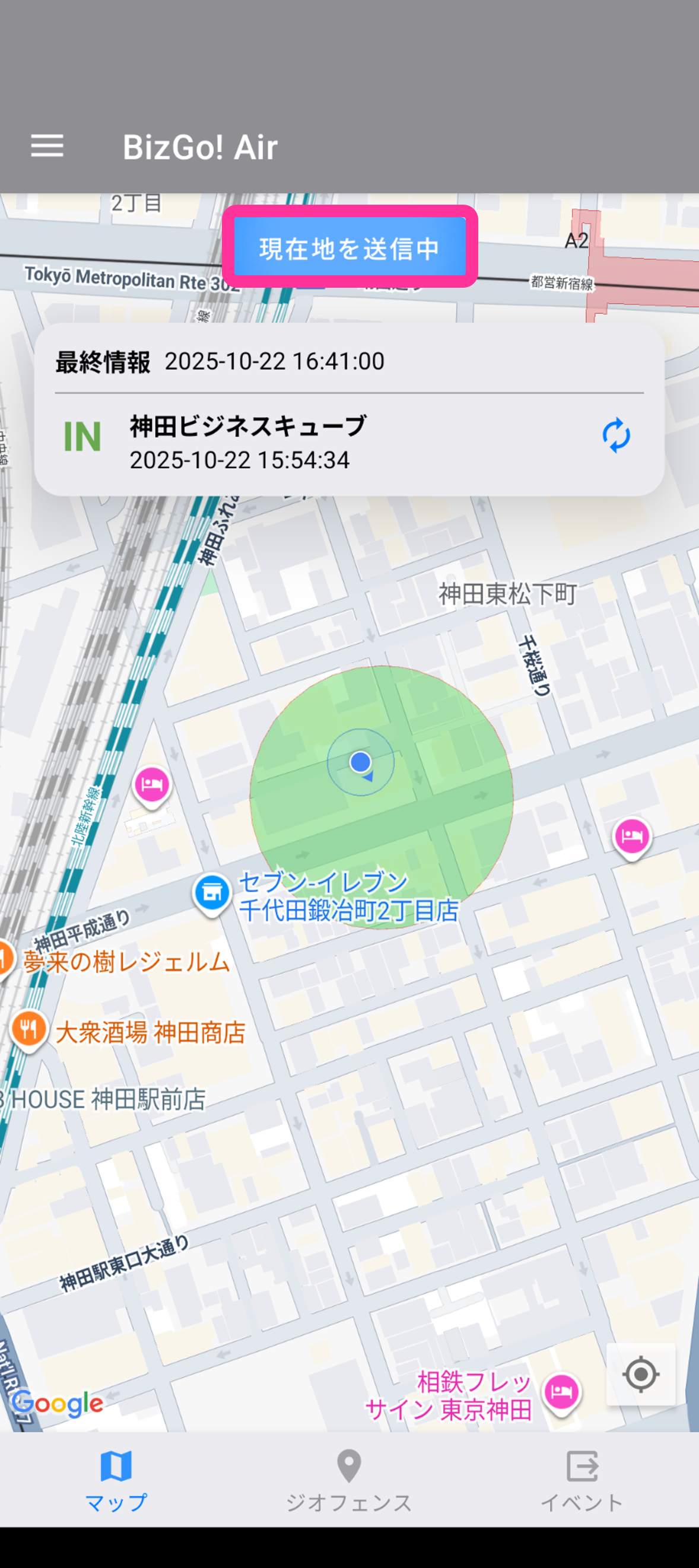
Geofence entry and exit events are generated by an OS feature. If an Enter/Exit event is not generated correctly, the inside template or outside template is not applied correctly. In such a case, launch the BizGo! Air app and manually send the current location to the server. The server checks whether the sent location is inside or outside the geofence, and the appropriate template is applied.
Due to OS specifications, entry and exit detection for geofences may not work correctly or may be less accurate under certain conditions. To use the geofence feature, make sure the device settings meet the following conditions.
- The device is connected to the internet
- Wi-Fi is turned ON (the device does not need to be connected to Wi-Fi)
- The location setting of the BizGo! Air app is "Allow all the time" and "Use precise location" is turned on
The geofence (area) information assigned to a policy is applied to the device as a target of entry and exit detection when the BizGo! Air app is launched.
If you change the geofence (area) assignment (add, delete, or update) after the BizGo! Air app was first launched, you must restart the BizGo! Air app to apply the change.
Perform the initial setup
| 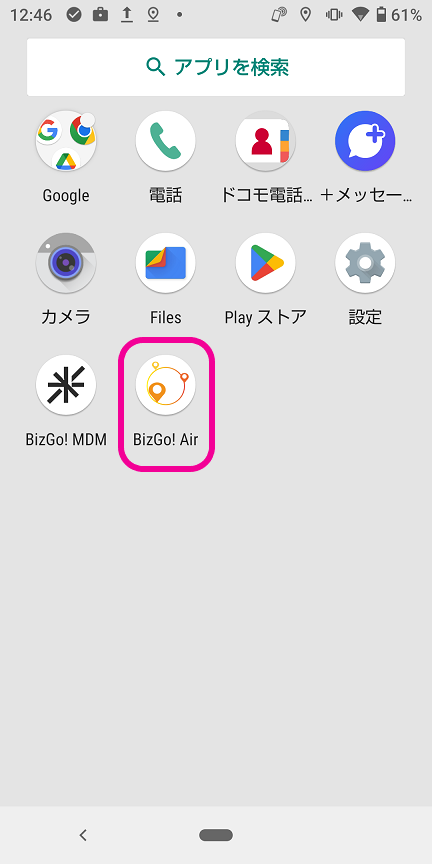 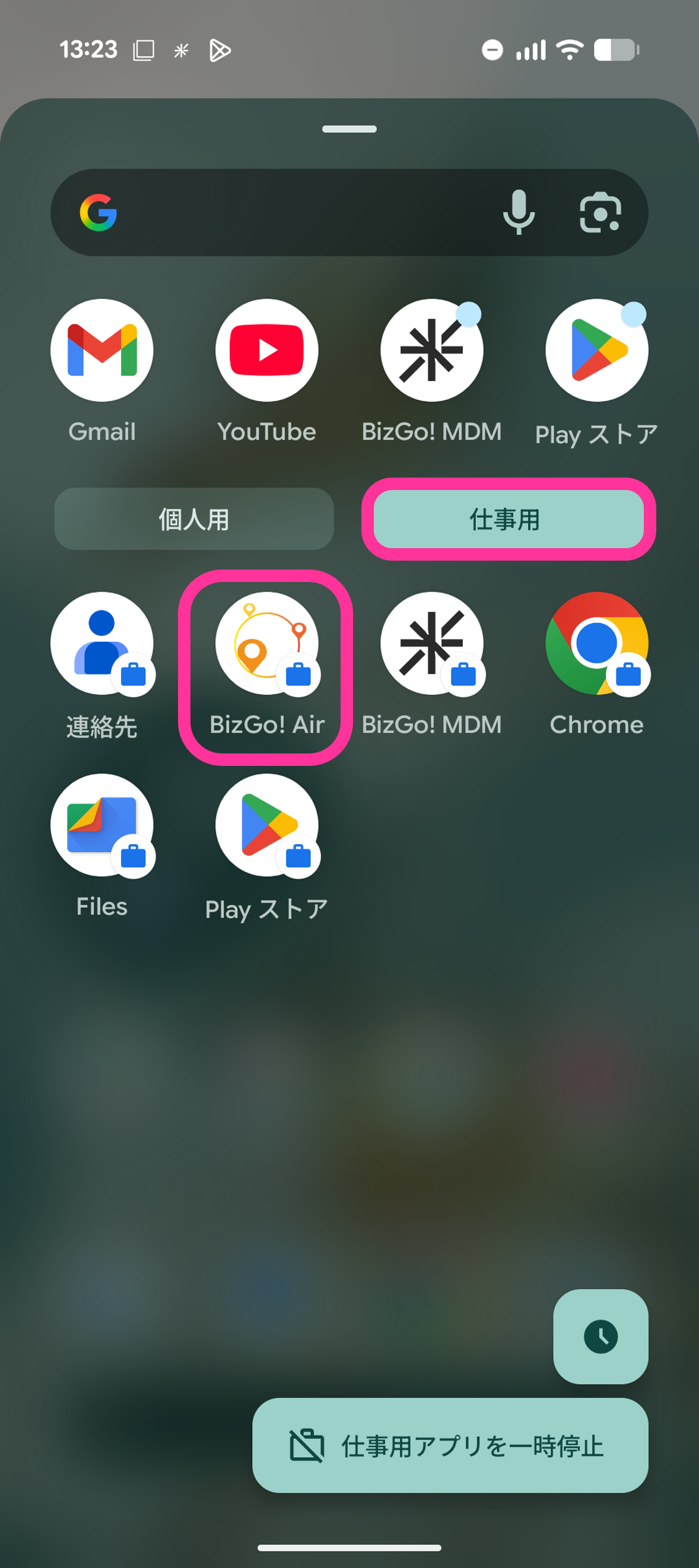 |
| 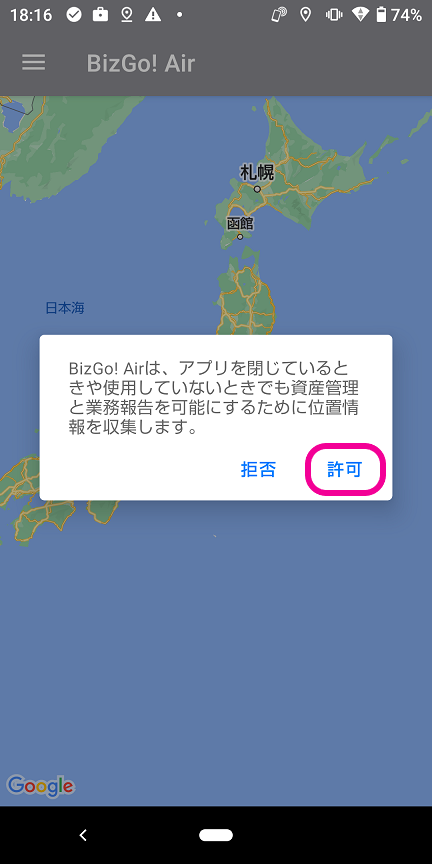 |
| 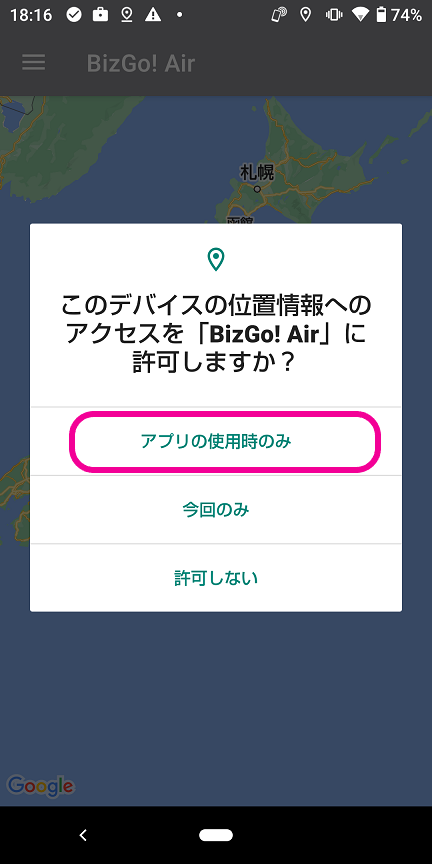 |
|  |
|  |
|  |
|  |
Check the location manually
If the correct template is not applied, use the BizGo! Air app to check the location.
The following steps are an example for the case where you are inside the geofence but the outside template is applied.
If the sent location is inside the geofence, the template is switched to the inside template.
Without the add-on service
| |
|  |
|  |
| |
|
With the add-on service
| |
|  |
|  |
|  |
|