Clear Passcode
Clear the passcode of a managed device. Use this, for example, when the device user has forgotten the passcode.
On Android only, the administrator can specify a new passcode.
If a passcode is required by a profile, a message prompting the user to set a new passcode is displayed on the managed device after the passcode is cleared.
On Android, after the device starts, no apps, including system apps, run until the device is unlocked for the first time. Therefore, immediately after the device is powered off or restarted, the MDM agent cannot communicate with the server and cannot receive the Clear Passcode command.
In Android Work Profile mode, the Clear Passcode command is available on Android 8 and later. The passcode that is cleared is the passcode of the work profile (work area).
Steps to clear a passcode
-
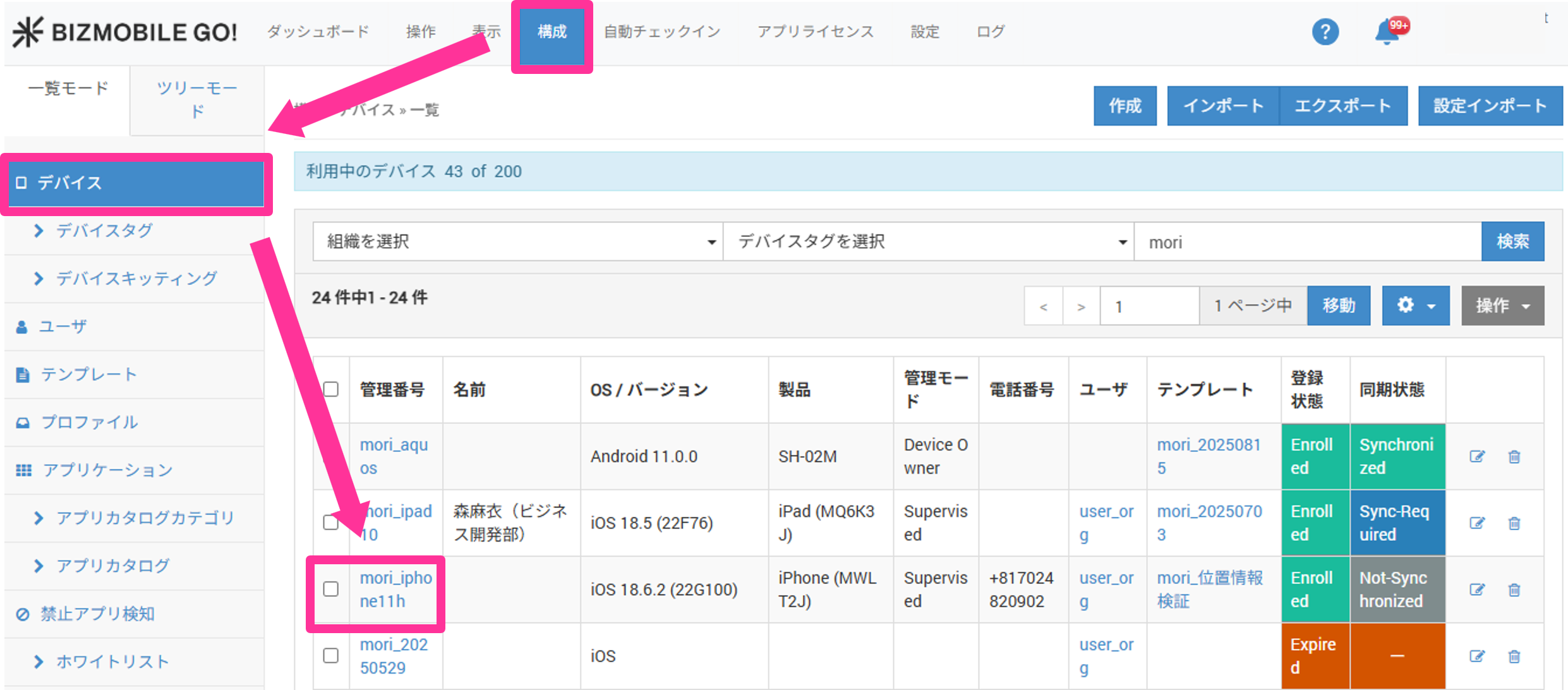
Click CONFIG → Device, and then click the identifier of the device whose passcode you want to clear.
-
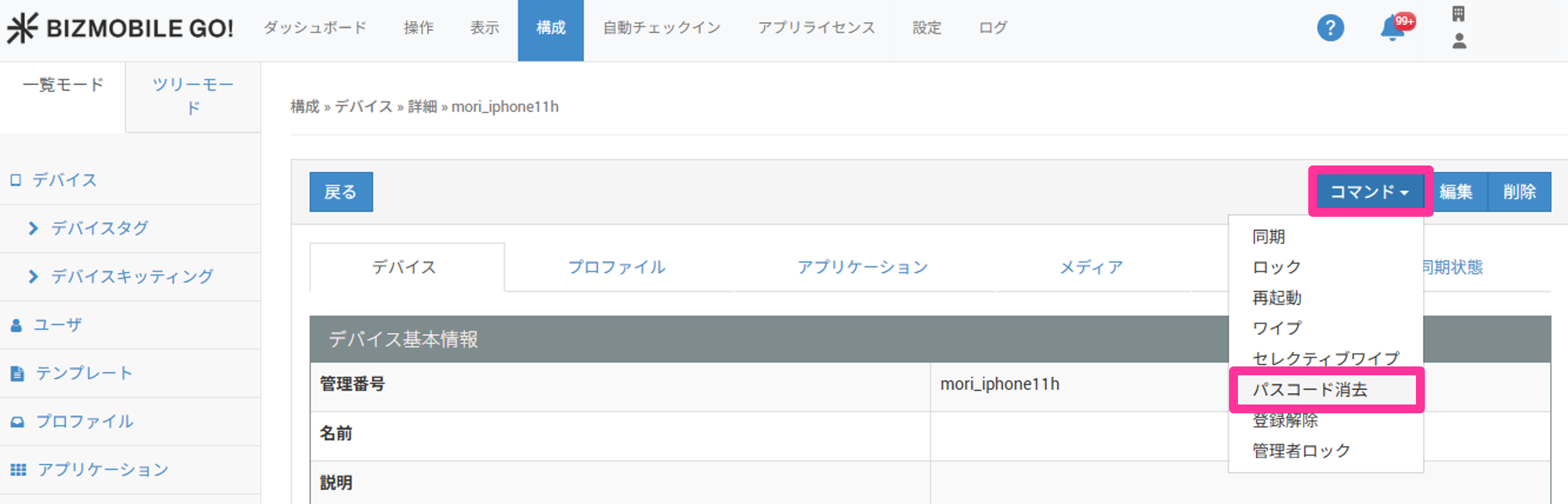
Click
Command, and then selectClear Passcode.
-
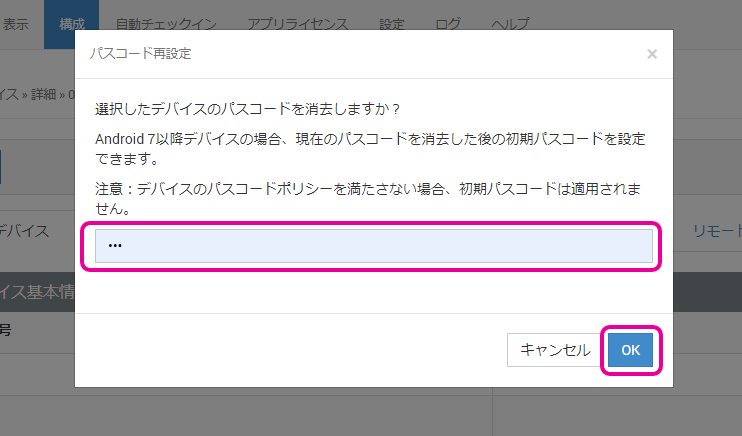
For iOS The following pop-up is displayed. Click
OK.

For Android Enter a new passcode, and then click OK.
 warning
If the new passcode you enter does not meet the device's passcode policy, the Clear Passcode command is invalid. Even if
The Clear Passcode command was sent.is displayed, the passcode is not cleared and the new passcode is not set. -
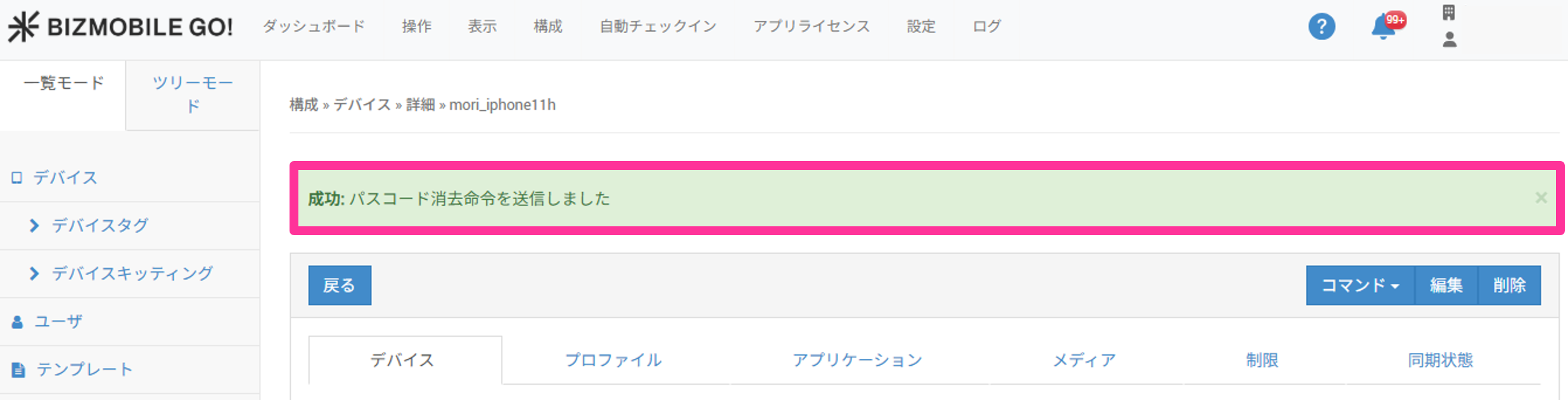
When the command is executed, a message is displayed at the top of the screen.
-
When
Passcode was cleared.is displayed in theLogmessages, the command has completed.
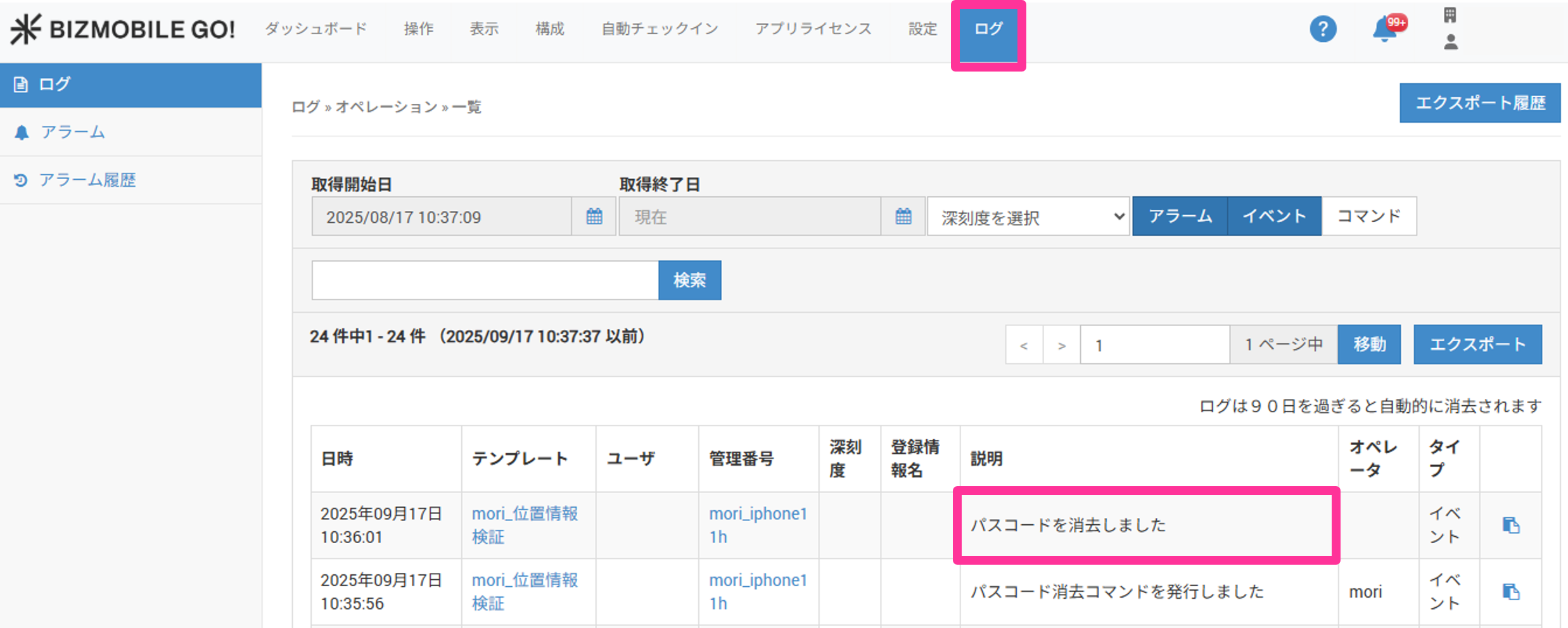
Commands are executed while the managed device is connected to the internet.
If you send a command to a managed device that is offline, it is held as a pending command and executed automatically the next time the device connects to the internet.
If you delete the device information, pending commands are deleted at the same time, so the commands are not executed.