Admin Lock
To protect lost or stolen devices, Admin Lock applies a lock that cannot be released by operations on the device.
On iOS, the device must be managed as a supervised device (Supervised). On Android, the device must be managed in Device Owner mode.
- Admin Lock cannot be released with the regular password set on the device
- While Admin Lock is active, location can be obtained even if location permission on the device is turned off
- Admin Lock is a standard service (the optional Location service is not required).
Apply Admin Lock
-
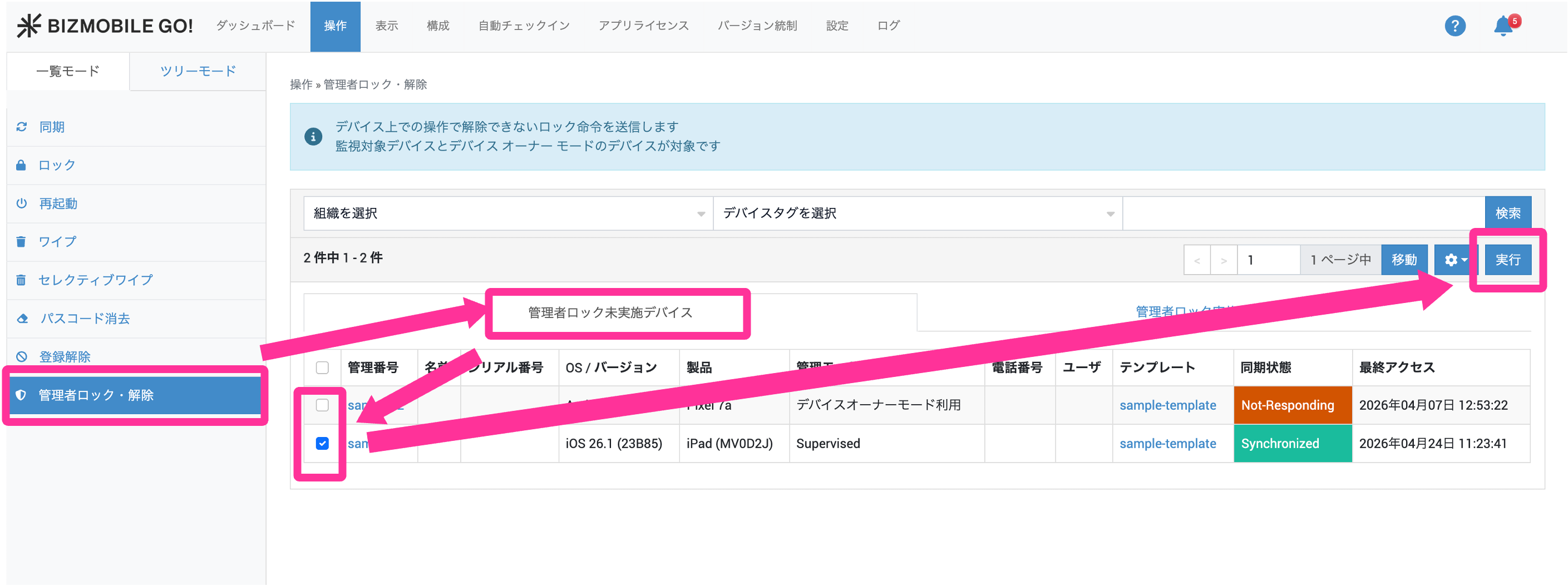
Click CONTROL → Admin Lock/Unlock → the "Devices without Admin Lock" tab, select the devices you want to lock, and then click "Execute".
-
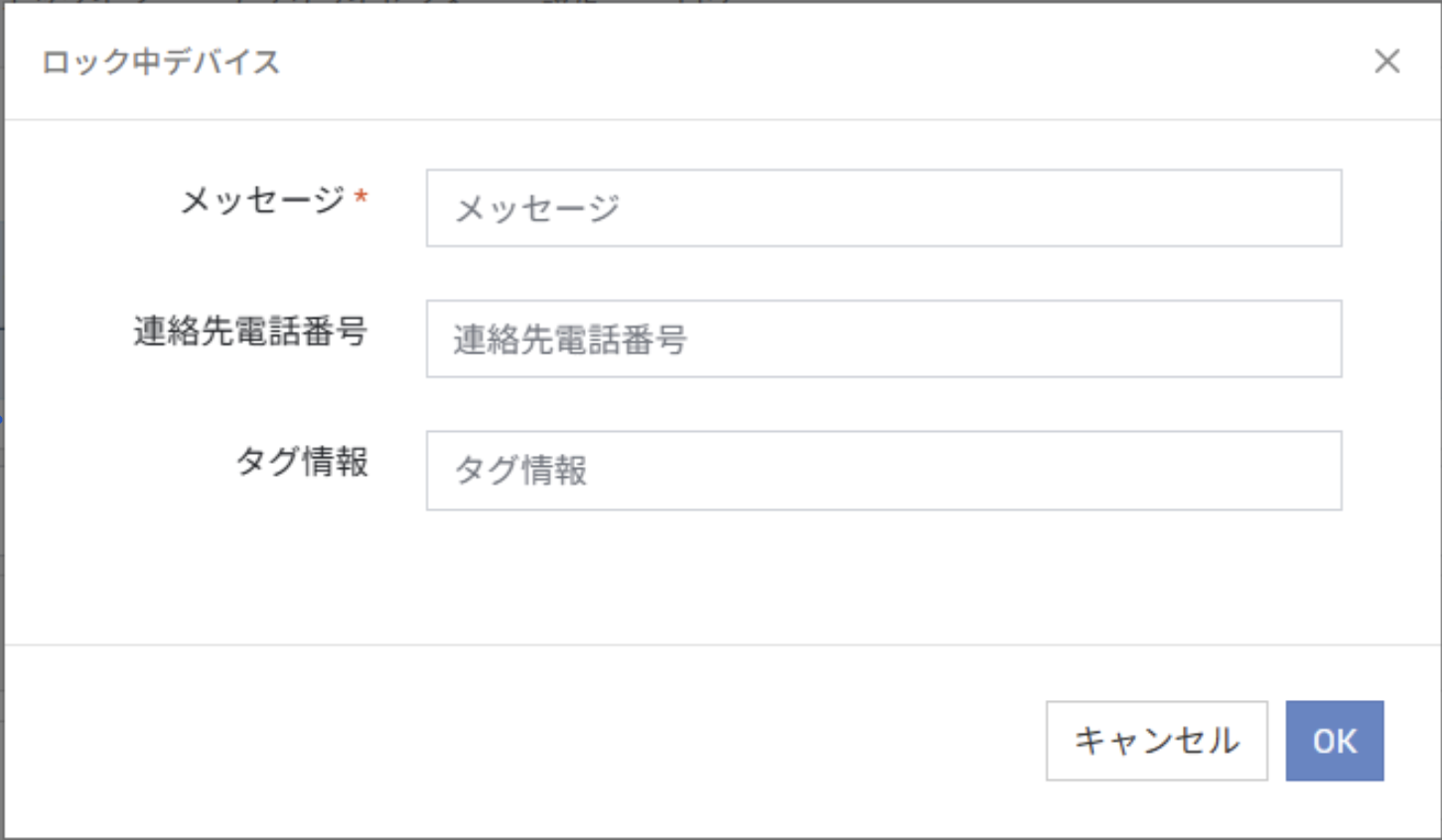
Enter the message to display on the device while Admin Lock is active and, if necessary, additional information, and then click "OK".
You can also apply Admin Lock from "Command" on the Device Detail screen.
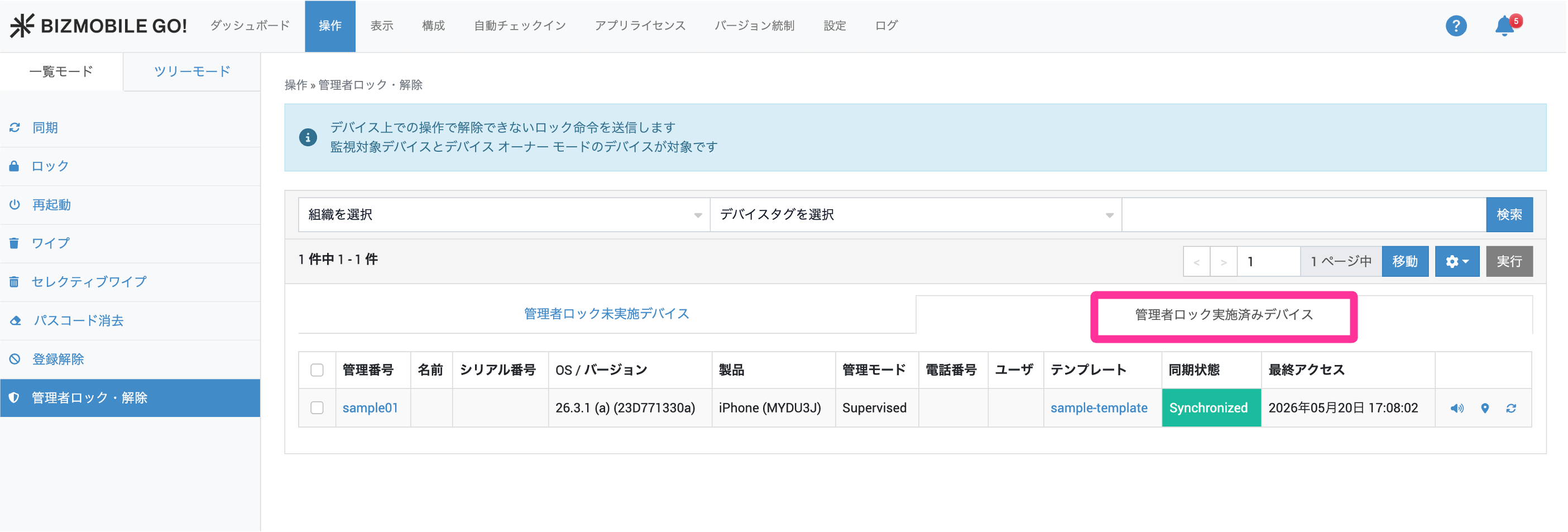
- When Admin Lock is complete (executed on the device), the device appears on the "Devices with Admin Lock" tab.
Check the location of a device under Admin Lock
For a device under Admin Lock, you can check the latest device location as follows.
- Click CONTROL → Admin Lock/Unlock → the
Devices with Admin Locktab, and then click the icon of the device whose location you want to obtain.
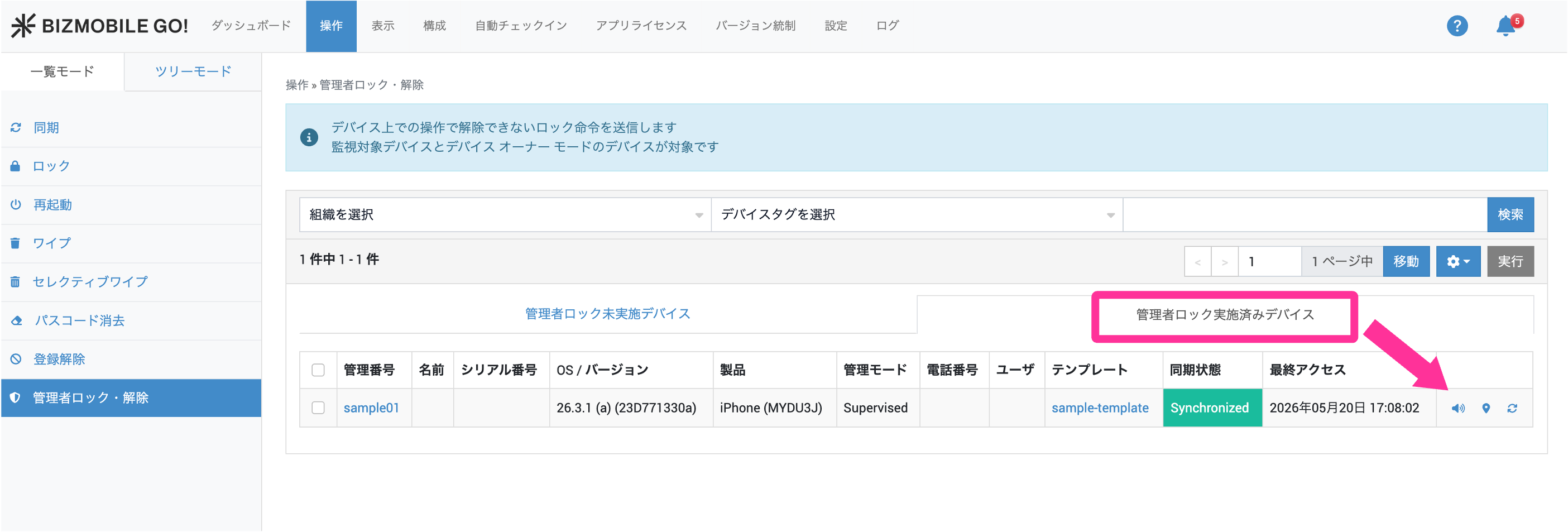
- A map is displayed with a pin at the most recently obtained device location.
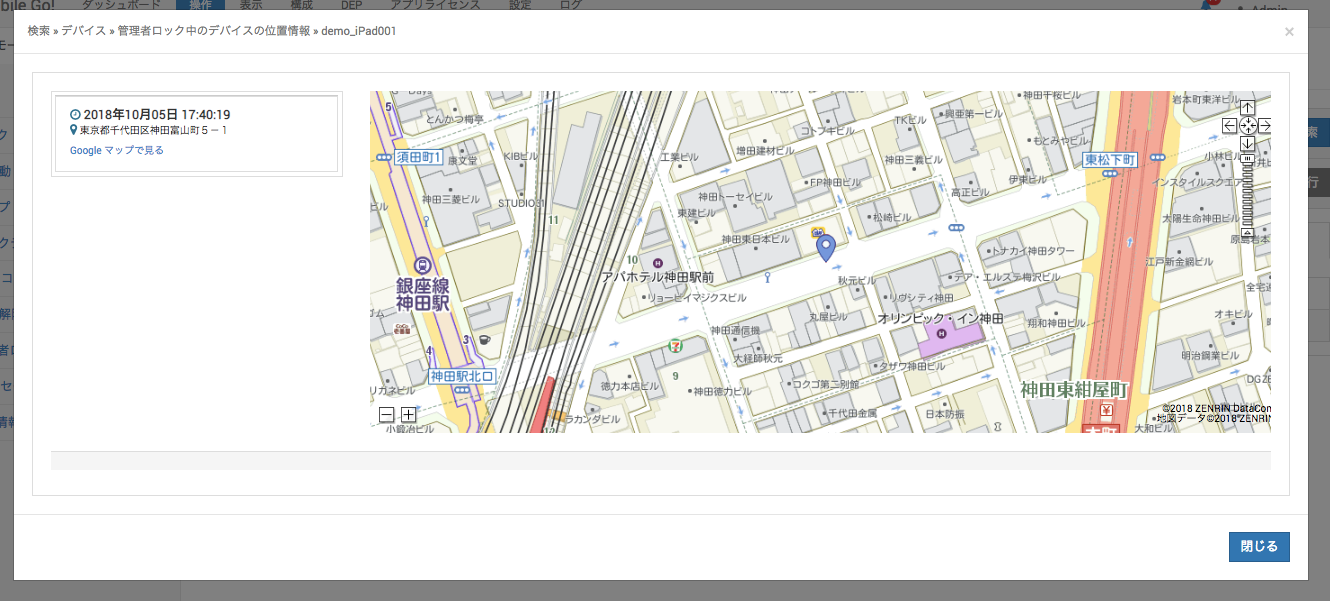
- To update the location, click the
 icon once, and then click the icon again.
The device must be powered on, connected to the internet, and able to communicate with the server. If the device cannot communicate with the server, the command is executed when the device can next communicate with the server.
Sound an alert on a device under Admin Lock (iOS only)
For a device under Admin Lock, you can sound a beep as follows.
You can search the surrounding area by following the sound, which helps you find the device sooner.
- You cannot stop the sound from the admin console.
- You can stop the sound by operating the device.
- The sound plays even in silent mode.
- Click CONTROL → Admin Lock/Unlock → the
Devices with Admin Locktab, and then click the icon of the device on which you want to sound the alert.
The device must be powered on, connected to the internet, and able to communicate with the server. If the device cannot communicate with the server, the command is executed when the device can next communicate with the server.