Set Device Owner Mode Using Android NFC
The final step in making a device manageable is to enroll it on the device itself. When enrollment is complete, the device is registered in BizMobile Go! as an MDM device and can be managed.
To enroll, reset the device, set Device Owner mode by following the steps below, and enter the Key/Code when the BizMobile Go! MDM agent app appears.
When enrollment is complete and the device is registered in BizMobile Go!, the profiles, apps, and other items registered in advance in the device's template are distributed to the device, and device setup (kitting) is completed automatically.
Note: Device Owner mode cannot be set using NFC on devices that do not have NFC.
Steps to Set Device Owner Mode
The screens show an example device setup.
The display may differ depending on the model, OS, and agent app version.
| Step | Description | Screen |
|---|---|---|
| 1 | Prepare two devices: the device that you want to set to Device Owner mode and that runs Android 5.0 or later (hereafter, the target device), and a device that distributes the Device Owner mode settings (hereafter, the parent device for setup). Note: Charge the target device to at least 90%. When the device is encrypted (described later), the battery level must be at least 90% and the device must be connected to power. | |
| 2 | Set up the parent device Download the apk file of the NFC Provisioner app to the parent device for setup. Note: Download the NFC Provisioner app apk file. The downloaded apk file appears under Menu → Downloads. Tap the displayed file. Note: Before you continue to the next step, you must allow installation of apps from unknown sources. Turn on the [Unknown sources] switch under Menu → Settings → Security. | 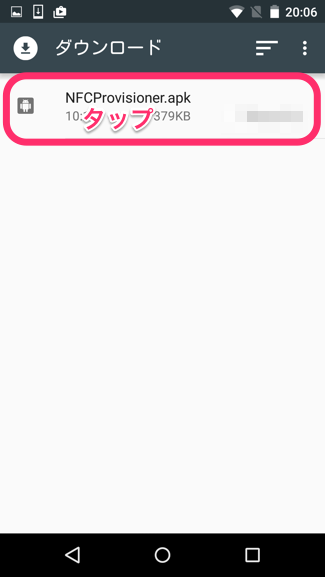 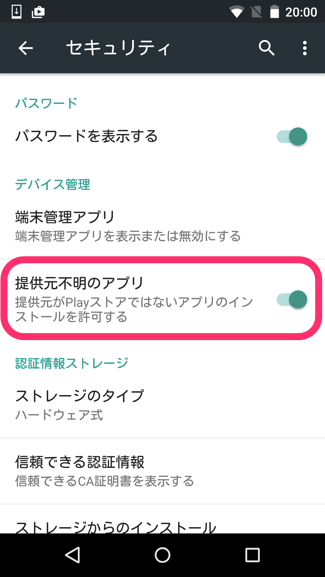 |
| 3 | The installation confirmation screen appears. Tap [Install]. | 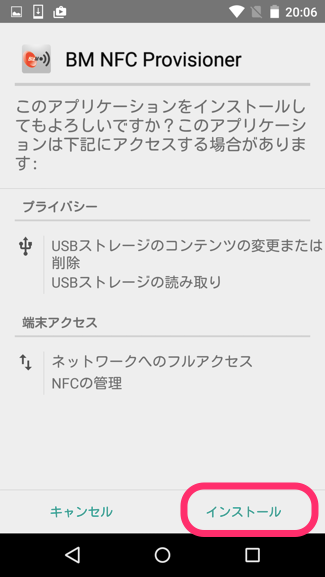 |
| 4 | When "App installed." appears, tap [Done]. The NFC Provisioner app is now installed. The app icon appears in the menu. | 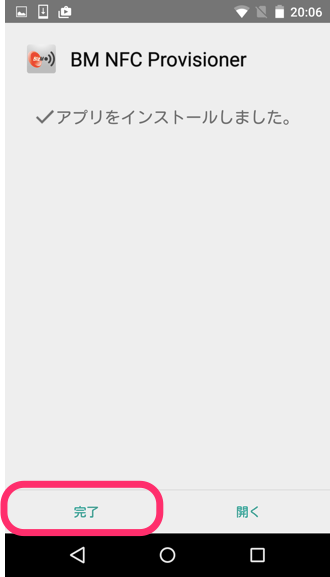 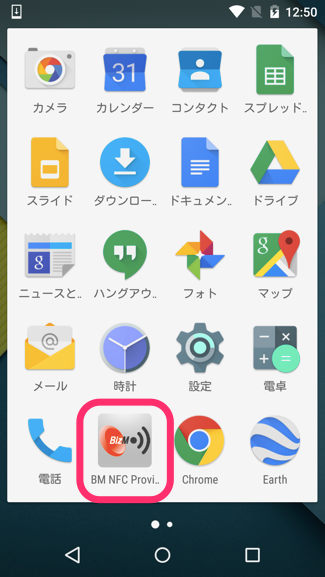 |
| 5 | Tap the NFC Provisioner app icon to start the app. | |
| 6 | After the NFC Provisioner app starts, enter the following configuration distribution URL in Enter the APK URL to provision: and tap [NEXT]. If you use mdm.bizmo.in (Tokyo region) https://s3-ap-northeast-1.amazonaws.com/bizmo/public/agents/tokyo/Android+Agent.apk If you use as-mdm.bizmo.in (Singapore region) https://s3-ap-northeast-1.amazonaws.com/bizmo/public/agents/asia/Android+Agent.apk When You are now ready to bump! is displayed, preparation on the parent device for setup is complete. | 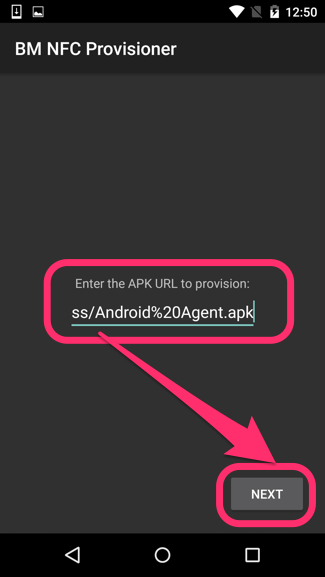 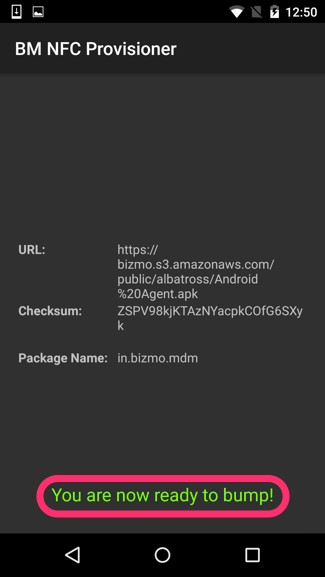 |
| 7 | Set up the target device On the target device, open Settings → System → Reset options, tap [Erase all data (factory reset)], and reset the device to its factory default state. | 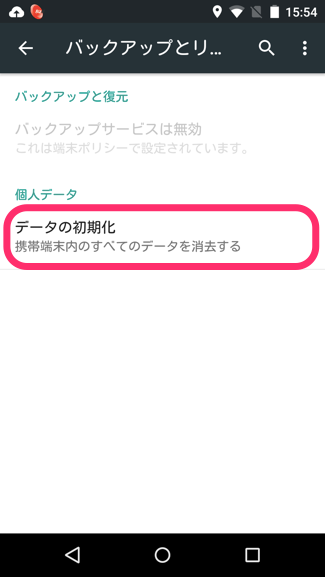 |
| 8 | When the target device has been reset to its factory default state and the language selection screen appears, select Japanese. | 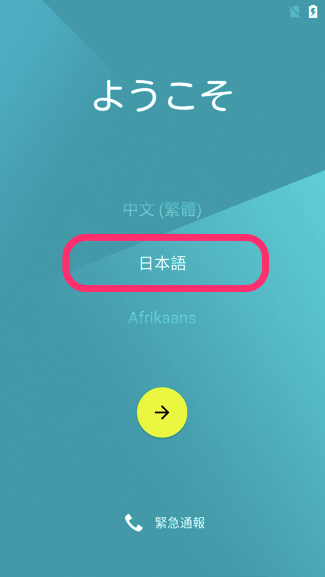 |
| 9 | With the language selection screen displayed, hold the backs of the parent device for setup and the target device together. When the beam display appears on the parent device for setup, tap the screen. | 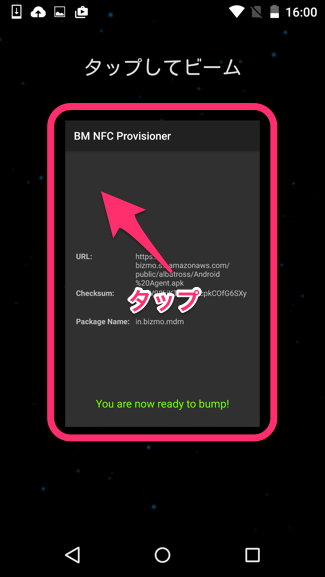 |
| 10 | The device encryption menu appears on the target device. Tap [Encrypt phone]. Important When encrypting the device, you must keep the device connected to power until encryption is complete. Also, if the device battery level is below 90%, encryption does not start even if the device is connected to power (the [Encrypt phone] button cannot be tapped). | 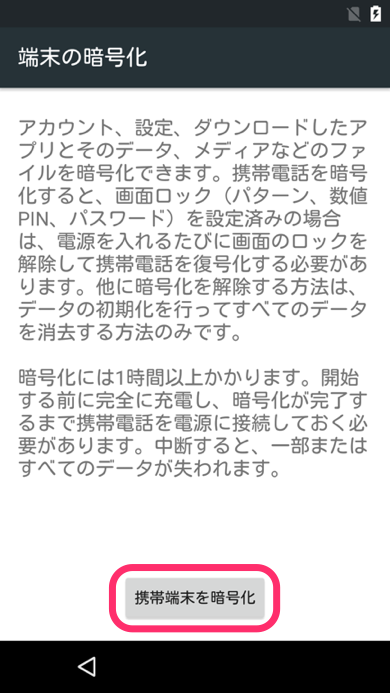 |
| 11 | When encryption is complete, the device restarts and the Wi-Fi settings screen appears. Select an access point, enter the password, and tap [Next]. | 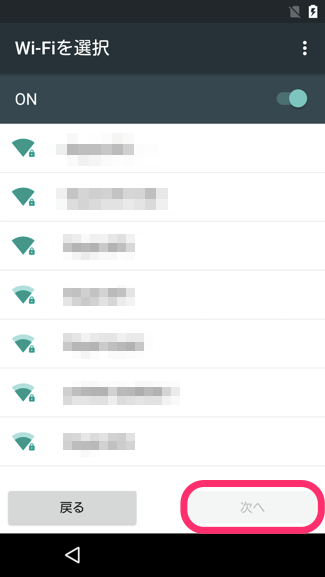 |
| 12 | The MDM agent app for Android is installed automatically, and the Device Owner mode setup of the target device is complete. Tap the BizMobile Go! MDM agent app to start it and proceed to enrollment. | 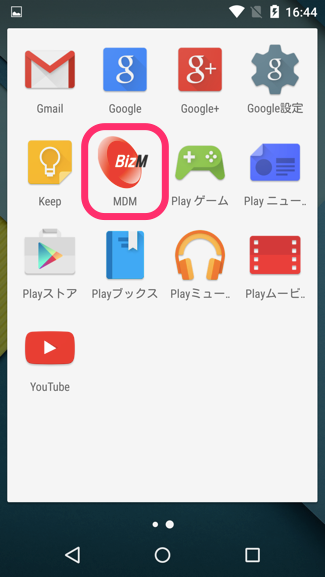 |
| 13 | The Welcome to BizMobile Go! page opens. The screen is locked on this page until device enrollment is complete. Tap Next to proceed with device enrollment. | 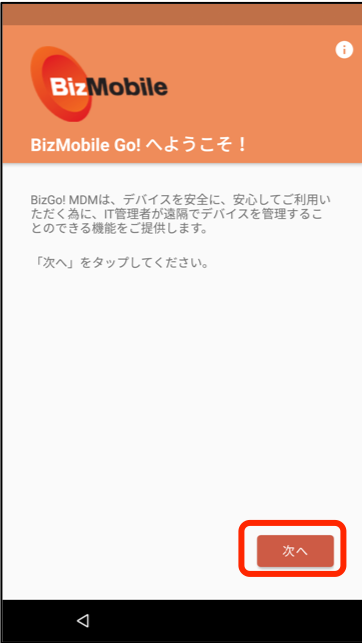 |
| 14 | Enter Key= (enrollment key) and Code= (enrollment code) from the device information created in the BizMobile Go! admin console, select Japan for Region, and tap Next. To use a QR code, tap Register using QR code. The QR code reader starts. Scan the QR code from the device information in the BizMobile Go! admin console. | 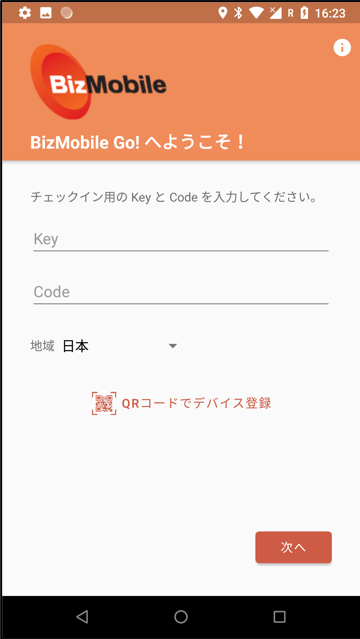 |
| 15 | When the settings screen opens and shows Management Unit: (your unit name), the Device Owner mode setup is complete. You can check whether the device is set to Device Owner under Management Type: Device Owner. After enrollment is complete, the screen lock is released and you can switch screens as usual. | 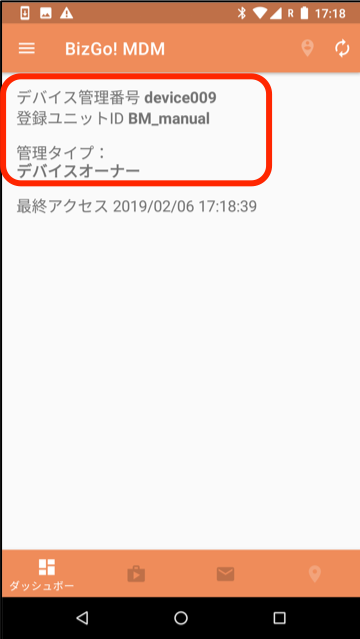 |
Depending on the network conditions in the device setup environment, it may take some time for all the profiles, apps, and other items registered in the template to be installed on the device.
Sign in to the device with a Google Workspace account at least 5 minutes after enrollment is complete.
(If you are configuring EMM with a Google Workspace account, you must sign in to the device after the first EMM sync following enrollment has completed.)