Export Logs and Alarms
You can export logs and alarms in CSV format by specifying a period and type.
For details on the contents, see Types and Contents of Exported CSV Files.
-
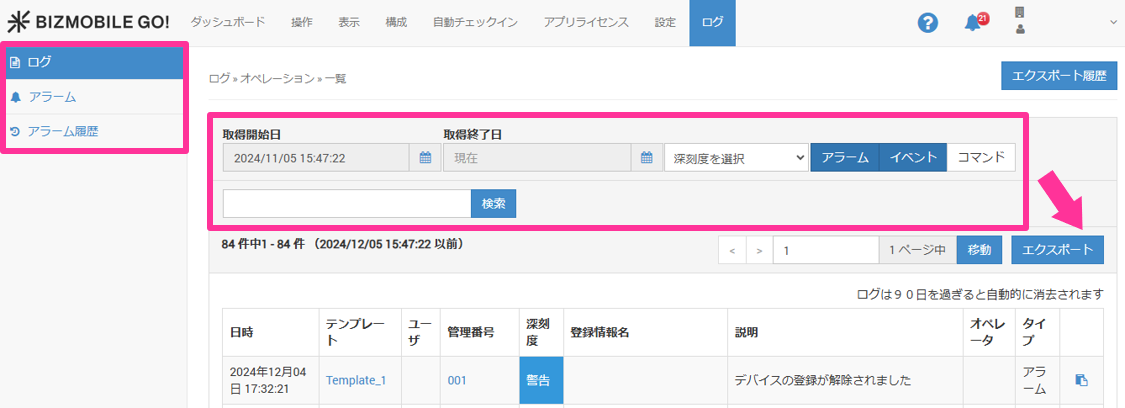
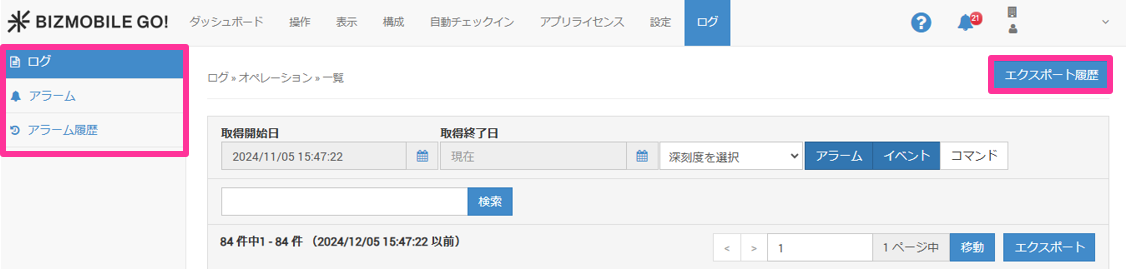
Under LOG, select Log, Alarm, or Alarm History as the export target, specify the conditions on that screen, and then click [Export].
-
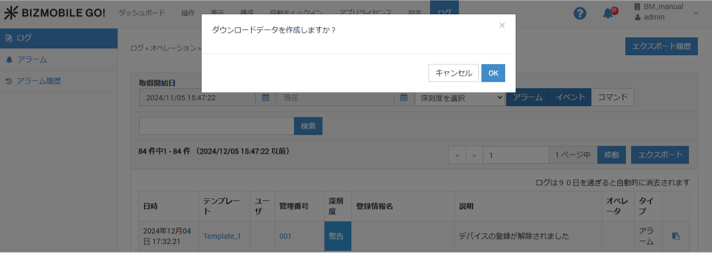
On the
Do you want to create the download?screen, click [OK].
-
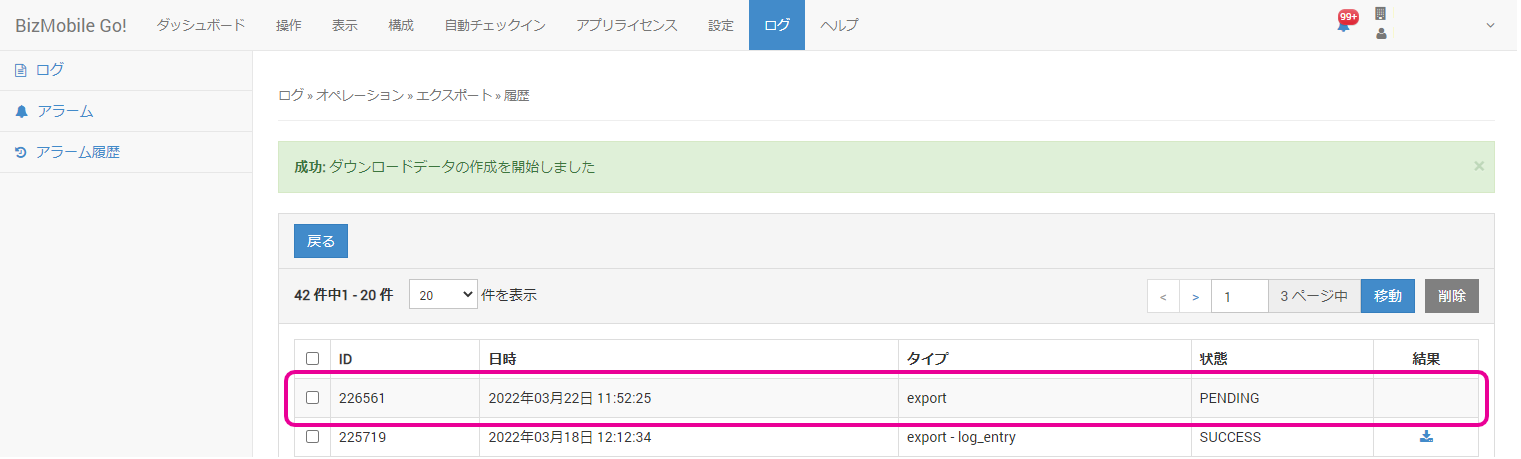
The message
Success: Started creating download dataappears, and the export data is displayed withStatus = PENDING. Wait a moment, and then click the browser's refresh button.
-
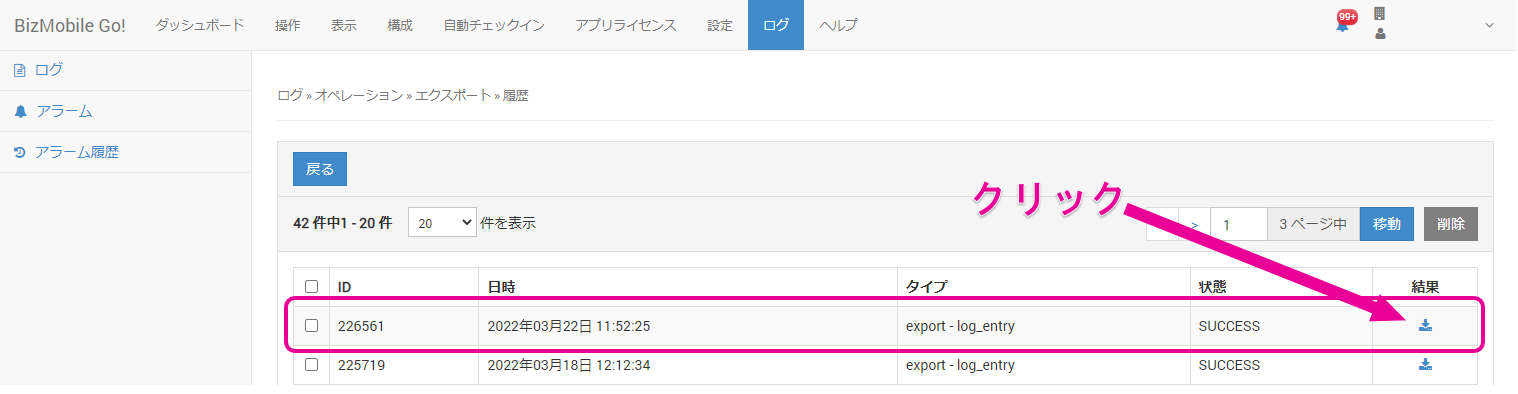
After you refresh the browser, if the download data has been created, the
Statuschanges toSUCCESS.
Click the icon to download the CSV file.
(If the status remains PENDING, wait a moment and refresh the browser again.)
Export targets and export type namesExport target Export type name Log export - log_entry Alarm export - alarm Alarm History export - log_entry -
On each of these screens, you can use [Export History] to view and delete previously exported data.
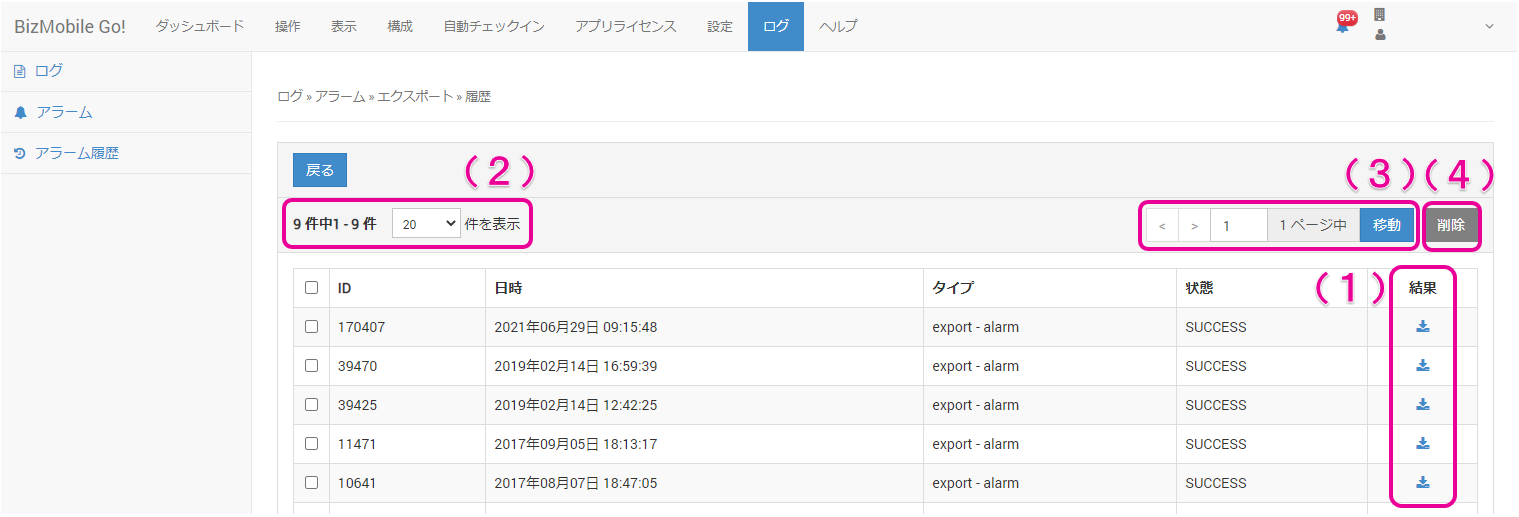
(1) Click the icon to download a past export result again
(2) You can select 20 (default), 50, or 100 items to display in the history list
(3) If the history spans multiple pages, you can move between pages
(4) You can select check boxes in the history list to delete entries