Check Logs and Alarms
You can check the system operation records on the Log screen.
To export in CSV format, see Export Logs and Alarms.
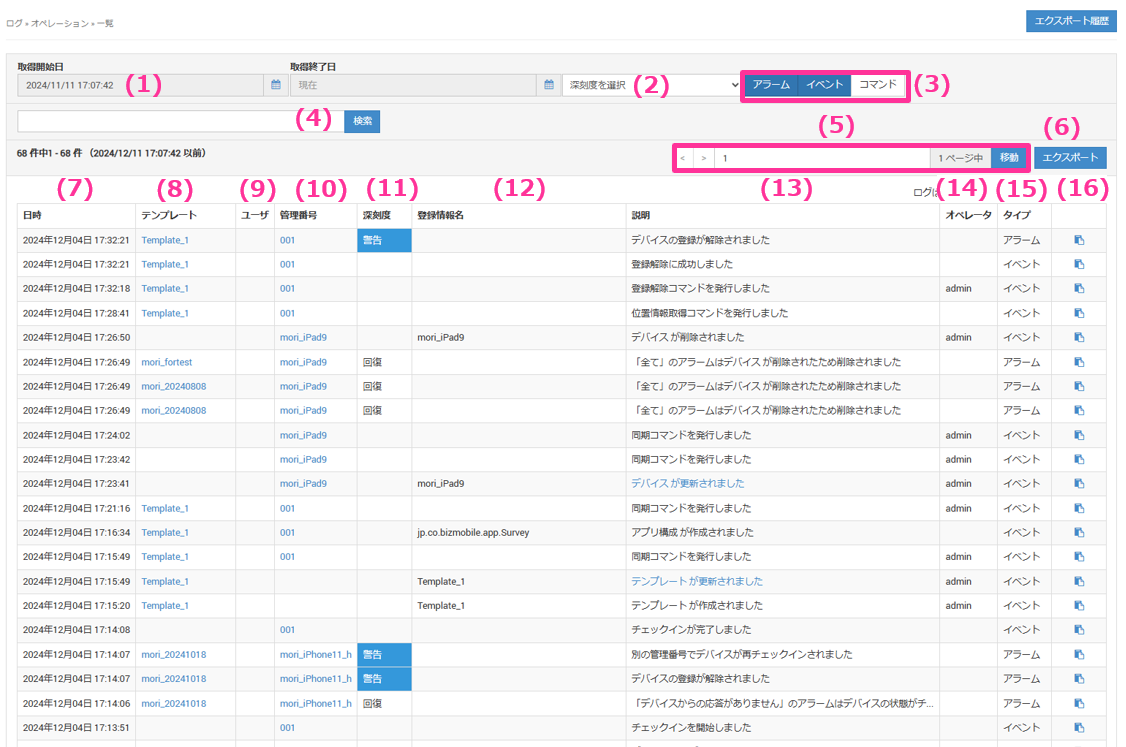
| Item | Description |
|---|---|
| (1) Start and end date specification | Specify the start and end dates to search |
| (2) Alarm severity selection | Select the severity to search |
| (3) Type selection | Select the classification of events and alarms to search - All: All types - Alarm: Records of the occurrence and recovery of the various alarms displayed on the Alarm screen - Event: Records of work in the admin console and device operations - Command: Records of errors for commands sent to devices |
| (4) Keyword search | Enter what to search for |
| (5) Page number | Navigation for the page to display |
| (6) Export | Export log information |
| (7) Date and Time | The date and time the log was recorded |
| (8) Template | The target template |
| (9) User | The user associated with the device |
| (10) Identifier | Device identifier |
| (11) Severity | The severity of the alarm. Displayed when the type is "Alarm" |
| (12) Registered Information Name | Displays the name of the target registered information, such as a template or device name |
| (13) Description | Displays the contents of the log. If it is a hyperlink, click it to go to the change history page. (Note: Some items, such as the unit detail settings and ADE profiles, may not support change history.) |
| (14) Operator | The operator ID that performed the work |
| (15) Type | Classification of the event or alarm |
| (16) Copy icon | Copies the contents of "Description" to the clipboard |