Delete Registered Information
There are three ways to delete registered information from a list screen.
- Delete multiple items of registered information at once
- Delete registered information individually (device list)
- Delete registered information individually (device details)
Delete multiple items of registered information at once
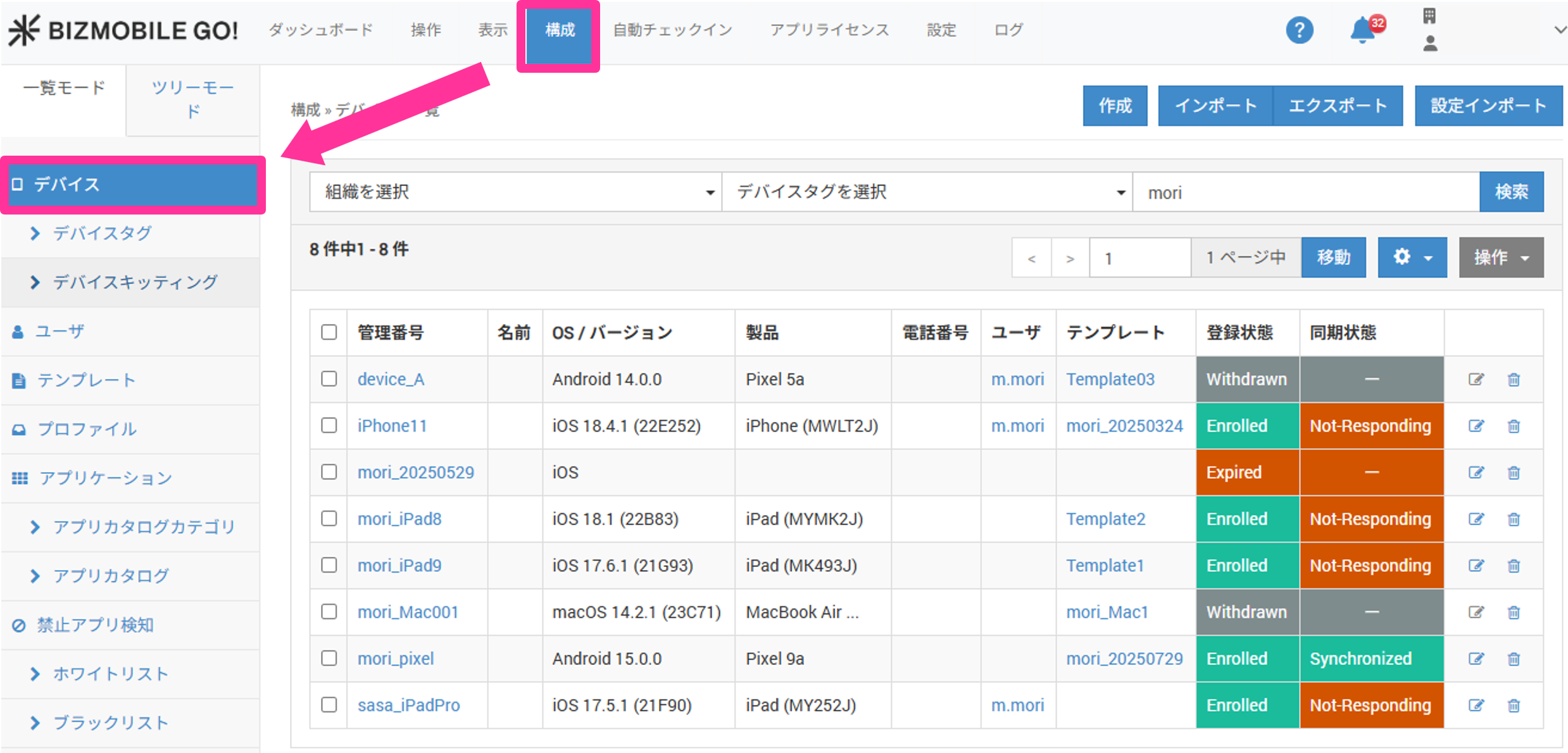
- Click CONFIG → Device.
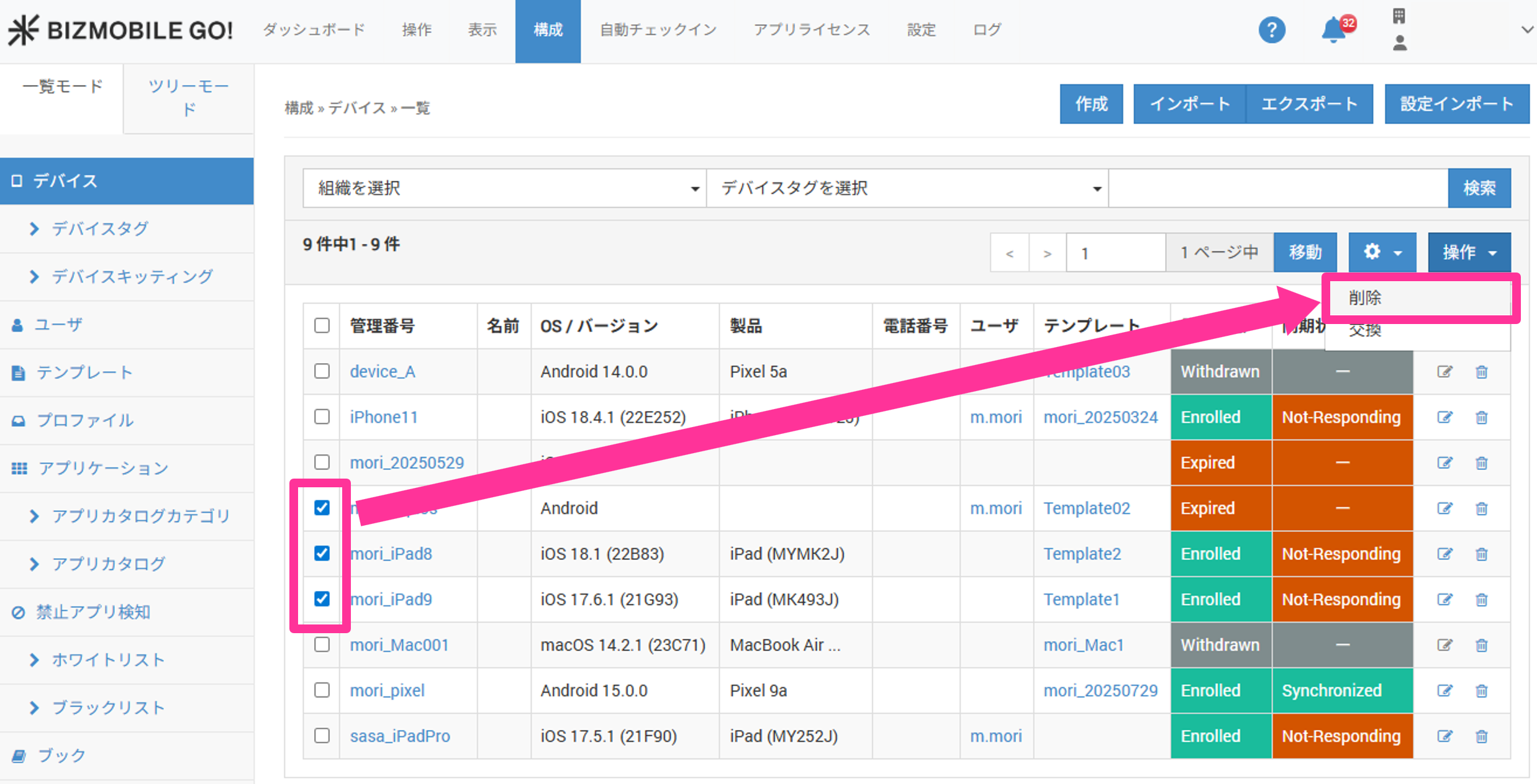
- Select the check boxes of the rows you want to delete, and then click Delete.
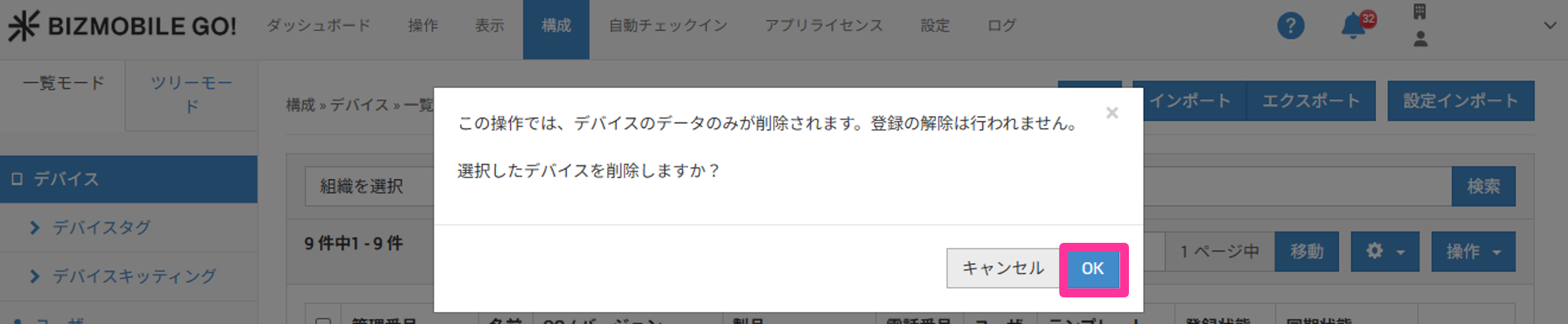
- In the confirmation pop-up, click Delete.
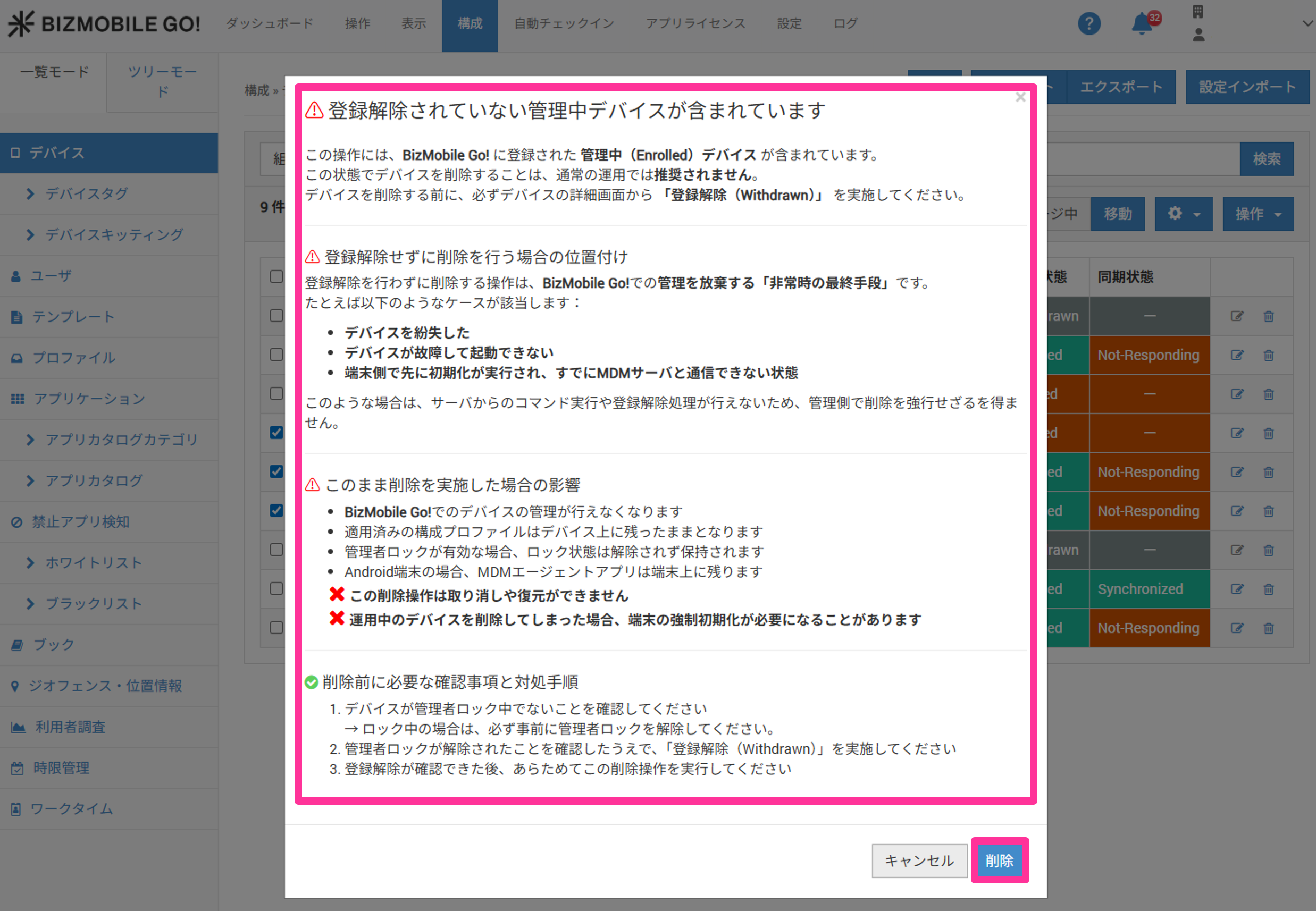
- If the selection includes devices that have not been withdrawn, a warning is displayed. Review the message carefully, and if everything is correct, click Delete.
Delete registered information individually (device list)
- Click the Delete icon
 at the right end of the row you want to delete.
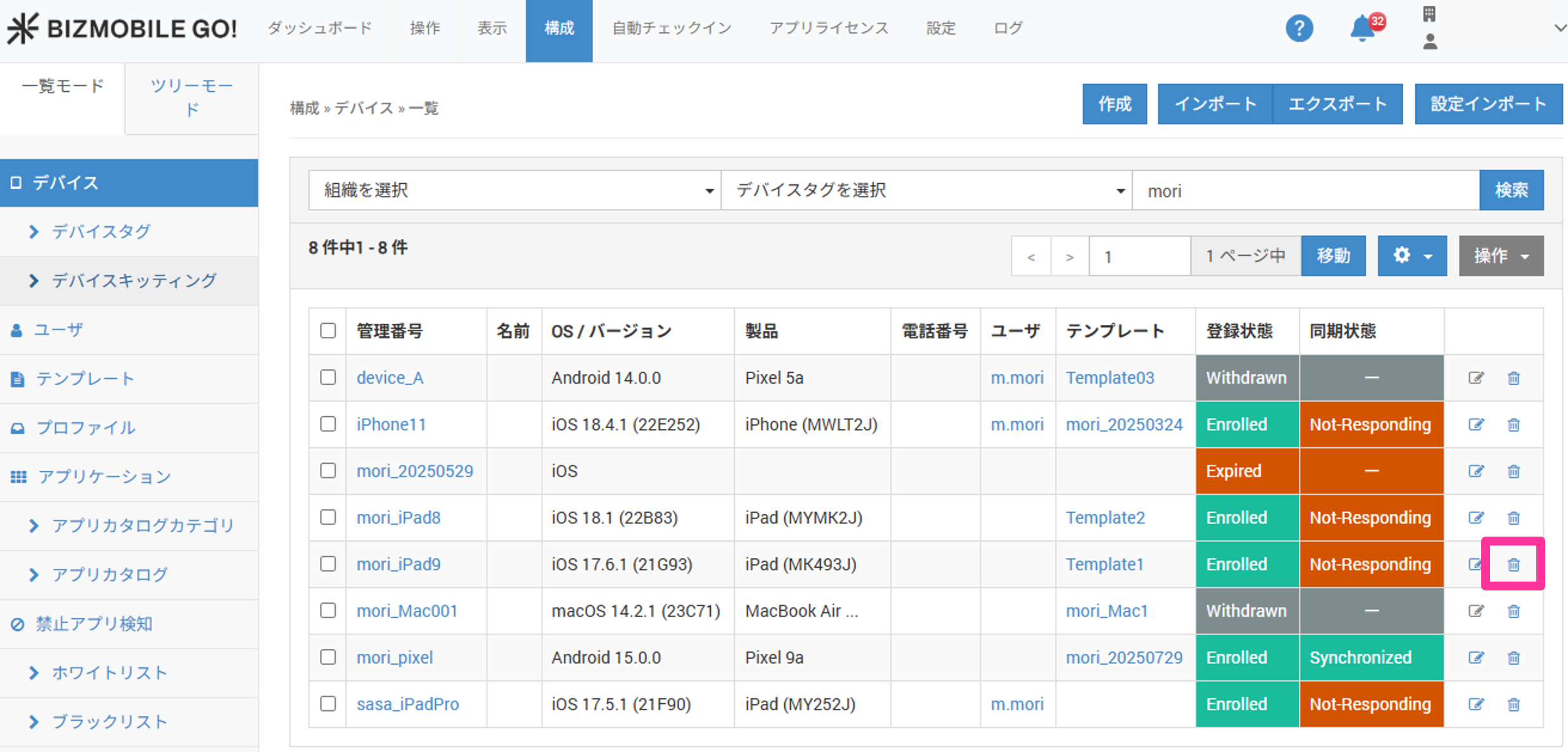
- In the confirmation pop-up, click Delete.
- If the selection includes devices that have not been withdrawn, a warning is displayed. Review the message carefully, and if there is no problem, click Delete.
Delete registered information individually (device details)
- Click the identifier of the device you want to delete.
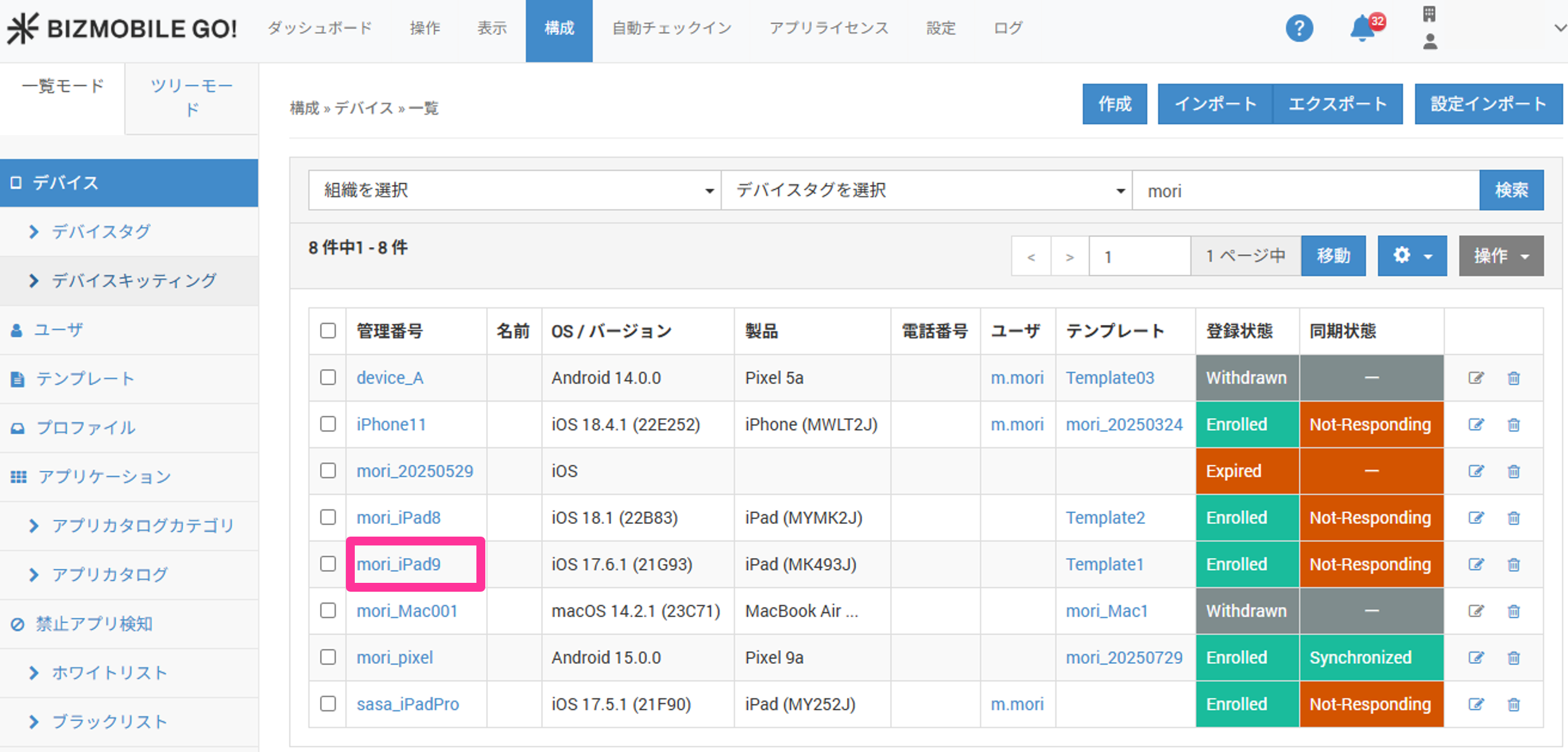
- On the Device Detail screen, click the Delete button.
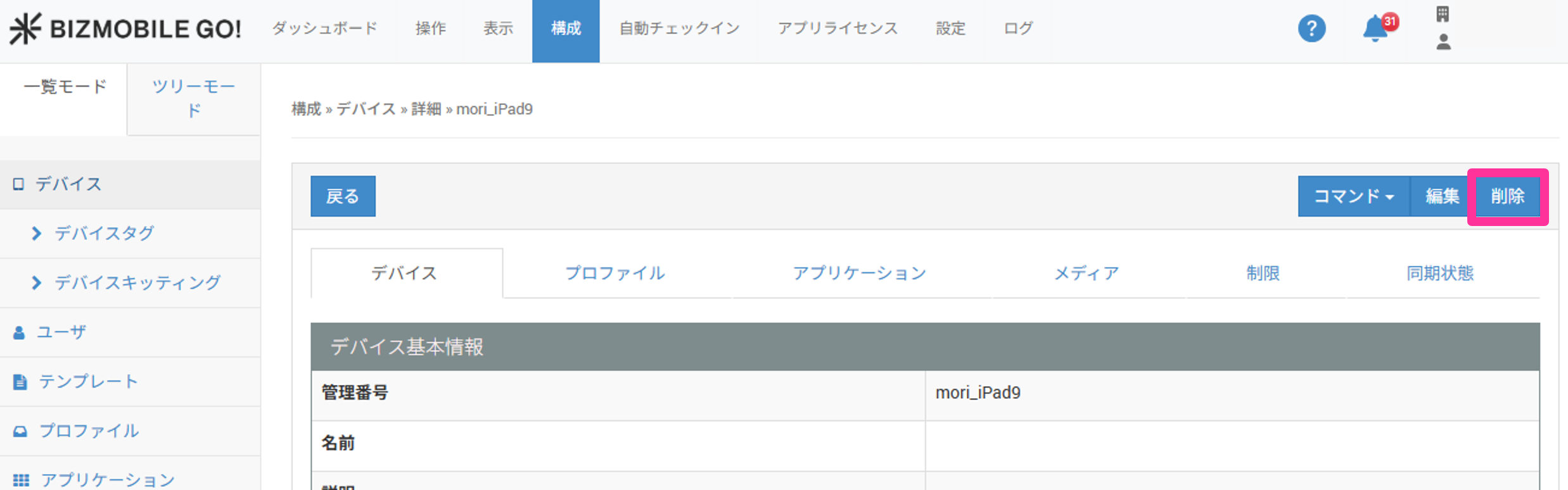
- In the confirmation pop-up, click Delete.
- If the selection includes devices that have not been withdrawn, a warning is displayed. Review the message carefully, and if there is no problem, click Delete.