How to Use the BizGo! WorkTime App
When you sign in to the BizGo! WorkTime app, the template switches and you can use the work apps.
When the work hours specified in advance have elapsed, the app signs out automatically, the template switches, and the work apps can no longer be used.
If you quit the app while you are signed in to the BizGo! WorkTime app (during work hours), you must sign in again.
Sign In
The sign-in screen differs depending on the Authentication Method set in the policy.
When Authentication Method is User
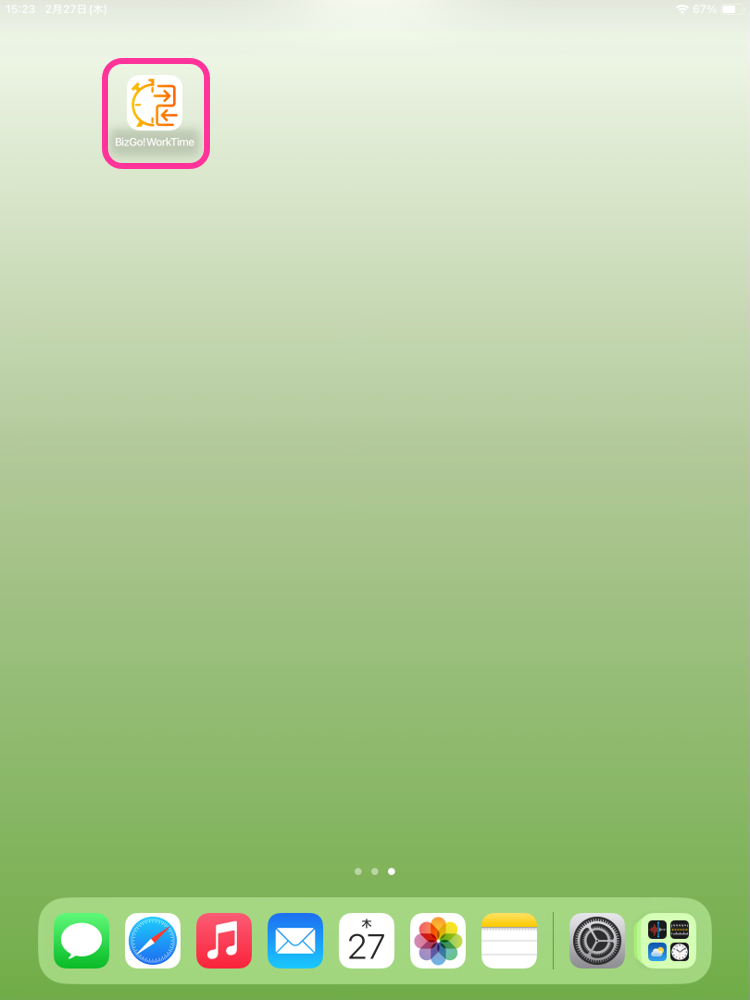
- Start BizGo! WorkTime.
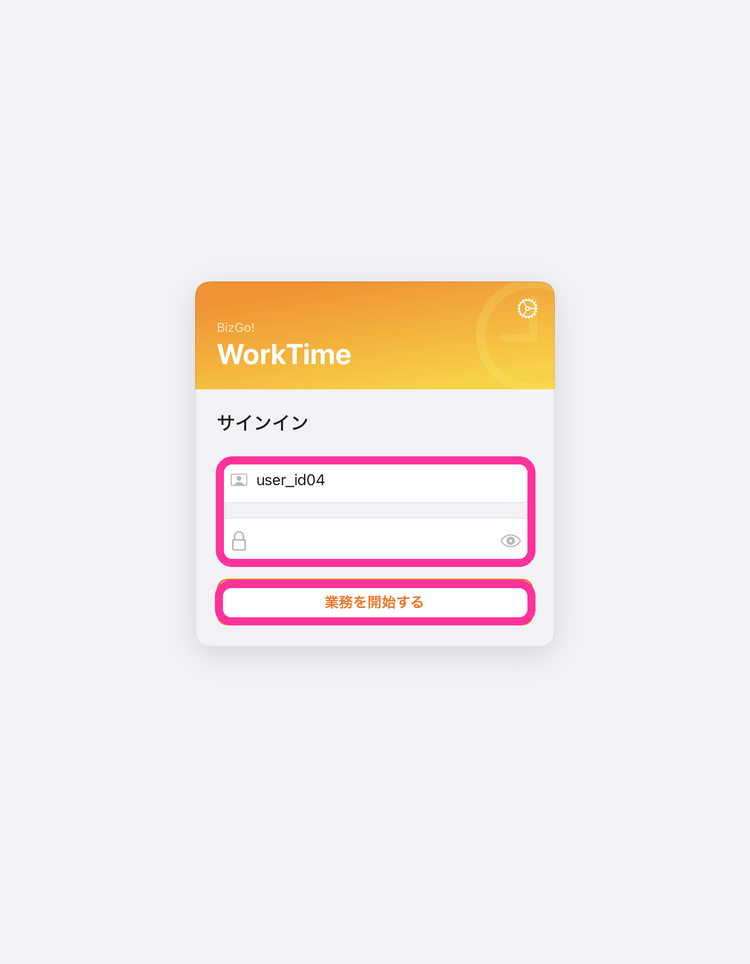
- The sign-in screen appears. Enter the "User ID (user_id)" and "Password (password)" and tap "Start Work."
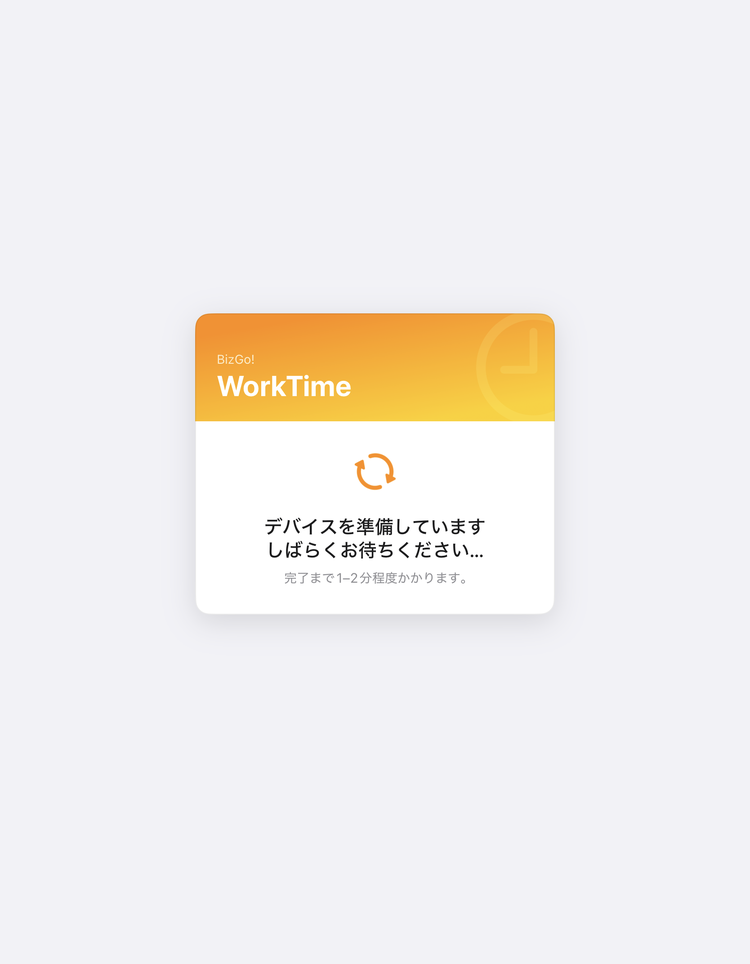
- The "Preparing your device" screen appears. When the device receives the sync command for switching templates, the next screen appears automatically (usually in about 1 to 2 minutes).
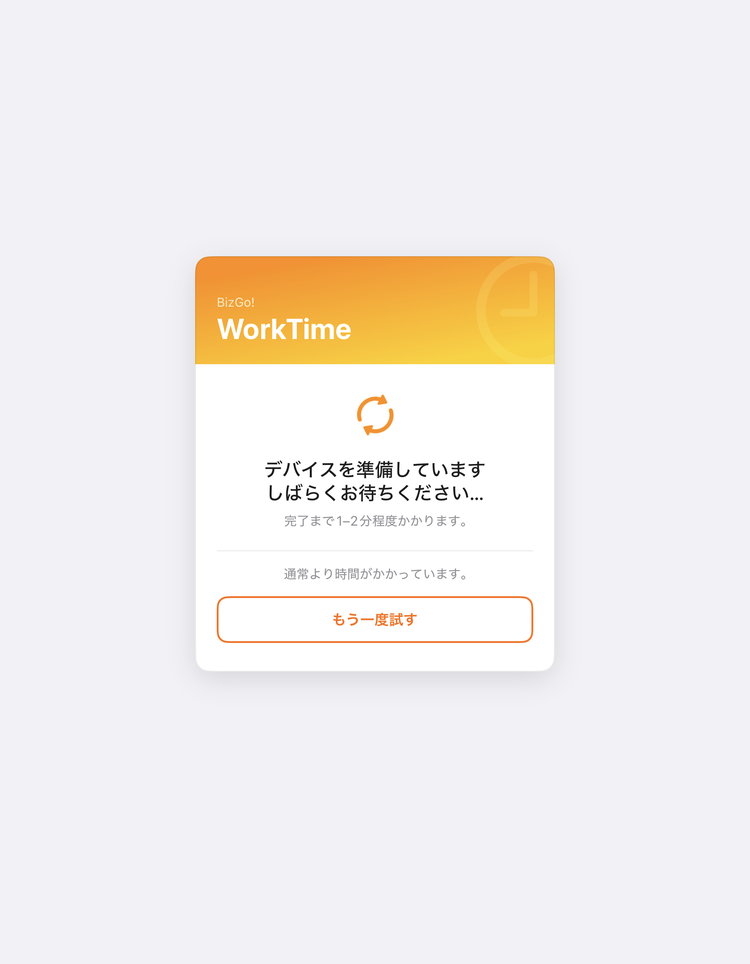
If the screen does not change for 5 minutes or more, "This is taking longer than usual." appears. Check the network connection and tap "Try Again."
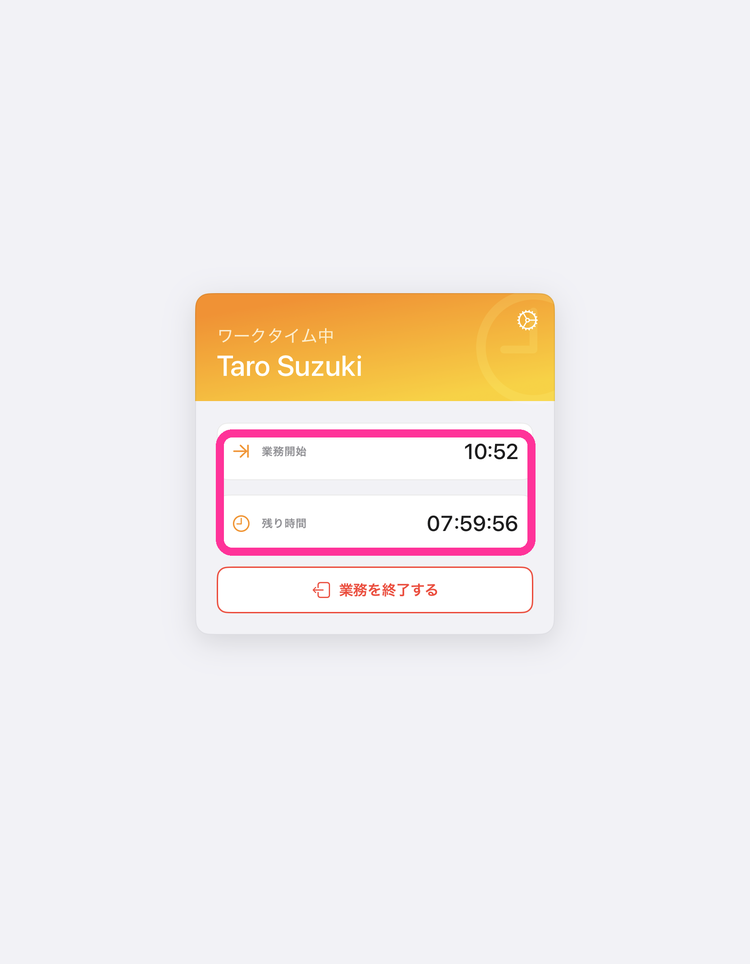
- Sign-in is complete when your name and the time remaining until sign-out are displayed on the screen.
When Authentication Method is No User
- Start BizGo! WorkTime.
- The sign-in screen appears. Tap "Start Work."
The fields for the user ID and password are not shown.
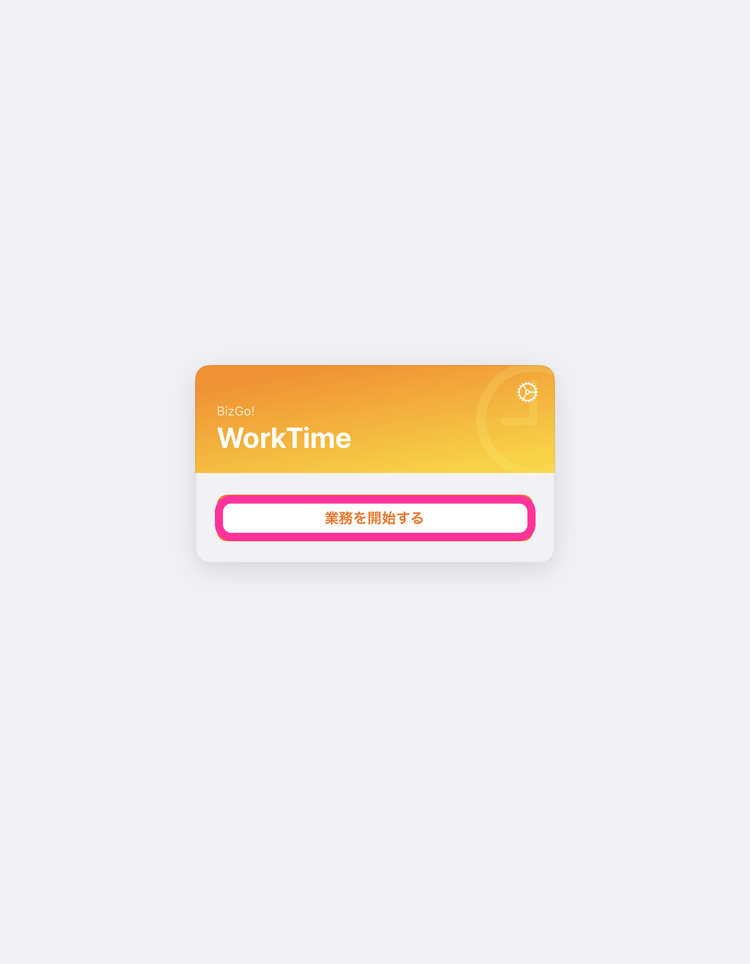
- The "Preparing your device" screen appears, and when the device receives the sync command for switching to the on-duty template, the next screen appears.
The screen does not show a user name. It shows theWork Starttime (and theTime Remainingif a work duration is specified).
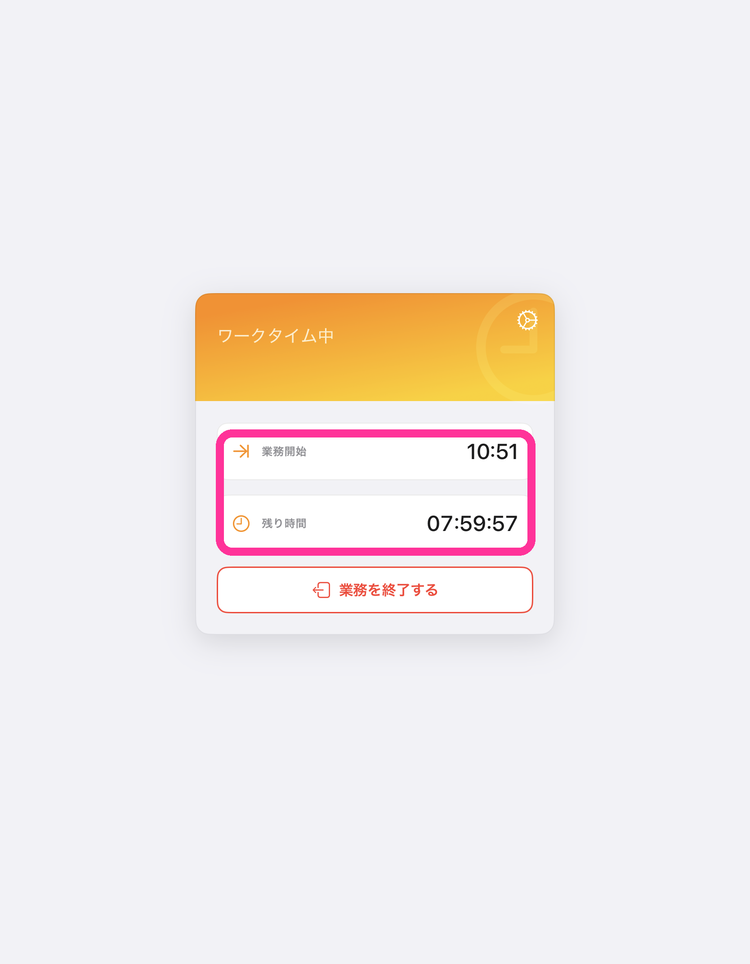
- To end work, tap "End Work." The device switches to the off-duty template.
If you quit the app while signed in with No User and then sign in again, the previous session is not carried over, and a new work session starts.
End Work
To end work during work hours, follow these steps.
- Start the BizGo! WorkTime app.
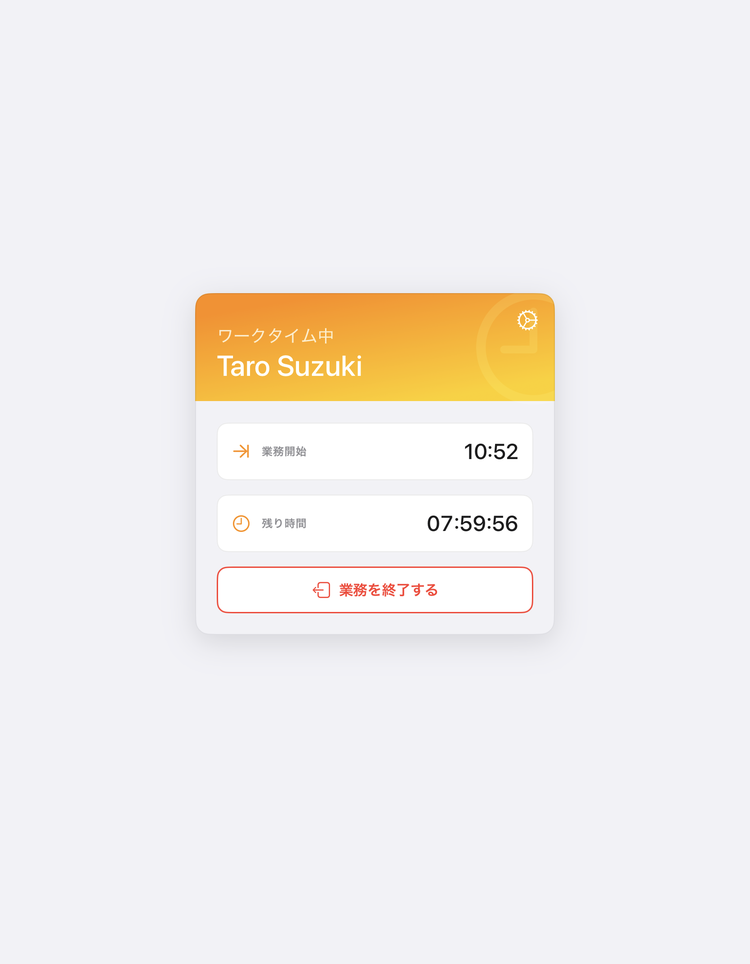
- Tap "End Work."
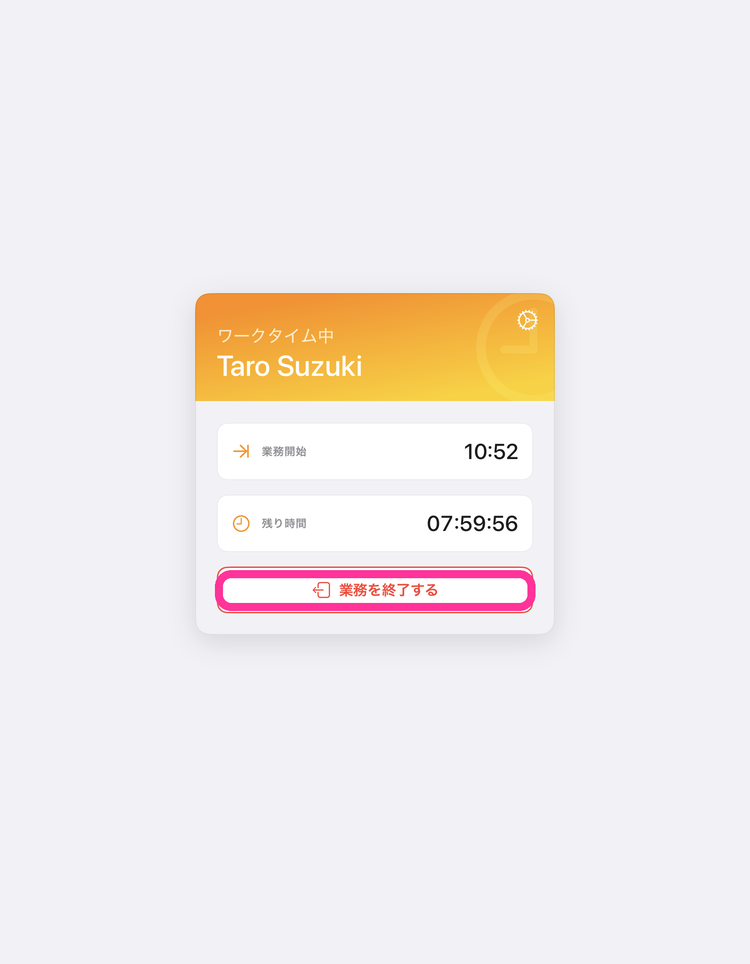
- A confirmation pop-up appears. Tap "End."
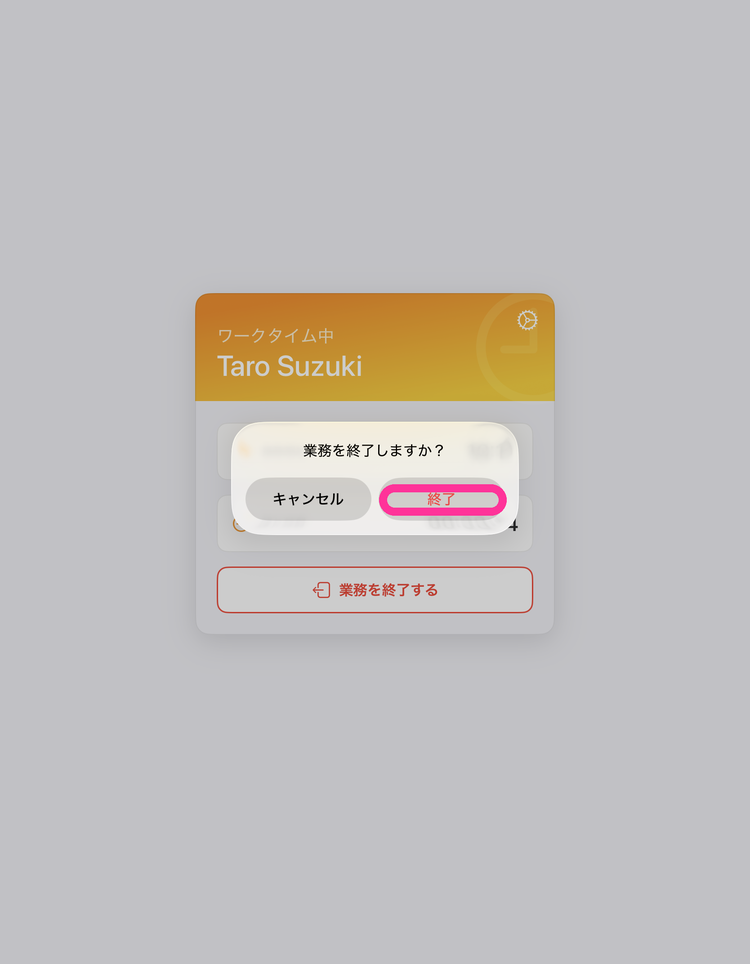
- The "Preparing your device" screen appears. When the device receives the sync command for switching to the off-duty template, the screen returns to the sign-in screen automatically.
- The operation is complete when the sign-in screen appears again.
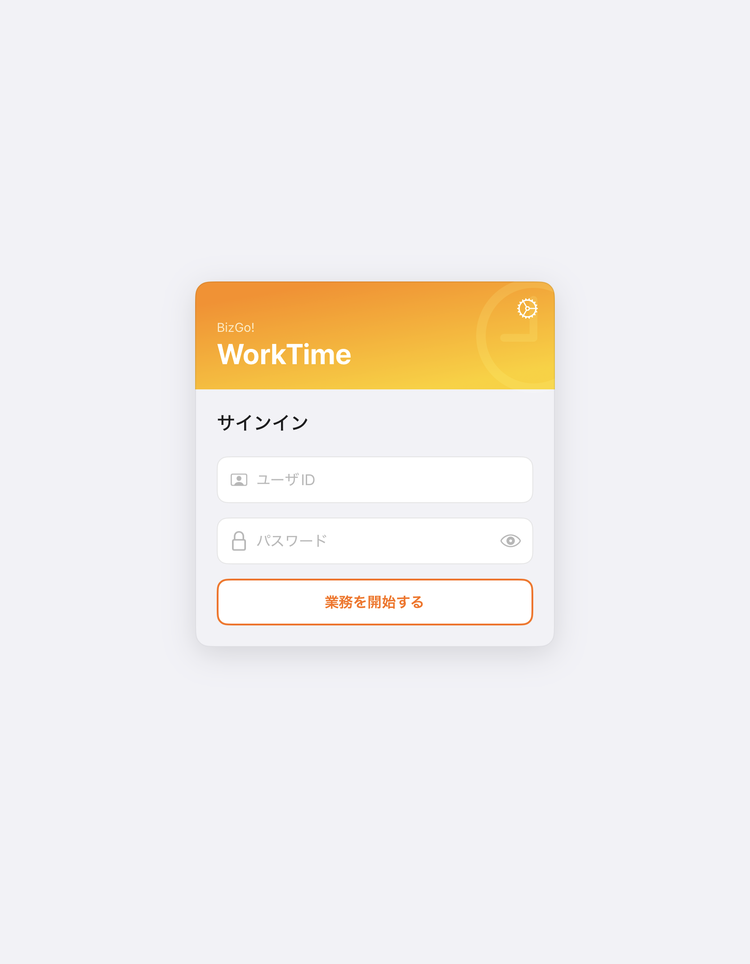
Extend Work Hours
You can extend work hours from the BizGo! WorkTime app.
The extension is equal to the length of the work hours specified.
- Start the BizGo! WorkTime app.
- Tap "Extend Work."
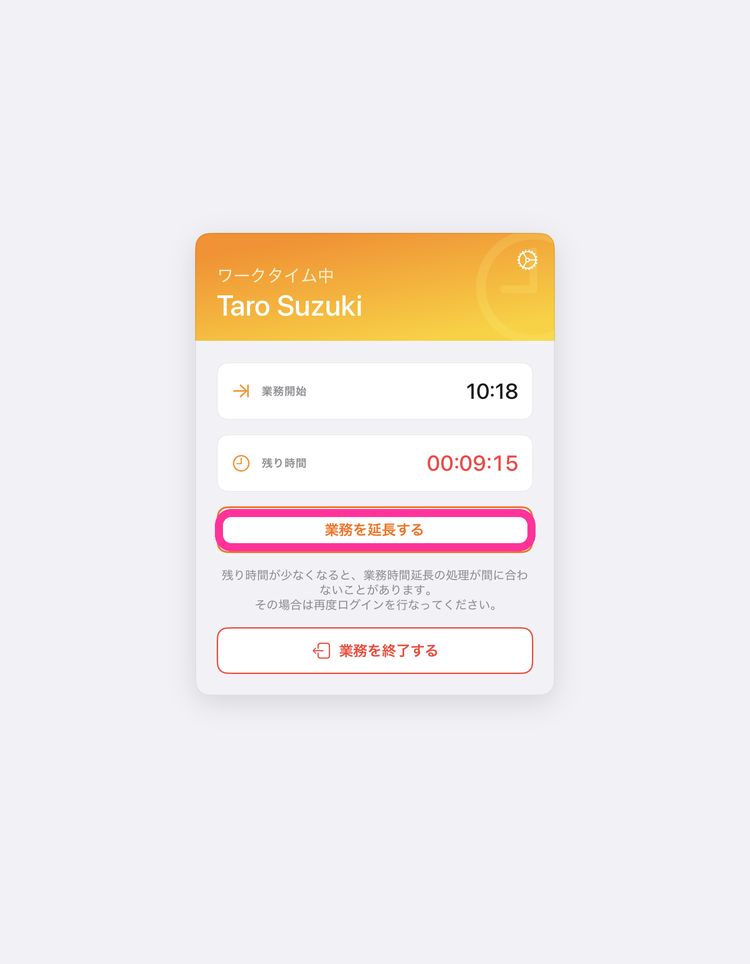
- A confirmation pop-up appears. Tap "Extend."
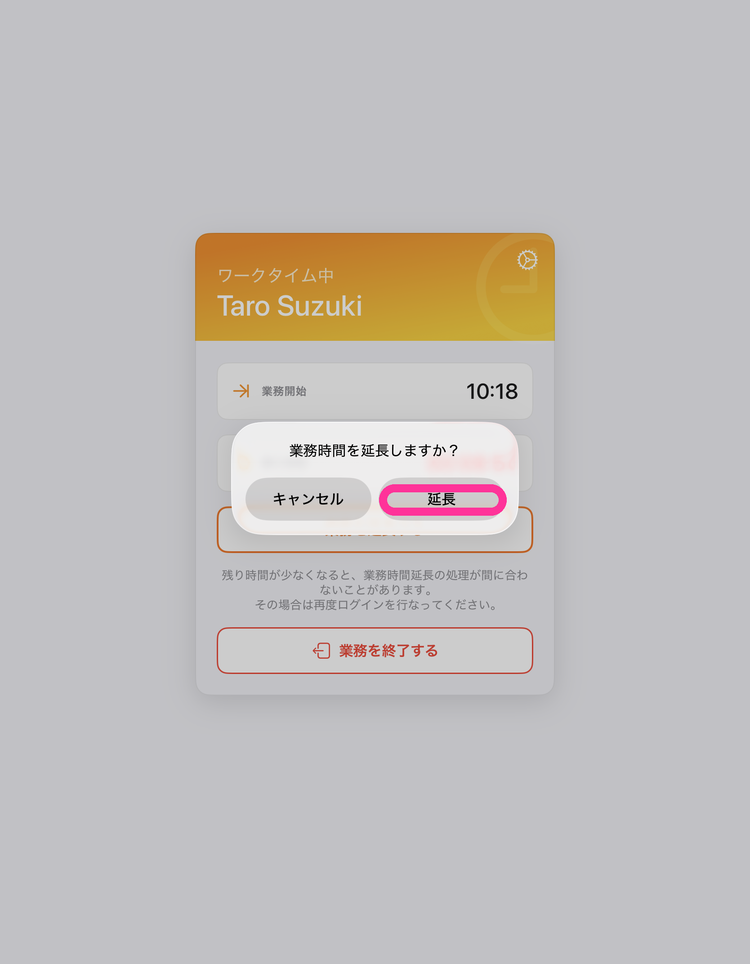
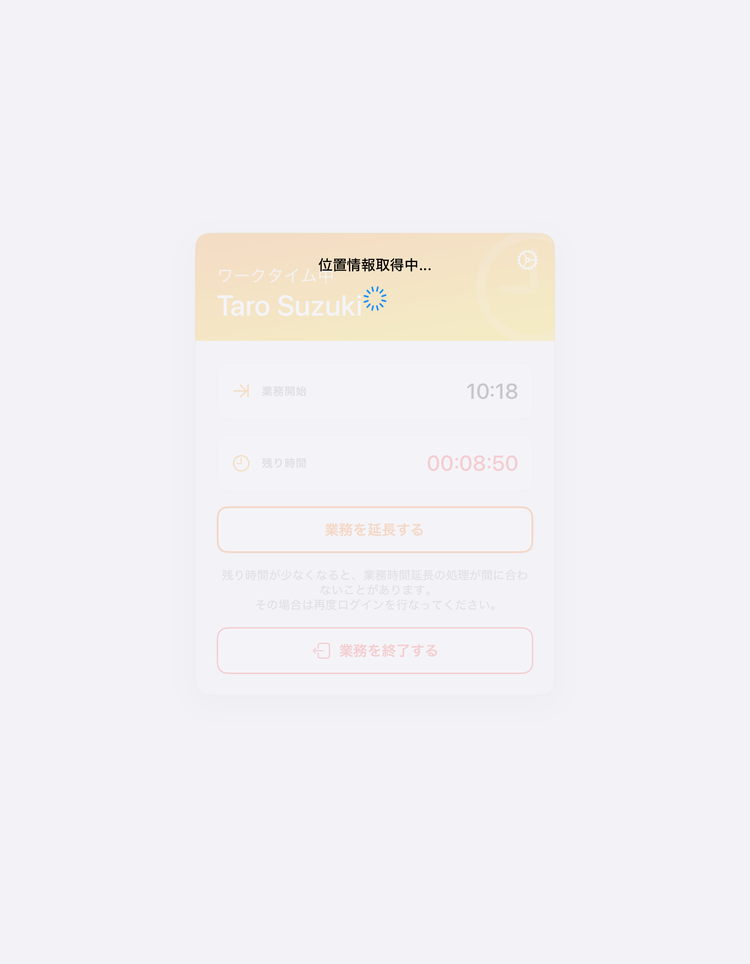
- Processing starts.
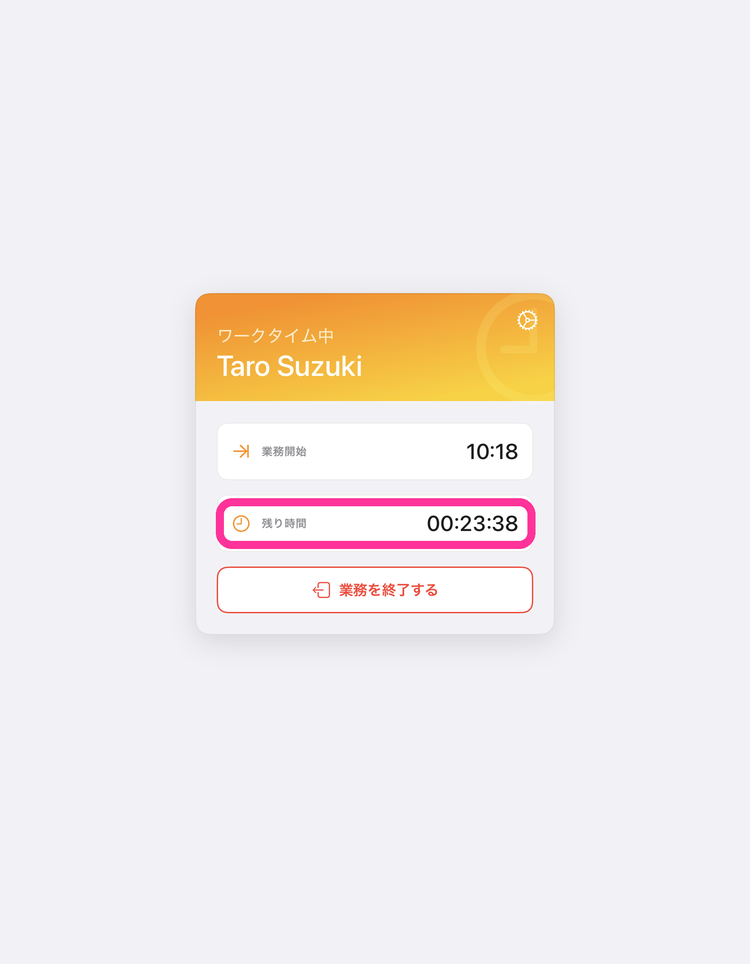
- The operation is complete when the time remaining until sign-out has been extended.
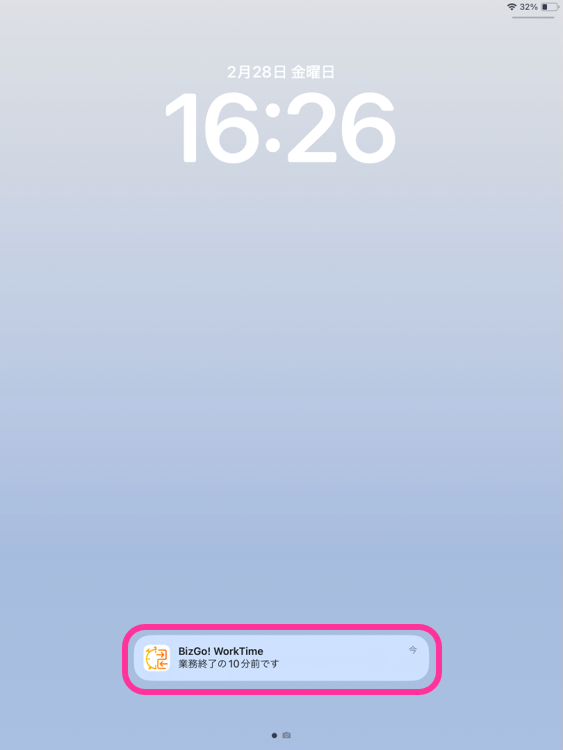
Notification 10 Minutes Before Work Hours End
When less than 10 minutes of work time remain in the BizGo! WorkTime app, a notification is sent.
Change the Password
Change the user's password from the BizGo! WorkTime app.
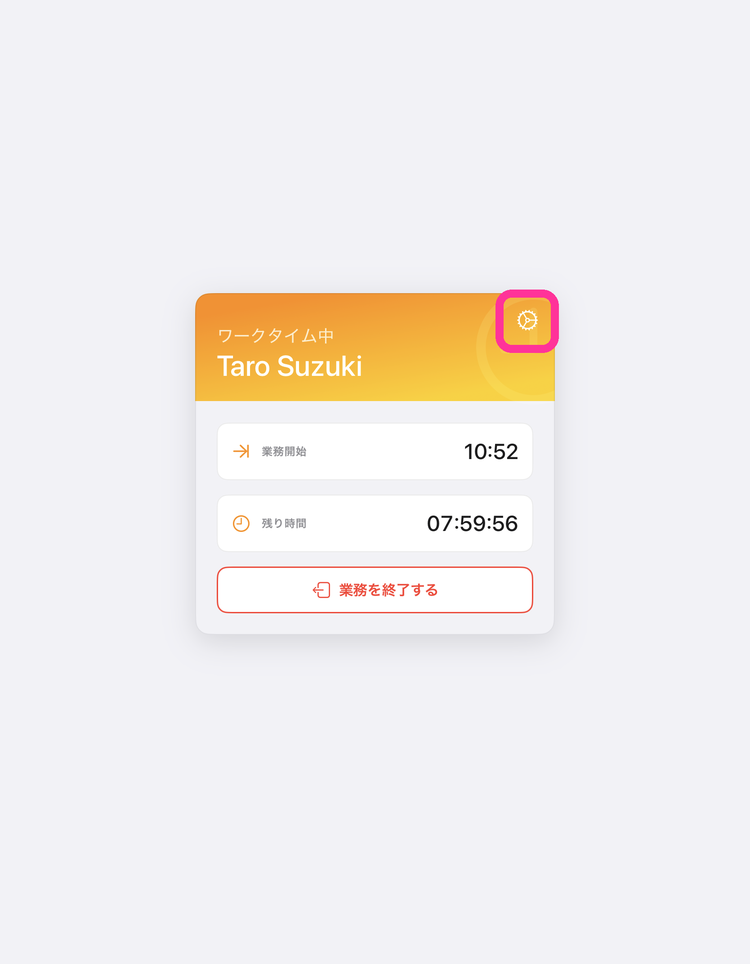
- While signed in to the BizGo! WorkTime app, tap the settings icon at the upper right of the screen.
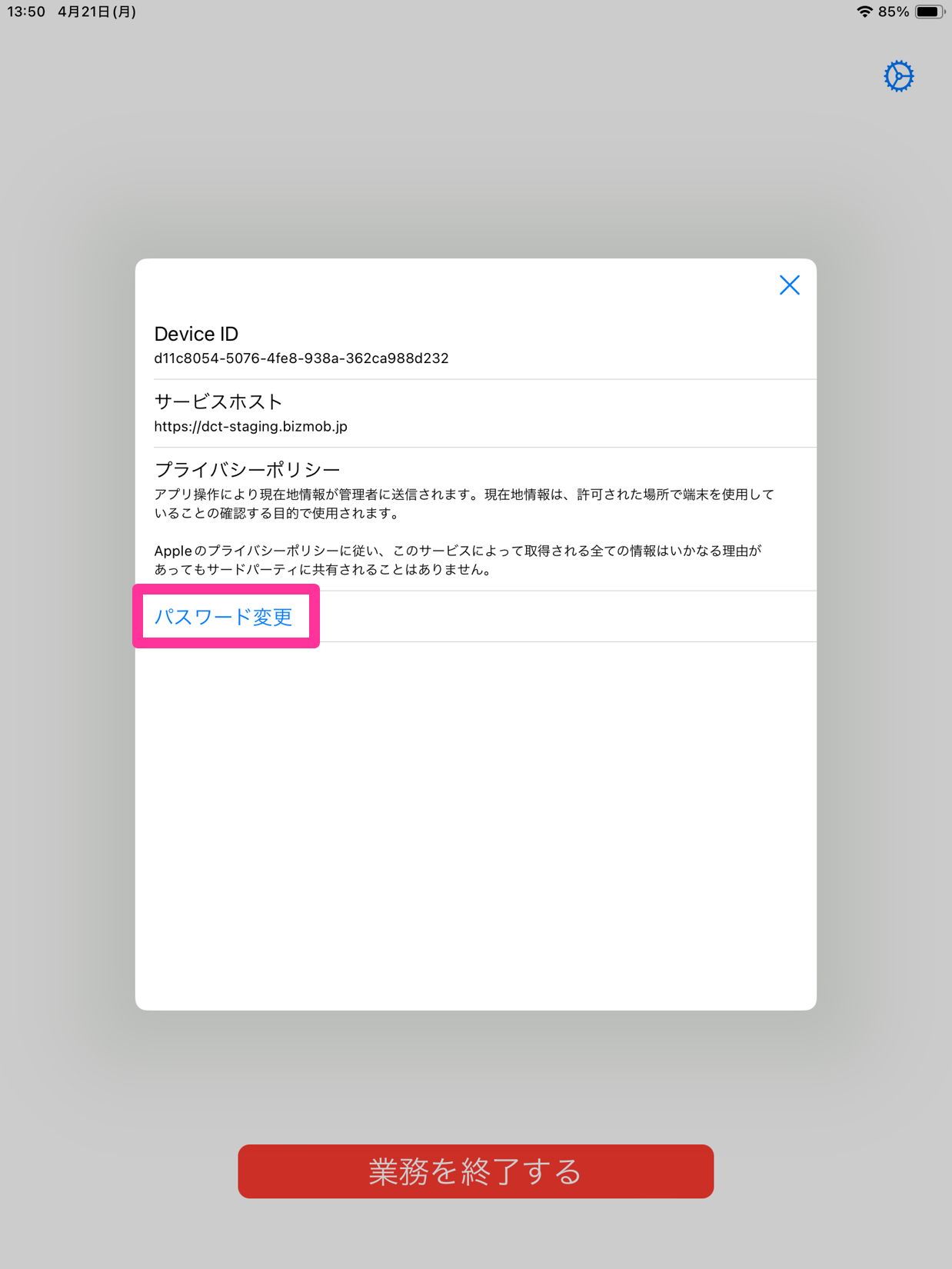
- Tap "Change Password."
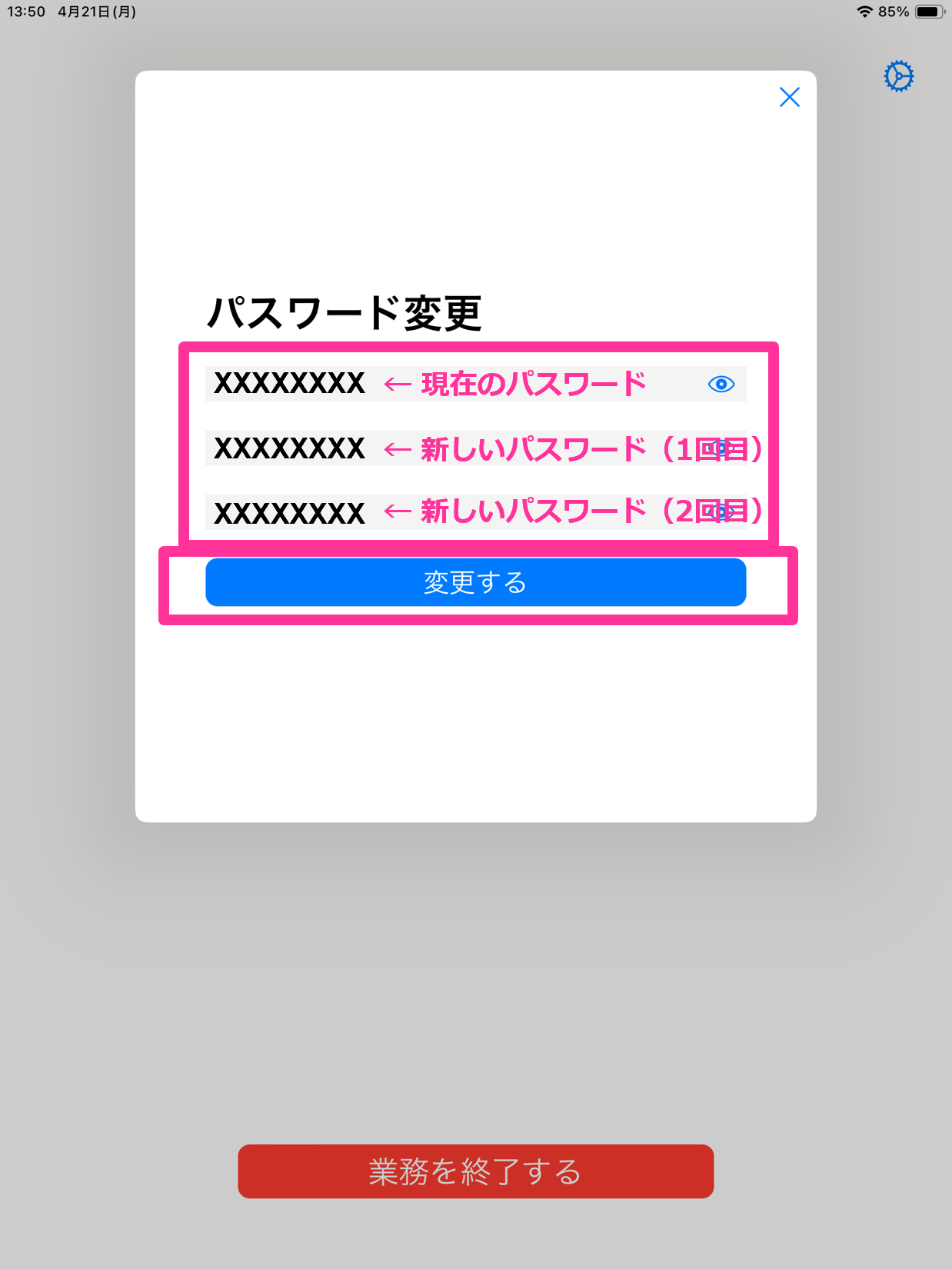
- Enter the "Current Password" and "New Password" and tap "Change."
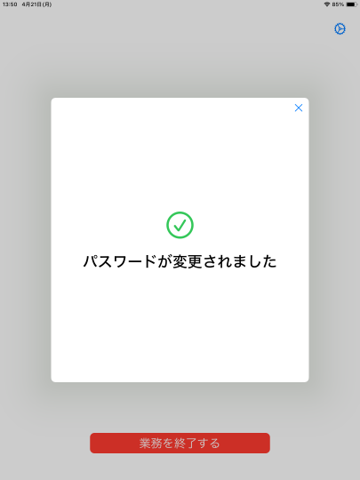
- The operation is complete when "Your password has been changed" appears.
List of Errors
The following table lists the errors and how to resolve them.
| Error | Resolution |
| The ID or password is incorrect. | Check the ID and password, and then try signing in again. |
| An error occurred while sending the request (user_missing_policy) | You are signing in with a user that is not registered. Confirm the correct information with your administrator. |
| An error occurred while sending the request (device_not_assigned_to_policy) | You are signing in with a device that is not registered. Confirm the correct information with your administrator. |
| An error occurred while sending the request (already_working) | You are already signed in on another device. Sign out on that device, and then sign in again. |