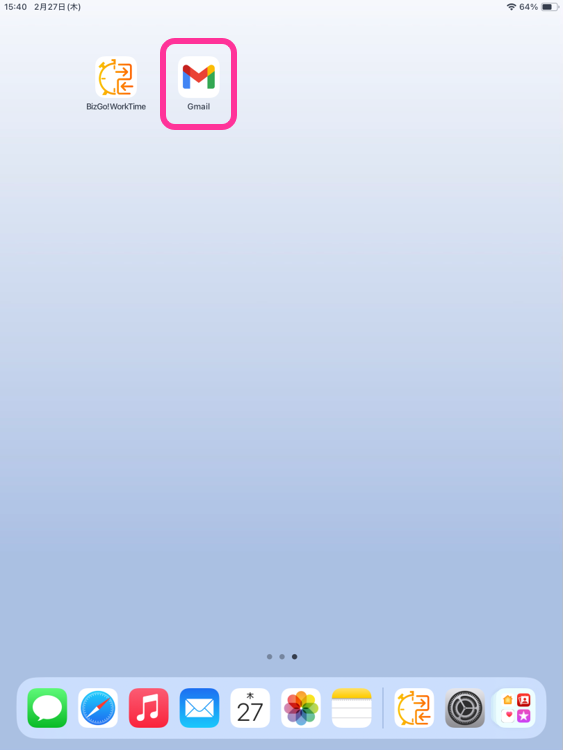
Start the BizGo! WorkTime App and Perform the Initial Setup
Start the app installed on the device and set it up.
- Start BizGo! WorkTime.
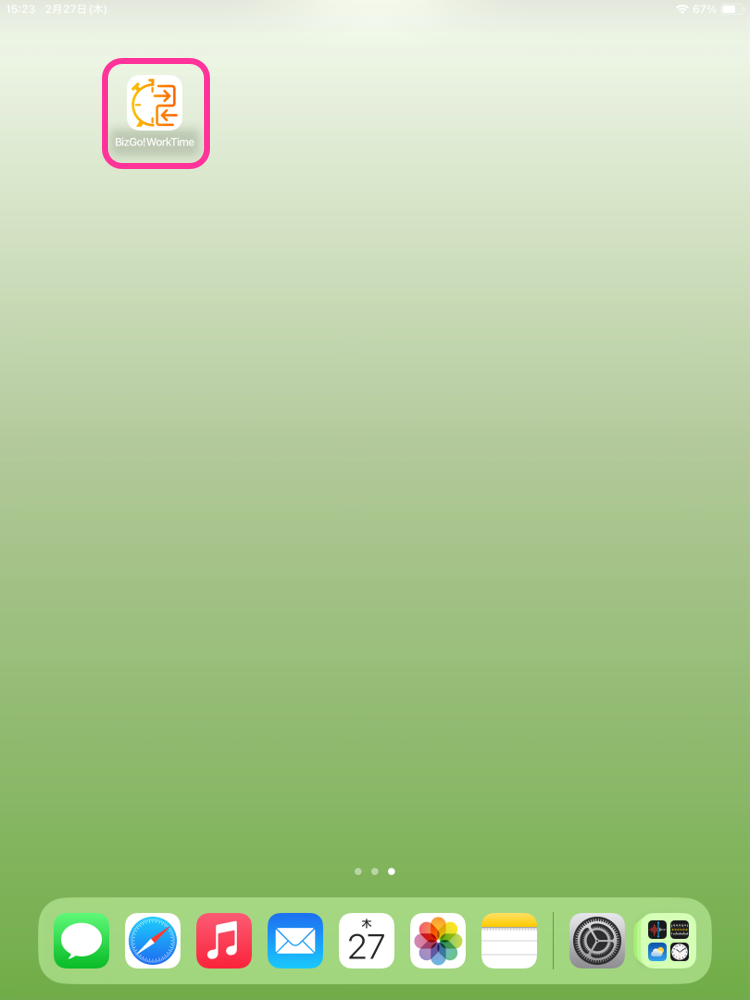
- The "About Privacy and Data Collection" screen and a pop-up asking whether to allow notifications appear. Tap "Allow" in the pop-up.
Note: If you have configured notifications for the BizGo! WorkTime app in the "Notifications" payload of the profile, the pop-up asking whether to allow notifications does not appear.
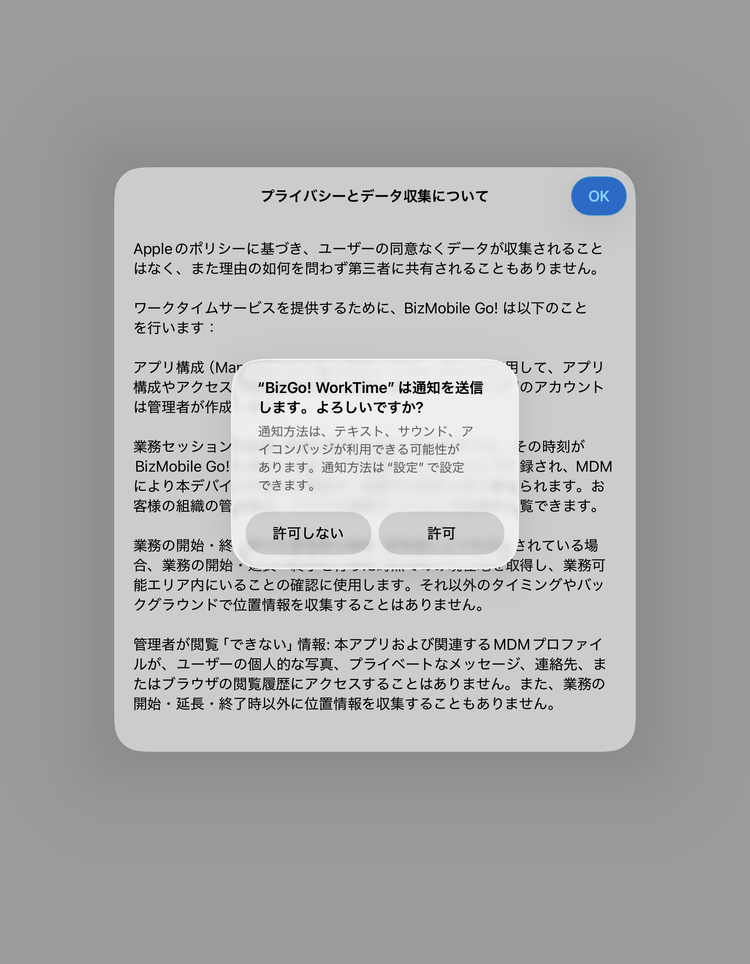
- In the pop-up asking whether to allow use of location, tap "Allow While Using App."
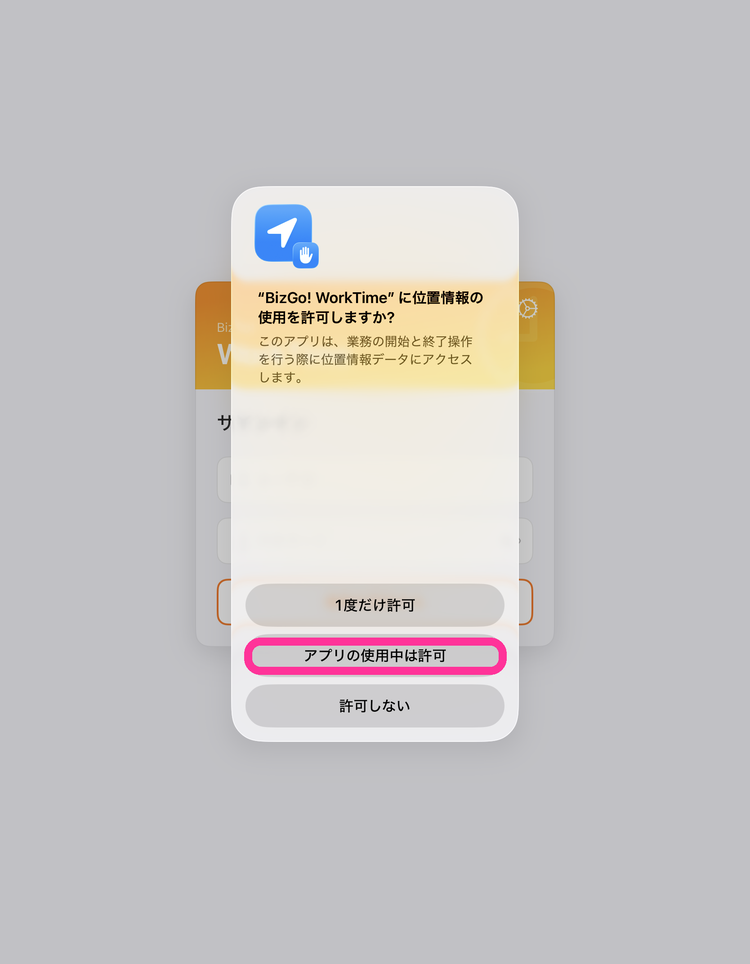
If Location Services is off on the device, a pop-up asking you to turn on Location Services appears. IfGet location when starting/ending workis enabled in the policy, tap "Settings" and turn on Location Services. If it is disabled, tap "Cancel."
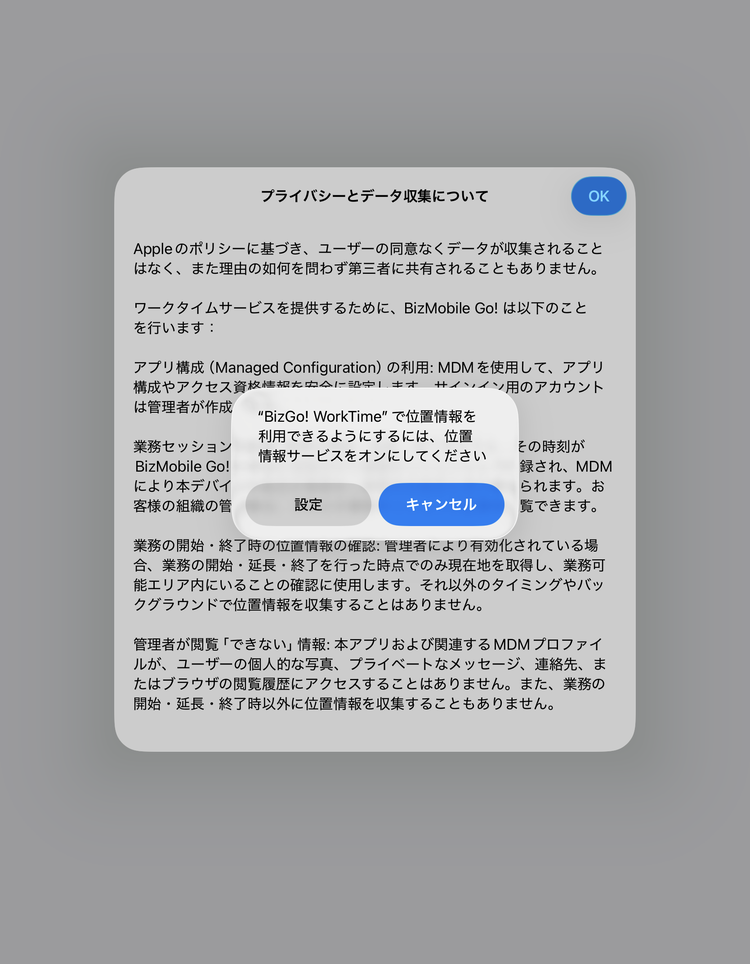
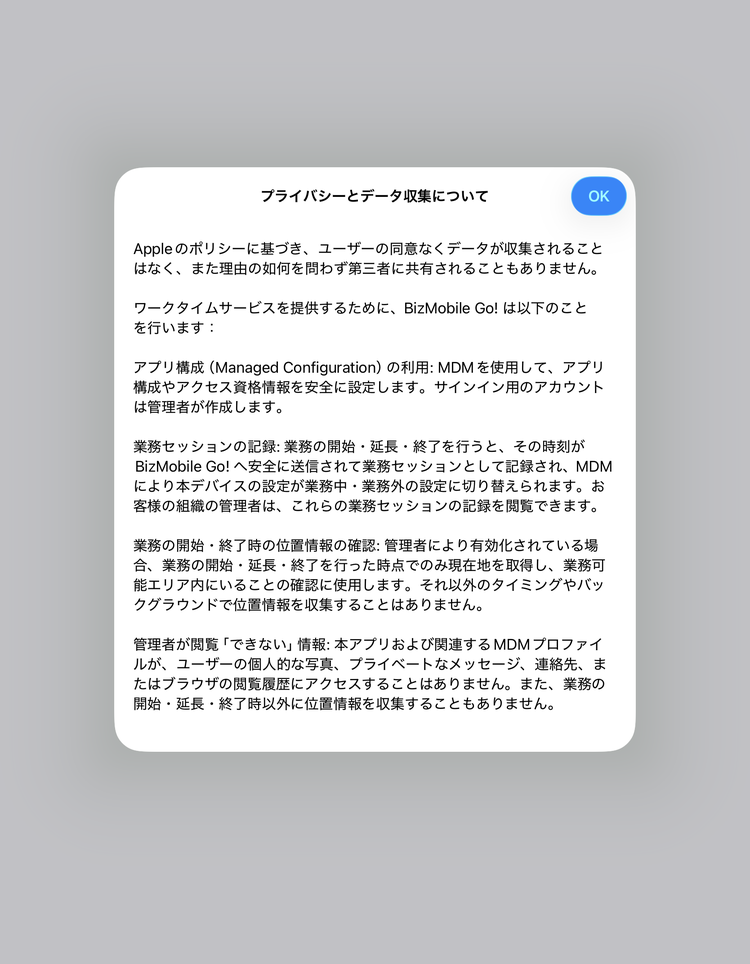
- Review the "About Privacy and Data Collection" content and tap "OK."
This screen appears only the first time you start the app.
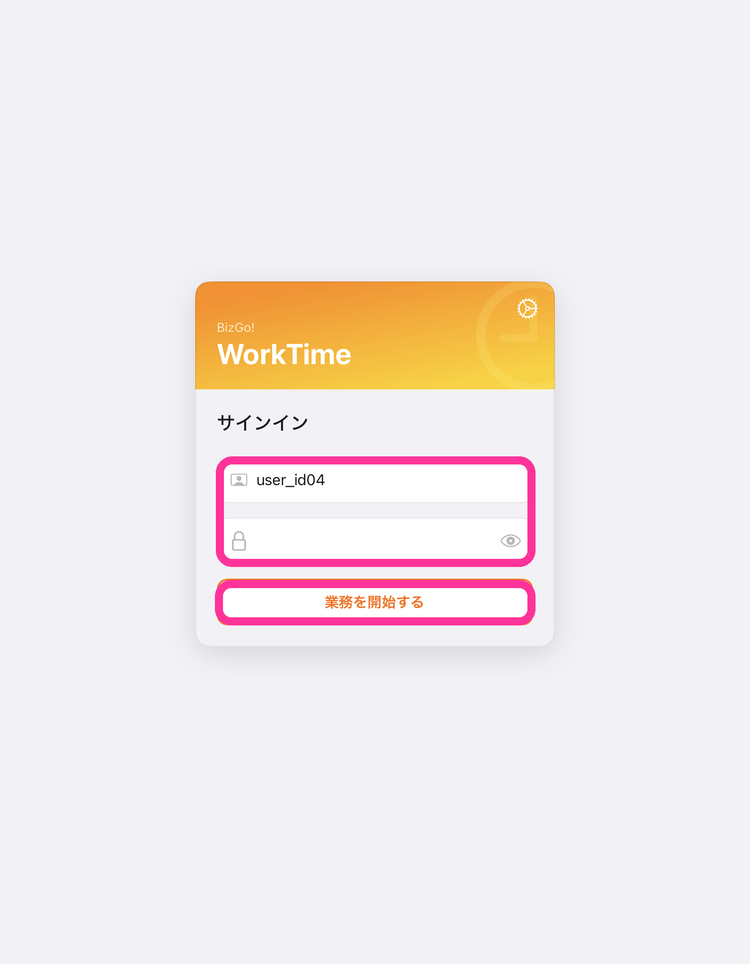
- The sign-in screen appears.
IfAuthentication Methodin the policy isUser, enter the "User ID (user_id)" and "Password (password)" and tap "Start Work."
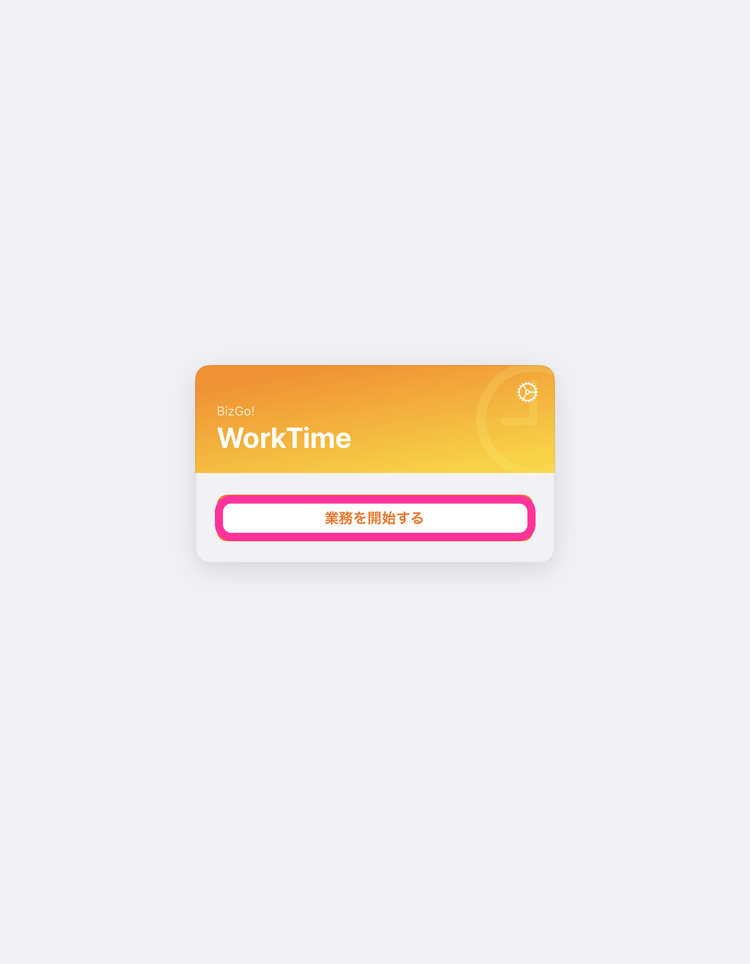
IfAuthentication Methodin the policy isNo User, the input fields are not shown. Tap "Start Work."
(Sign-in screen whenAuthentication MethodisNo User)
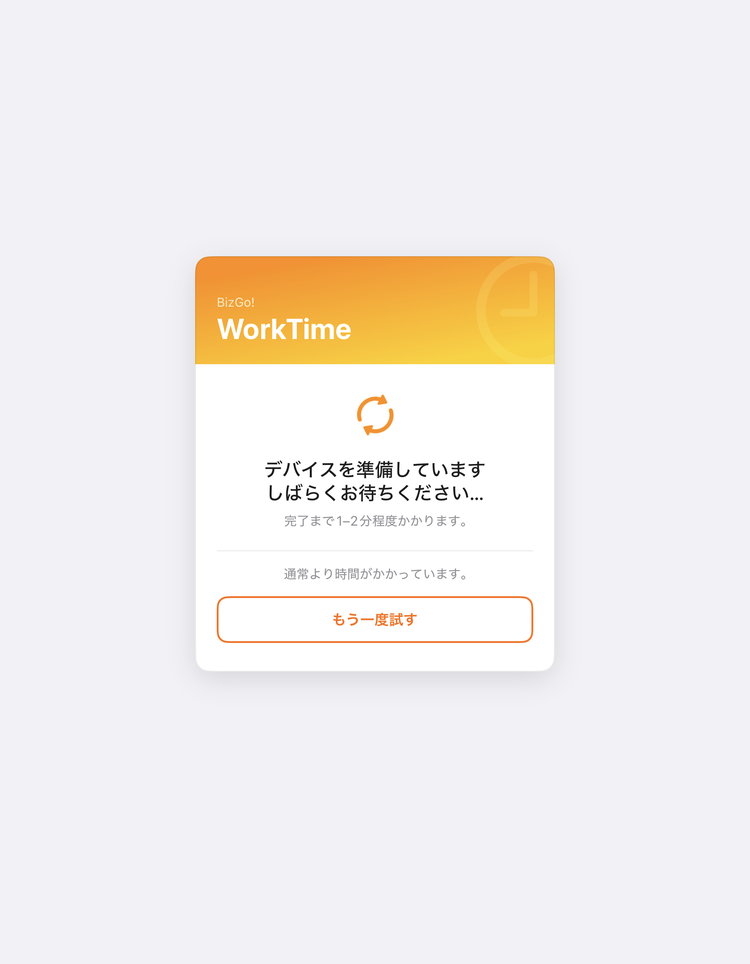
- The "Preparing your device" screen appears. When the device receives the sync command for switching templates, the next screen appears automatically (usually in about 1 to 2 minutes).
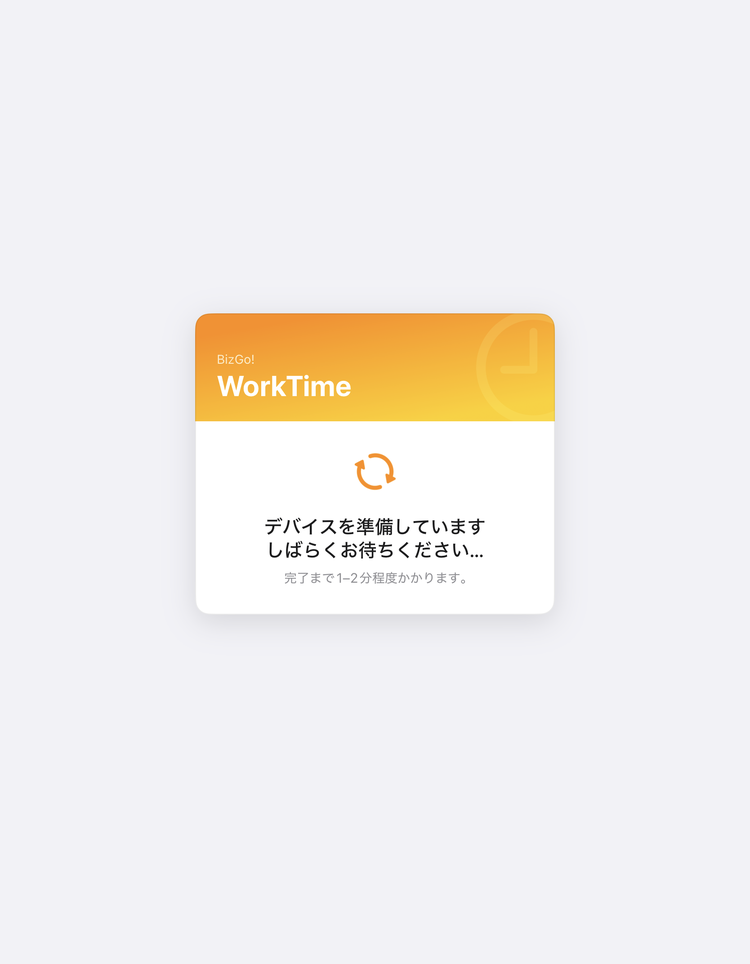
If the screen does not change for 5 minutes or more, "This is taking longer than usual." appears. Check the network connection and tap "Try Again."
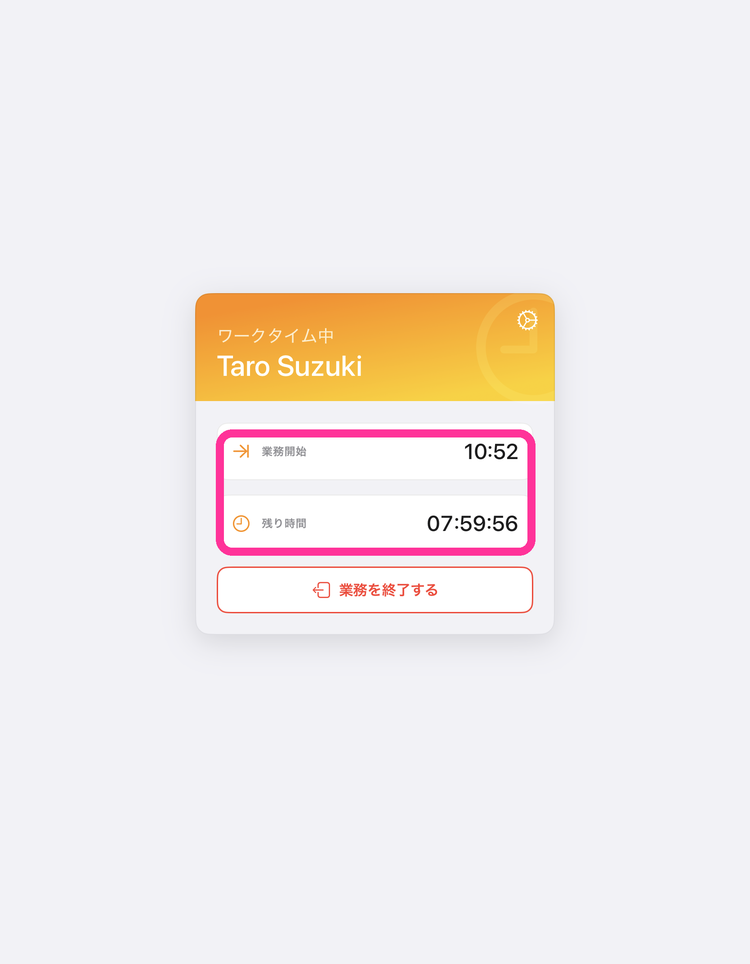
- Confirm that the registered name (first_name, last_name) and the time remaining until sign-out are displayed on the screen.
Note: IfAuthentication MethodisNo User, the name is not displayed.
- Close the BizGo! WorkTime app and confirm that the work apps are displayed.