Edit or Delete a Policy
Edit a Policy
The policy list on the policy screen shows the Authentication Method, Get location when starting/ending work, and Work Duration of each registered policy.
- On the policy screen, click the edit icon next to the policy you want to edit.

- Enter the required information on the policy information screen that opens.
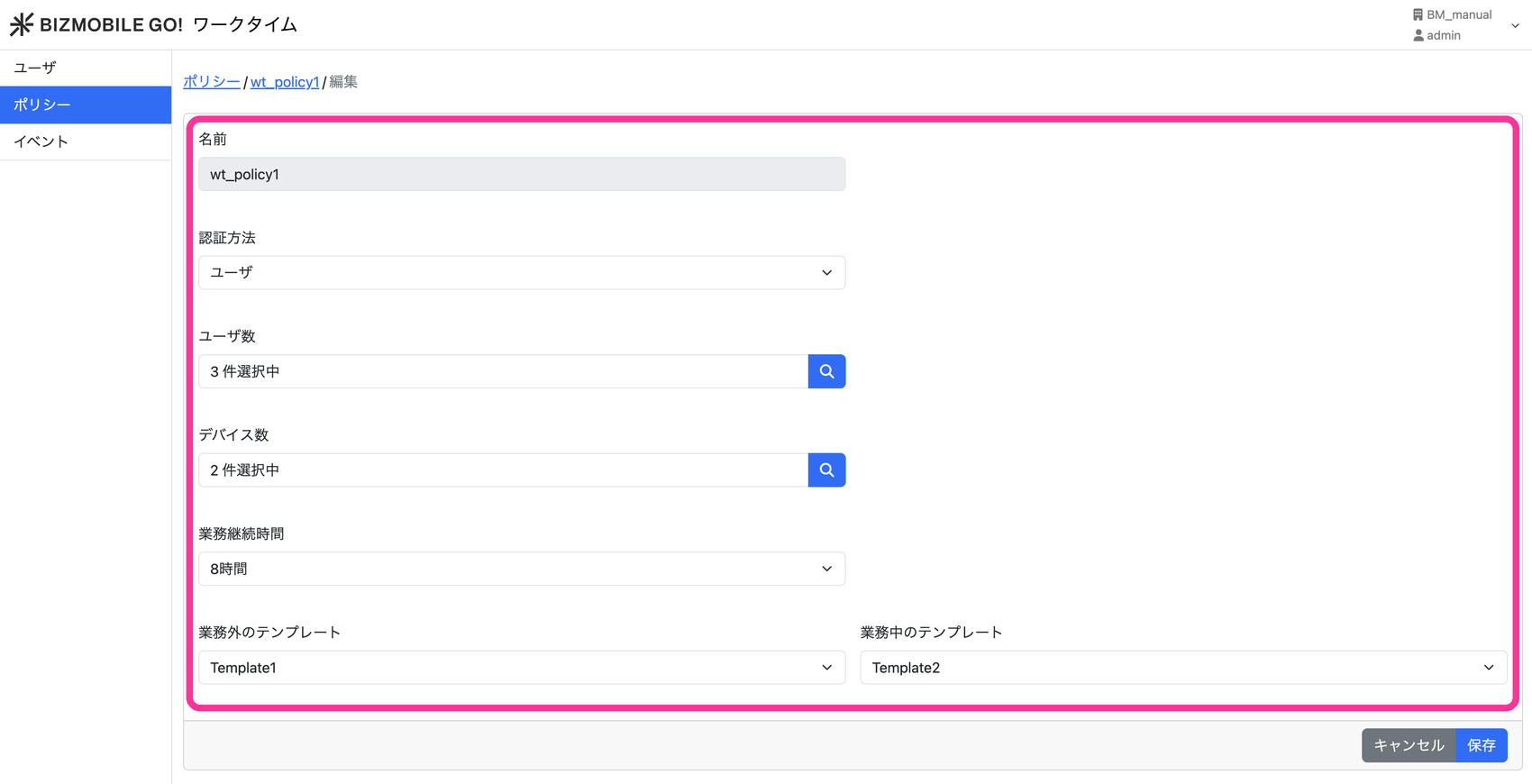
Input items
| Name | The name of the policy (cannot be changed) |
| Authentication Method | The authentication method used when starting work in the BizGo! WorkTime app ( |
| Get location when starting/ending work | Whether to get and record the device location when work is started, extended, or ended |
| Number of Users | The number of users assigned to the policy |
| Number of Devices | The number of devices assigned to the policy |
| Work Duration | The time during which the work template is assigned |
| Template outside work hours | The template assigned while the BizGo! WorkTime app is signed out |
| Template during work hours | The template assigned while the BizGo! WorkTime app is signed in |
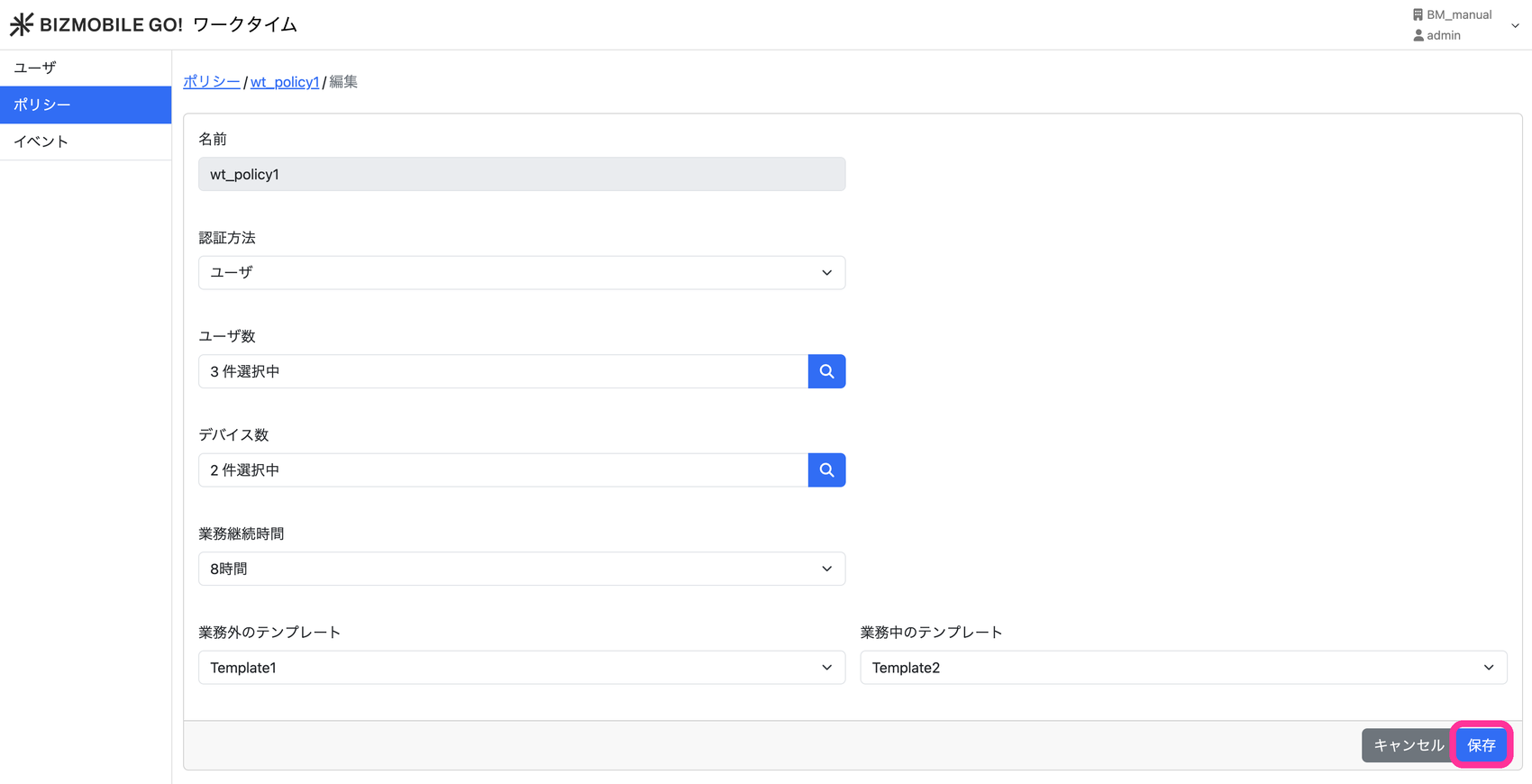
- Click "Save".
warning
Be careful when changing the Authentication Method of a policy that has devices currently at work (signed in).
- If you change the
Authentication Methodof the same policy during work, the template is switched correctly when work ends. - If you move a device to a different policy during work, the template is not switched when work ends.
Also, changes toAuthentication MethodandGet location when starting/ending workare not applied until the BizGo! WorkTime app is restarted on the device.
Delete a Policy
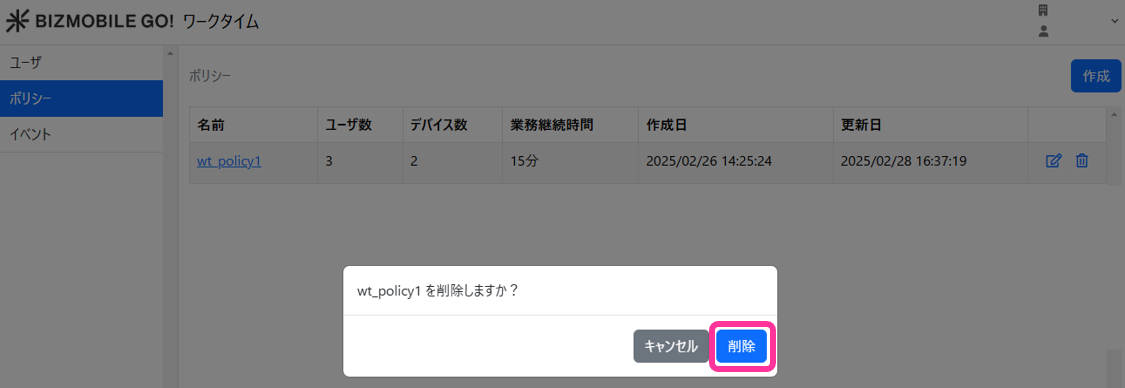
- On the policy screen, click the delete icon next to the policy you want to delete.

- A confirmation pop-up is displayed. Click "Delete".