Create a Policy
A policy defines the target devices and users, the work hours, and the templates to apply.
Some of the following steps differ depending on the policy's Authentication Method.
User(default): Users sign in with a user ID and password. After the steps on this page, you must register users.No User: Users sign in without entering a user ID and password.Number of Usersis not displayed, and registering users is not required. Steps 4 and 5 (copying the policy ID) are also not required.
The Authentication Method is retrieved when the BizGo! WorkTime app starts. If you change a policy's Authentication Method, the updated sign-in screen does not appear until the app is closed and restarted on the device.
Create a Policy
- In the menu bar, click CONFIG → Work Time.
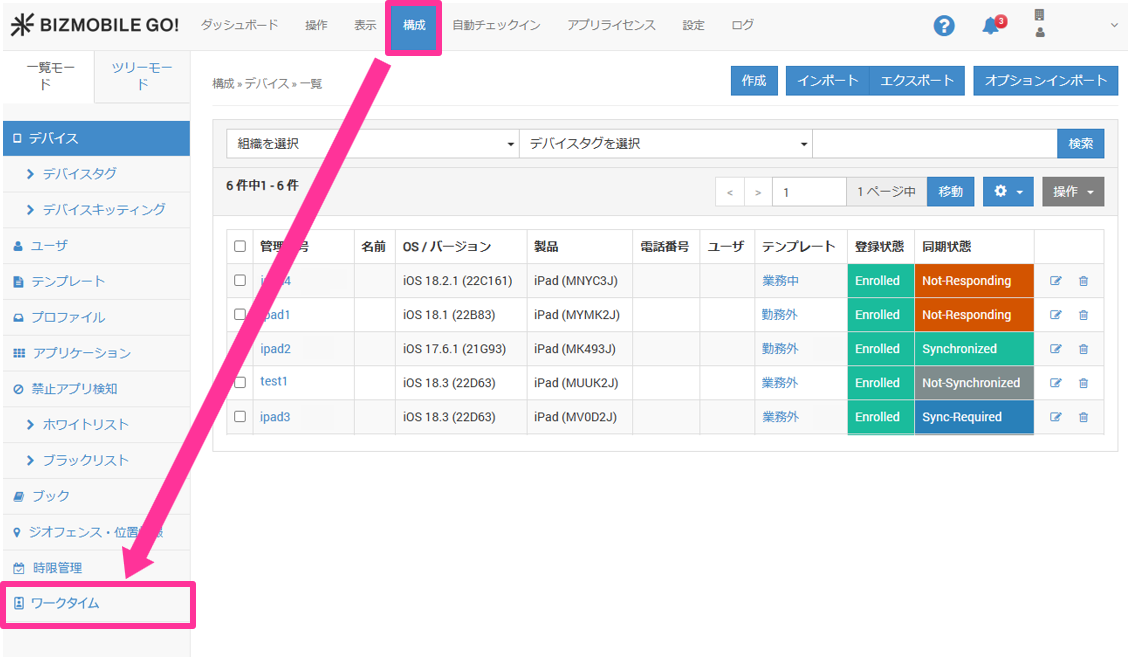
- Click "Policy" in the menu, and then click "Create".

- Configure the required items on the policy screen that opens, and then click "Save".
IfAuthentication MethodisUser, "Number of Users" is not set here (users are registered later in the "Register users" procedure).
IfAuthentication MethodisNo User, "Number of Users" is not displayed.
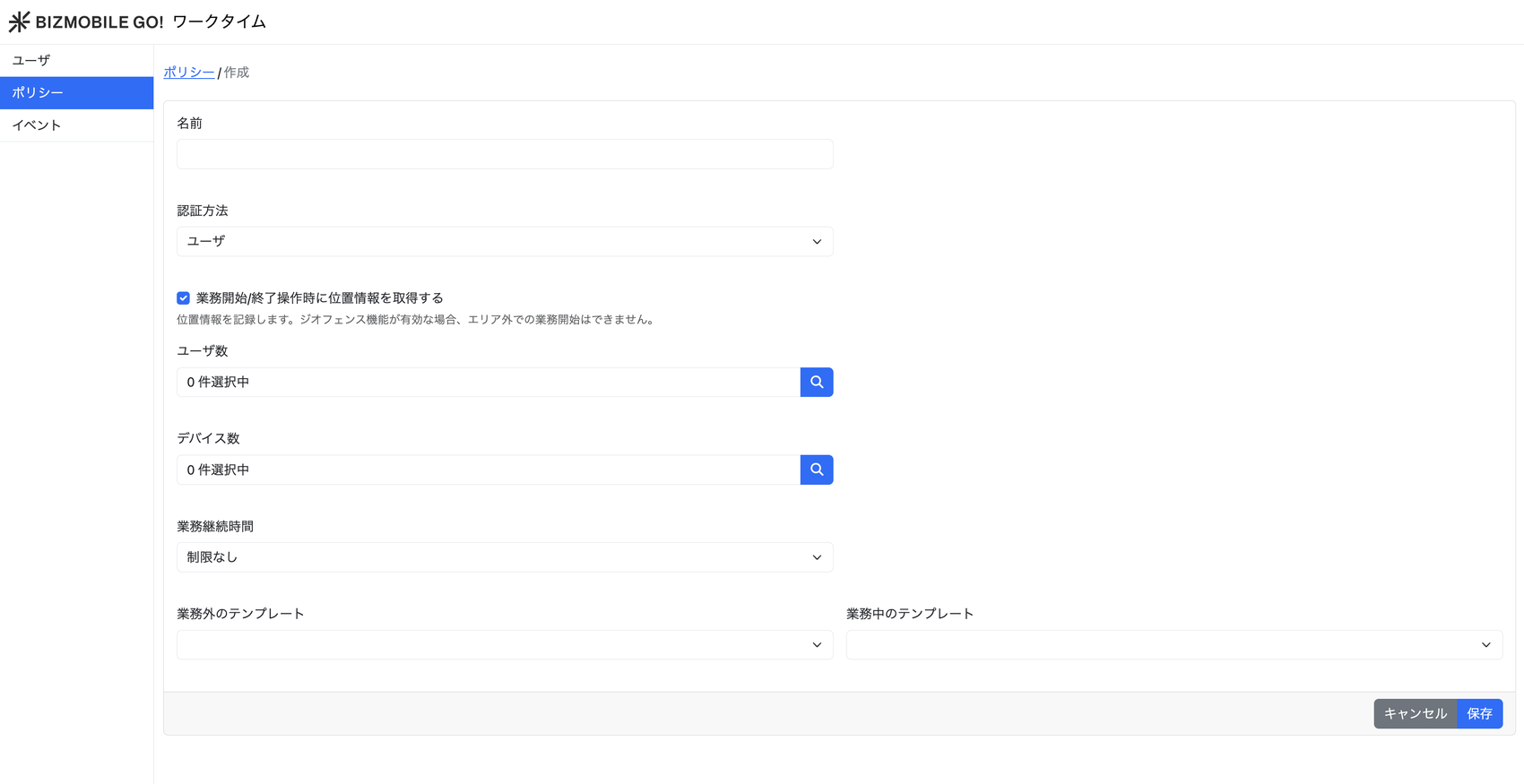
Input items
| Name | Specify the name of the policy. |
| Authentication Method | Specify the authentication method used when the device user starts work in the BizGo! WorkTime app. The default is
Note: If you select |
| Get location when starting/ending work | Specify whether to get and record the device location when work is started, extended, or ended. The check box is selected by default. Checked: The location is obtained and recorded. If Geofence v2 is also used, work cannot be started or ended outside the geofence area. Note: This setting is supported by BizGo! WorkTime app version 1.3 or later. |
| Number of Users | (Not set here) |
| Number of Devices | Specify the devices to which the policy is applied. |
| Work Duration | How long the work-hours template can be used after a single sign-in |
| Template outside work hours | Specify the template to apply outside work hours. |
| Template during work hours | Specify the template to apply during work hours. |
-
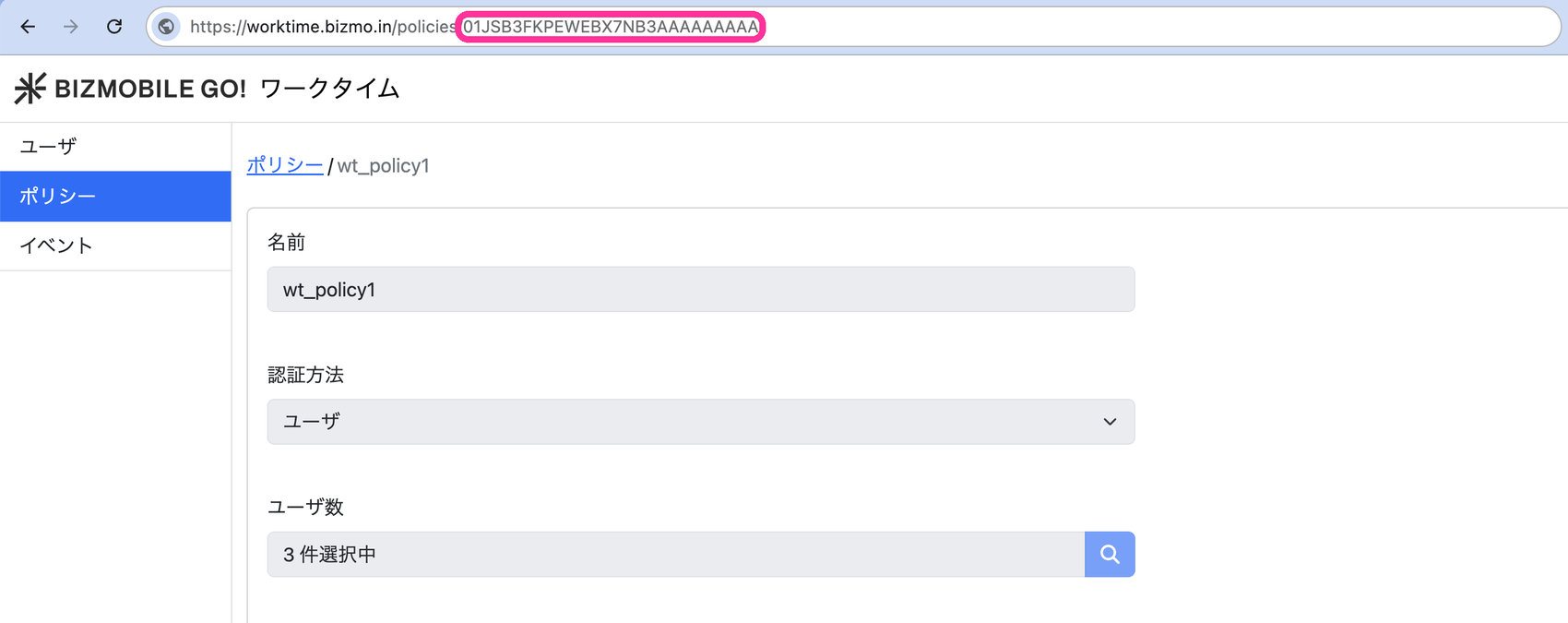
Click the name of the policy you created.

-
Copy the string (shown in red) that follows "https://.../policies/ " in the URL.
Note: You will use this string in the next procedure, "Register users".https://worktime.bizmo.in/policies/xxxxxxxxxxxxxxxxxxxxxxxxxx