Register Users
If the policy's Authentication Method is No User, registering users is not required. Skip the steps on this page.
Register the users of the devices using a CSV file.
The registered user information is used to sign in to the BizGo! WorkTime app.
-
Create a CSV file for registering user information.
Enter the user information in the following format.
For "policy_id", enter the string you copied in step 5 of "Create a Policy".
Users are registered to the policy specified in "policy_id".
Save the file with the extension ".csv".CSV items
Header Required Description user_id Yes The user name used to sign in to the BizGo! WorkTime app first_name The first name displayed after signing in to the BizGo! WorkTime app last_name The last name displayed after signing in to the BizGo! WorkTime app password Yes The password used to sign in to the BizGo! WorkTime app (6 or more characters) policy_id Yes The policy to which the user belongs Sample CSV fileuser_id,first_name,last_name,password,policy_id
user_id01,Taro,Suzuki,MF06n19J,02JQWDJ6JGQMMHN38J9V60DZAZ
user_id02,Yuuna,Koike,Ka6WvN03,02JQWDJ6JGQMMHN38J9V60DZAZ
user_id03,Kei,Sato,dF5JT2Qv,02JQWDJ6JGQMMHN38J9V60DZAZ -
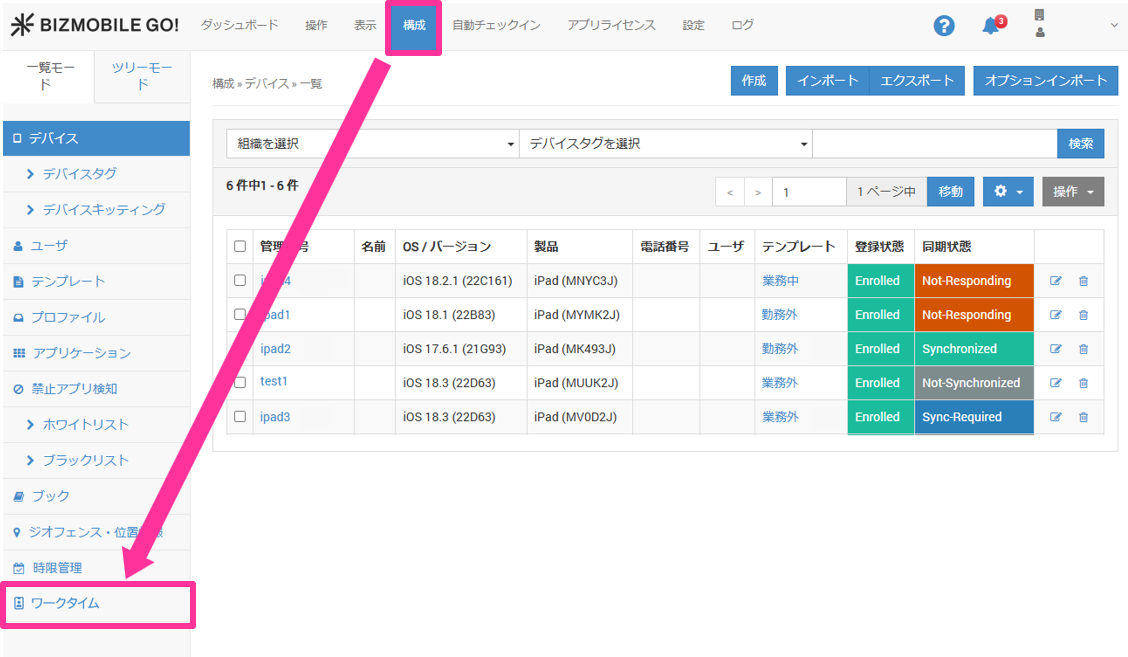
In the menu bar, click CONFIG → Work Time.
-
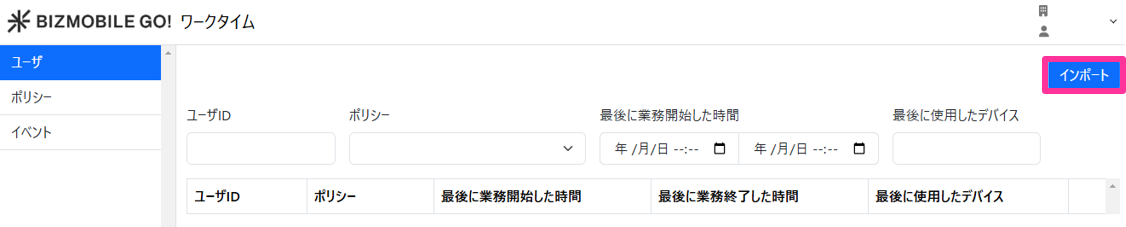
Click "Import" under "User" in the menu.
-
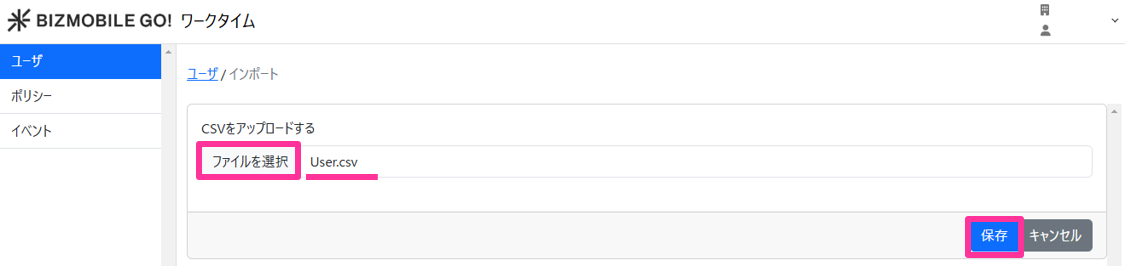
Click "Choose File", select the CSV file you created in step 1, and then click "Save".
-
Confirm that
~imported with no errorsis displayed.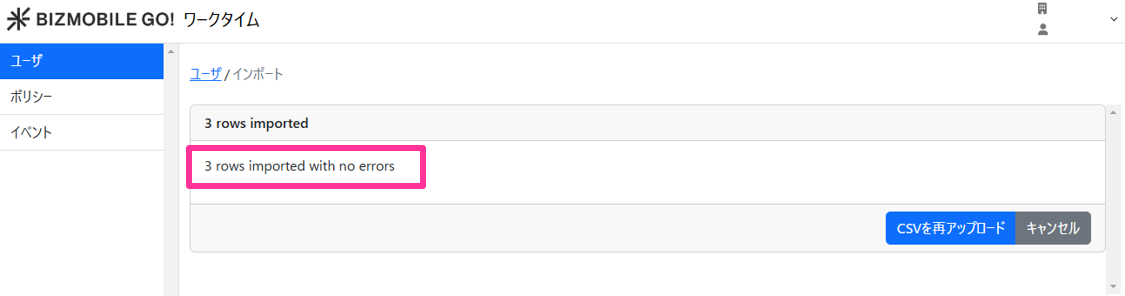
-
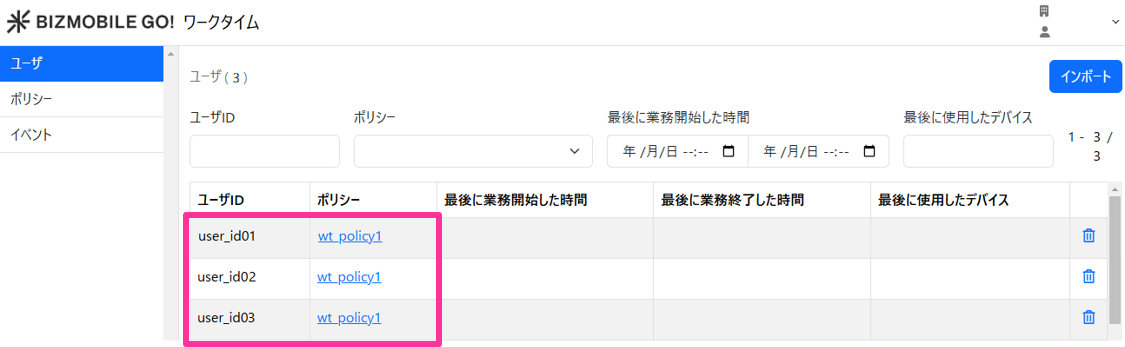
On the user screen, confirm that "User ID" and "Policy" are registered correctly.