Check Alarms
When a badge appears on the alarm icon  , click the icon to open the Alarm screen and check the contents.
These alarms indicate device states, for example, that require the device administrator's attention.
Follow the descriptions and corrective actions in the Alarm List and respond promptly.
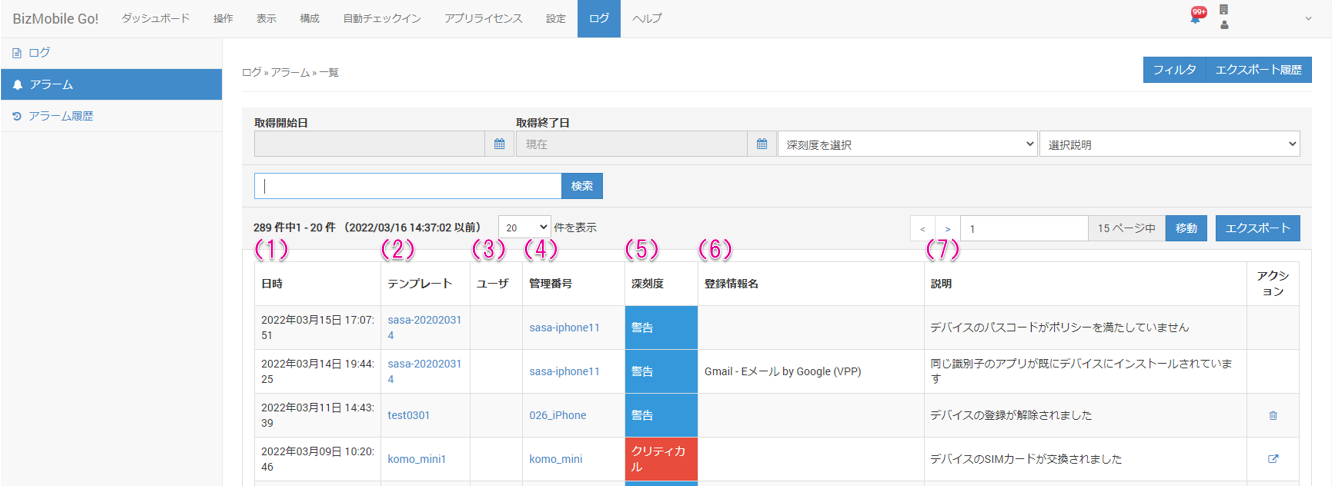
(1) Date and time the alarm occurred
(2) Template associated with the device: Click the template name to jump to the details page of that template
(3) User associated with the device: Click the user name to jump to the details page of that user
(4) Device identifier: Click the device identifier to jump to the details page of that device
(5) Application name: Click the application name to jump to the Devices with Banned Apps page
(6) Alarm severity
(7) Alarm description
(8) Depending on the alarm, the  or
or  icon is displayed. Take the necessary action
Narrow down alarms (filter feature)
You can use the filter feature to display only specific alarms.
You can create and save up to 100 filters per unit and up to 10 filters per operator.
Saved filters are displayed as tabs on the Alarm screen, and you can switch between them.
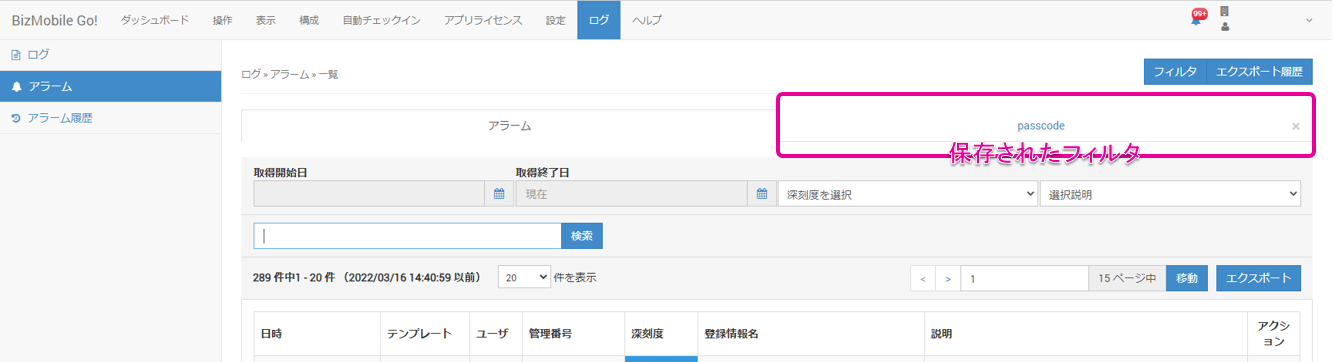
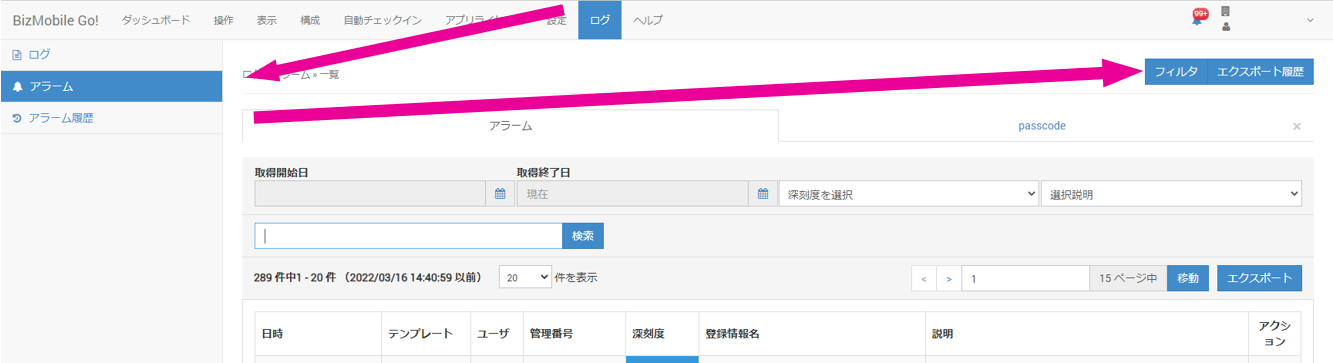
How to access the filter list
Click [Filter] at LOG → Alarm.
Filter list screen
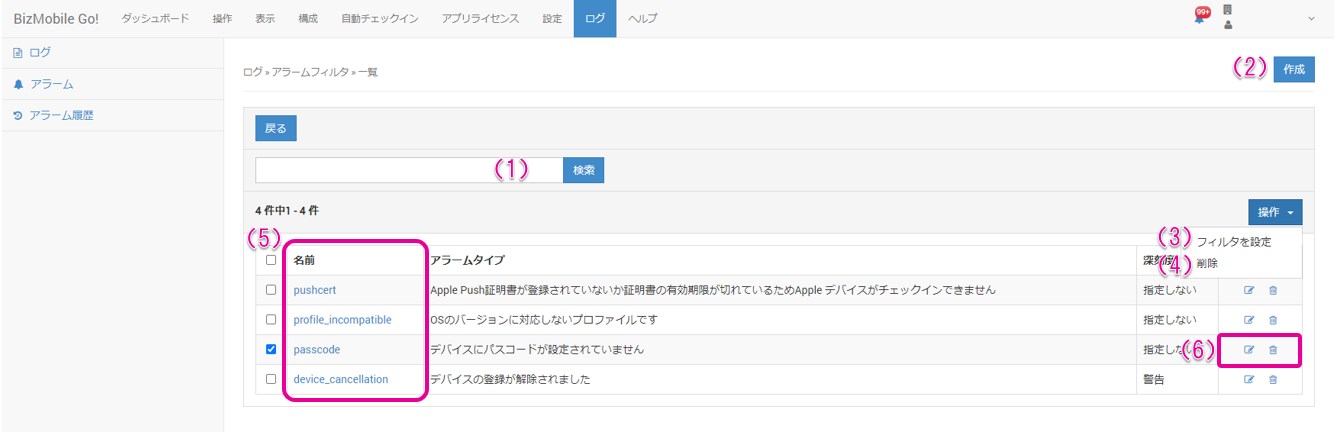
(1) You can search by filter name
(2) Create a new filter
(3) Display the filters selected with the check boxes as tabs on the Alarm screen
Note: To hide a filter, clear its check box and then click CONTROL → [Set Filters].
(4) Delete the filters selected with the check boxes
(5) Click a filter name to display the details of the filter
(6) Icons to edit or delete a filter