Set Up Alarm Emails
When a specified alarm occurs, an email is sent to the specified email addresses (up to 10) every time.
For details on each alarm, see the Alarm List.
Steps
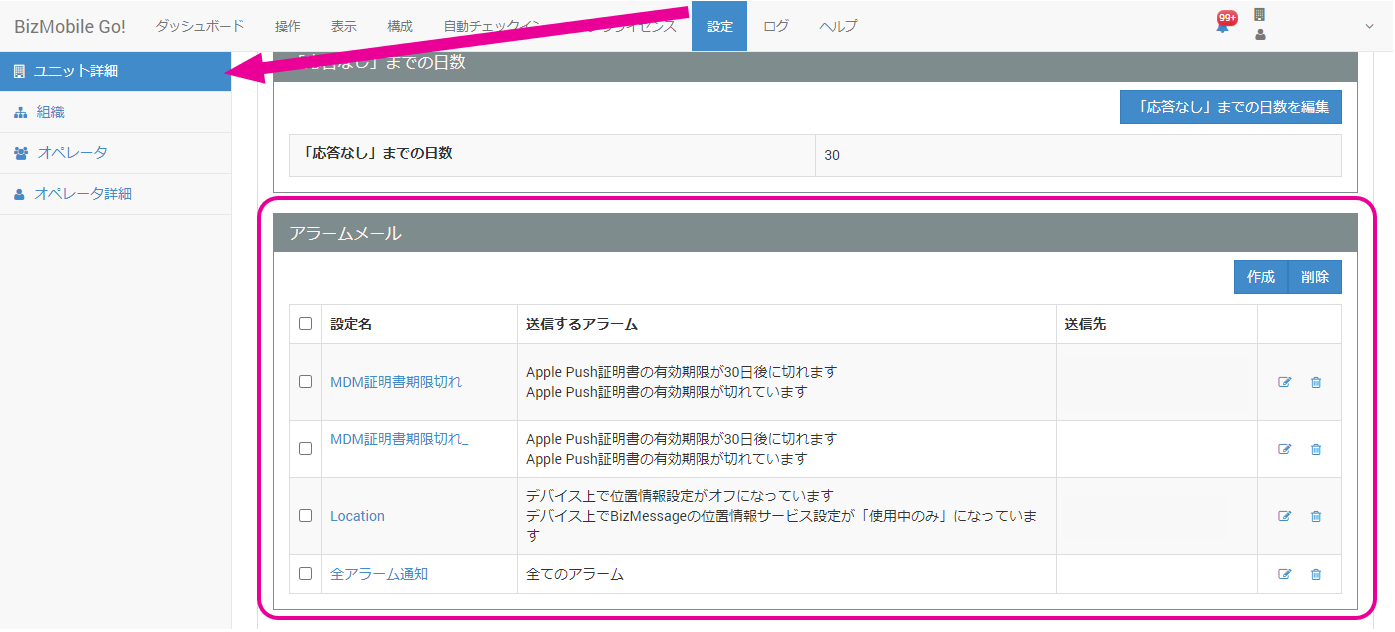
- Under CONFIG → Unit Detail, click [Create] in the Alarm Email section.
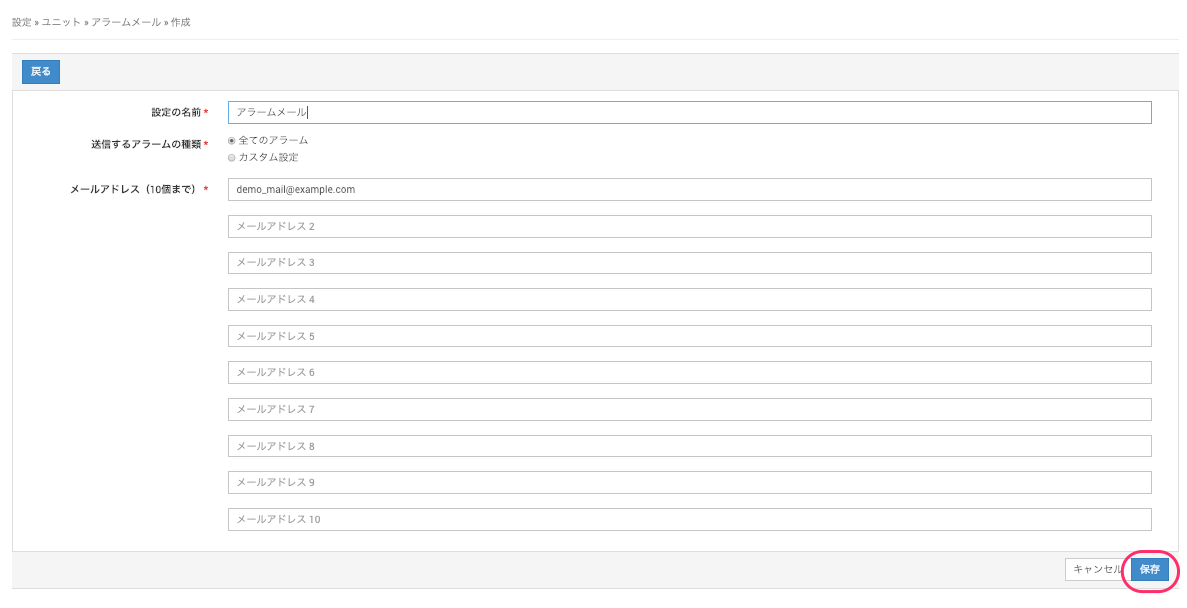
- On the alarm email creation screen, create an alarm email. Select "All Alarms" or "Custom".
If you select "All Alarms", an email notifying you of the alarm is sent to the specified email addresses for every alarm that occurs in the unit. Enter "Setting Name" and "Email Address", and then click [Save].
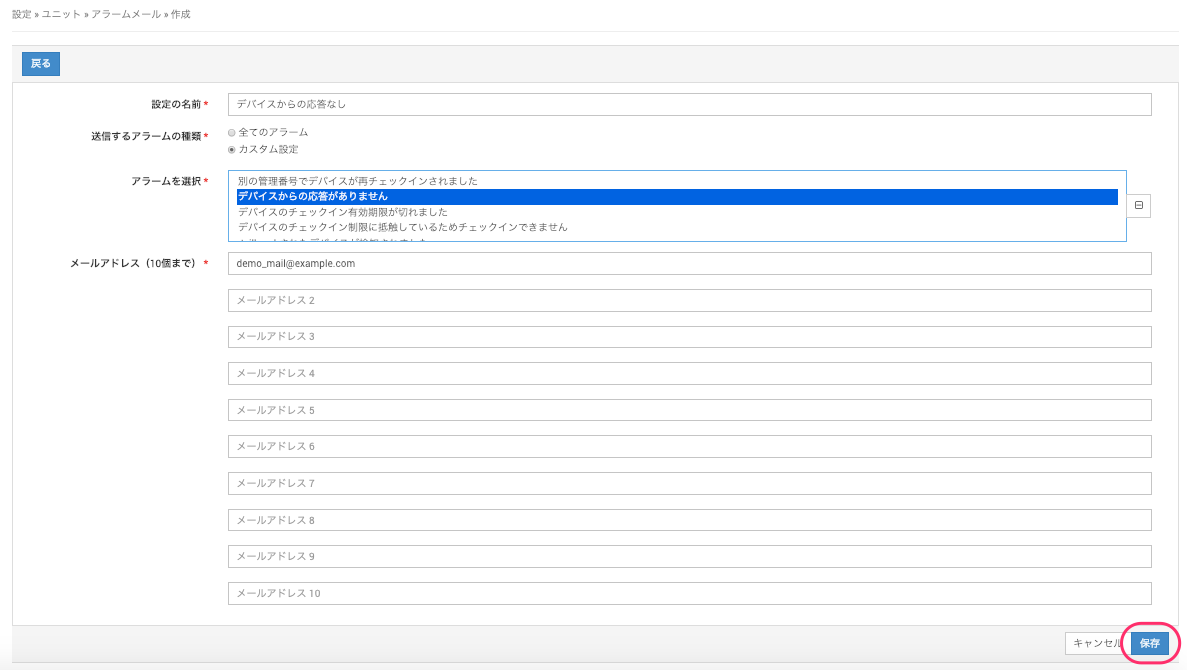
- If you select "Custom", an email notifying you of the alarm is sent to the specified email addresses when the selected alarms occur. From "Select Alarms", select the types of alarms for which you want to receive email notifications. Enter "Setting Name" and "Email Address", and then click [Save].
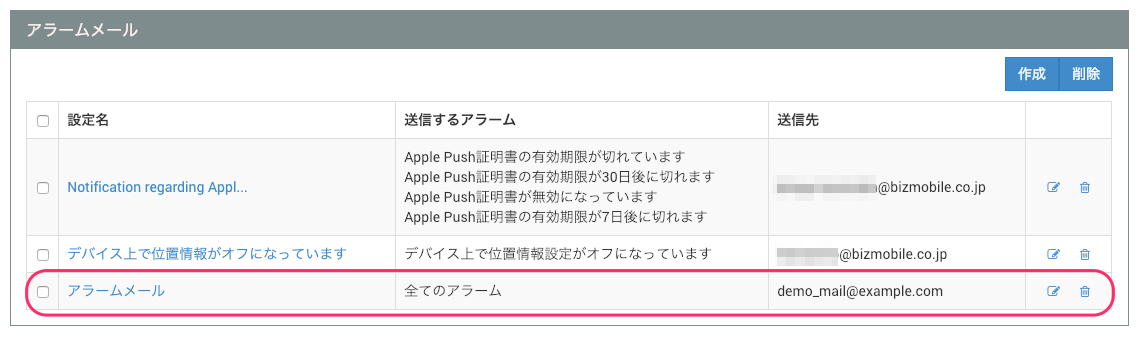
- When the alarm email setup is complete, the new alarm email is added to the "Alarm Email" section.

To edit an alarm email you created, click the edit icon , change the settings, and then click [Save].
To delete an alarm email you created, click the delete icon .
.