Create and Edit Filters
You can use the filter feature to narrow down alarms and display only specific alarms.
You can create and save up to 100 filters per unit and up to 10 filters per operator.
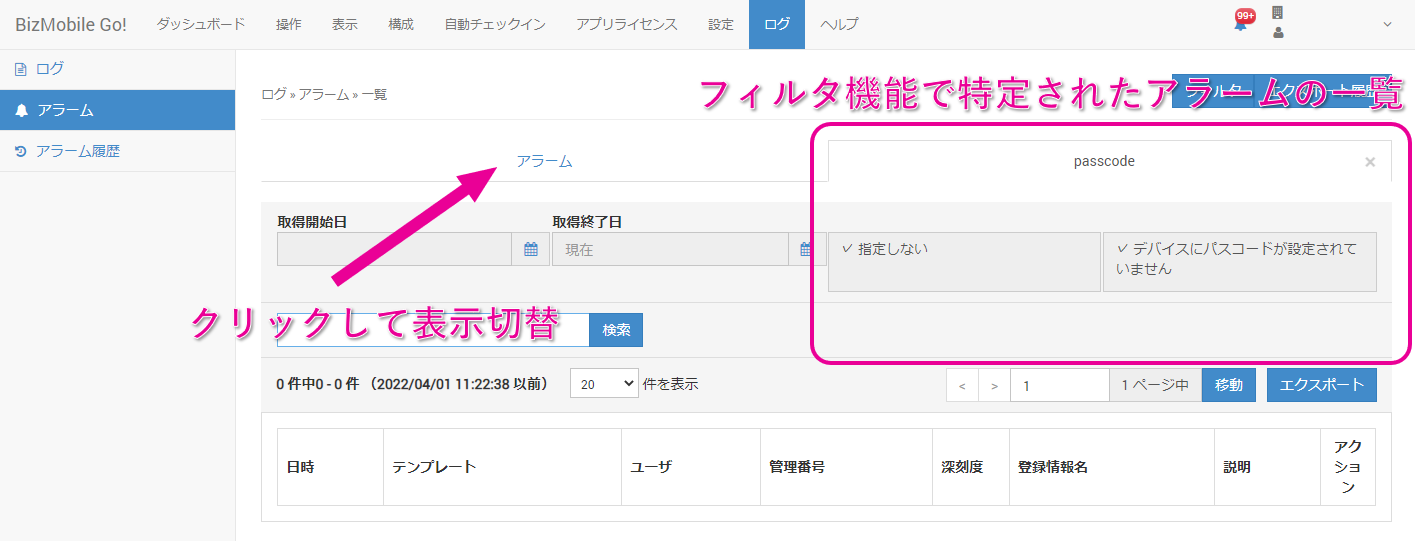
Saved filters are displayed as tabs on the Alarm screen, and you can switch between them.
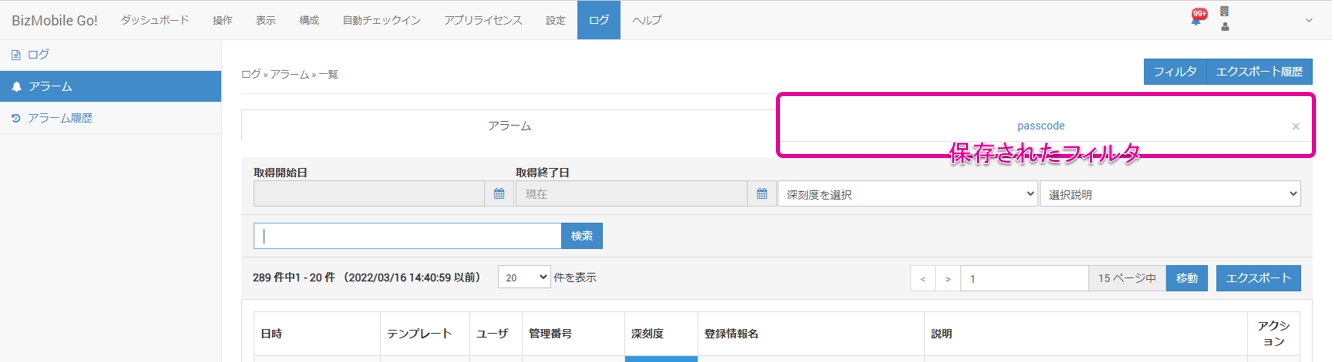
When you click a filter to switch the display, only the list of matching alarms is displayed.
Click the Alarm tab to return to the alarm list screen.
Create a filter
- Click [Filter] at LOG → Alarm.
- Click the [Create] button.
- Enter the required information.
| Item | Description |
|---|---|
| Filter Name★ | Enter a name for the filter. |
| Alarm Type | Select the alarm types. To select multiple types, click [+] to display the list, and then Ctrl+click to select. |
| Severity | Select the severity. To select multiple severities, click [+] to display the list, and then Ctrl+click to select. |
- To clear the information you entered, click [Cancel]. To save the information you entered, click [Save].
When the alarm filter is created, it appears at the top of the screen as shown below.

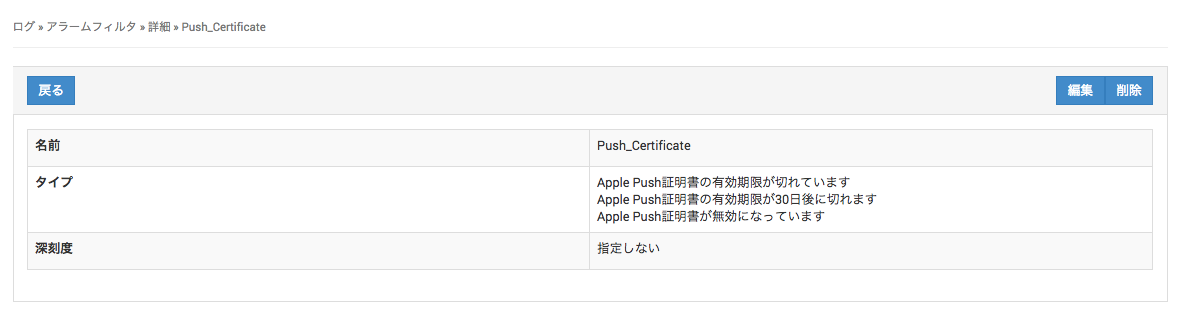
The alarm filter name is a link. Click it to go to the details page of the alarm filter.
Edit a filter
To edit a filter from the list screen, click the [Edit] icon.
To edit a filter from the details screen, click the [Edit] button.
The fields for editing a filter are the same as those for creating one.
Delete a filter
To delete a filter from the list screen, click the [Delete] icon.
To delete a filter from the details screen, click the [Delete] button.
Alarm filters are shared among operators in the same unit.
A filter cannot be deleted while any operator is using (displaying) it.