Find Information on List Screens
When you need to remotely control a managed device in response to an inquiry from a device user, or when you want to check registered information, you first need to identify the target information.
In such cases, you can use the BizMobile Go! search and filter features to find the target information quickly.
Search, page navigation, and switching the number of items per page work the same way on CONTROL, VIEW, and CONFIG.
Filtering by organization and device tag is available on CONTROL, VIEW, and some CONFIG screens.
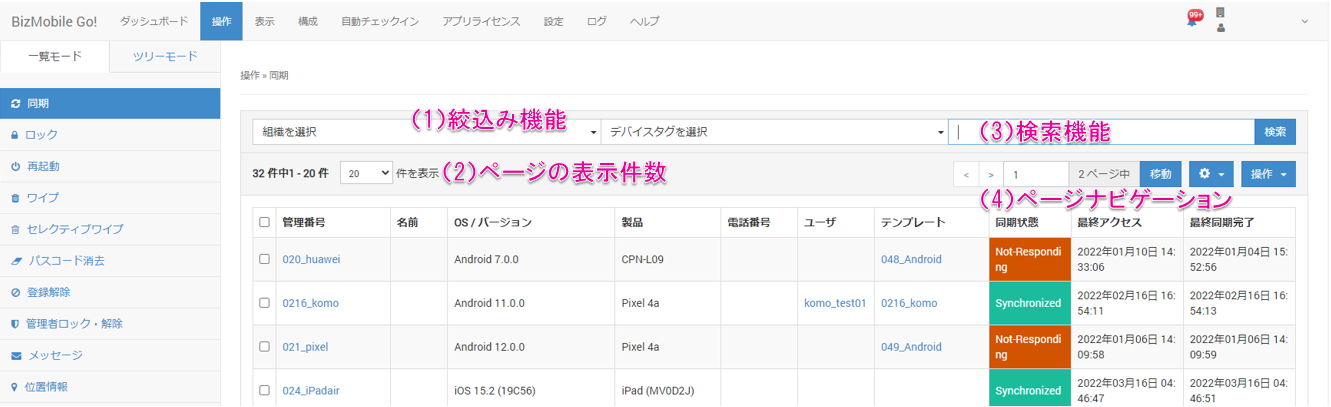
(1) Filter
You can filter the list by Organization and Device Tag. You can use them in combination.
(2) Items per page
From the drop-down menu, select 20 (default), 50, or 100 items to display on a list screen.
(3) Search
In the search field, separate keywords with a half-width space to perform an AND search.
For the search items available on each list screen, see Remotely Control Devices and View the List of Registered Information.
(4) Page navigation
If a list screen spans multiple pages, page navigation is displayed. Click a page to select it, or enter a page number directly to jump to it.