Distribute Authentication Certificates
You can use profiles to distribute authentication certificates.
There are two distribution methods.
- Distribute a common certificate to all devices at once (iOS, Android)
- Distribute different certificates to devices at once (iOS, Android, Windows)
This page describes the procedure for distributing a common certificate.
To distribute different certificates at once, see Distribute Certificates to Specified Devices Using a CSV File.
iOS
- On the CONFIG → Profile screen, click [Create].
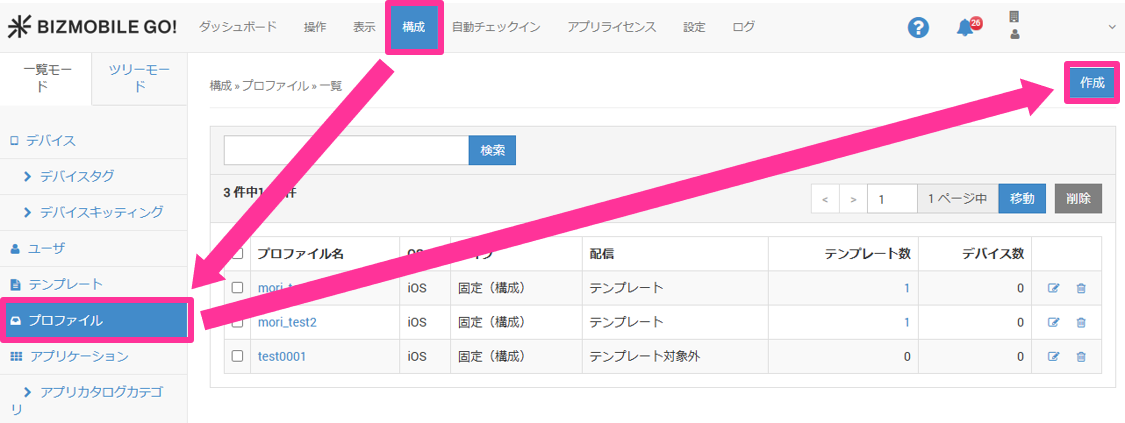
- Enter the required information on the profile information screen that expands.
Input fields (★ indicates a required field)
OS★ | Select iOS. |
Distribution | Select Profiles are normally distributed through templates. For a profile that you want to distribute on a per-device basis, select |
Type | Select |
Template | (Only when you selected Select the template to which this profile is applied. After you create a template, you can select it here. If you have not created a template yet, leave this field blank (you can also select the profile from the template screen when you create the template). |
Device | (Only when you selected Select the device to which this profile is applied. After you create a device, you can select it here. If you have not created a device yet, leave this field blank (you can also select the profile from the device screen after you create the device). |
-
Click [Configure] for the
Certificatepayload.

-
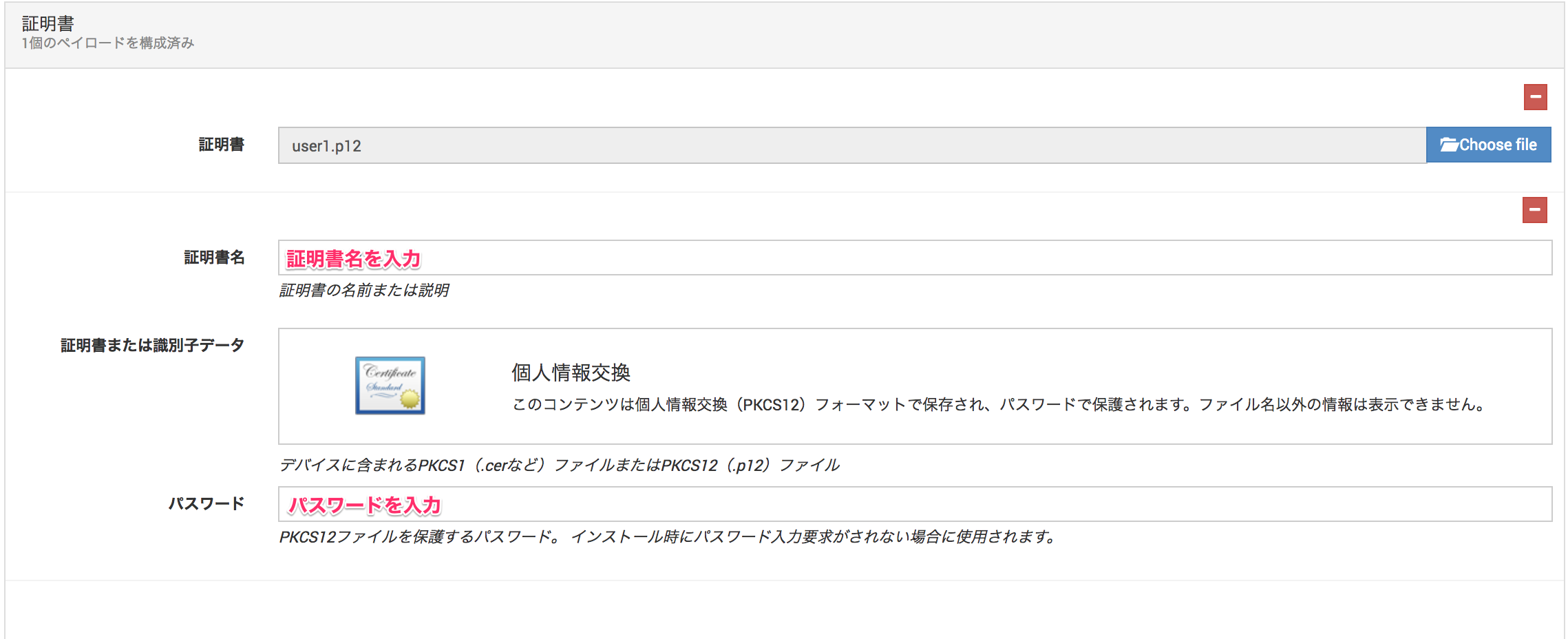
Specify the certificates to distribute (you can specify more than one).

-
Enter the certificate name and password.
-
Click [Save] to save your entries.
Android (certificates used by apps)
- On the CONFIG → Profile screen, click [Create].
- Enter the required information on the profile information screen that expands.
Input fields (★ indicates a required field)
OS★ | Select Android. |
Name★ | Enter a name for the profile. |
Description | Optional information. |
Device Type | Select either Work Profile or Device Owner. |
Type | Select |
| Template | Select the template to which this profile is applied. After you create a template, you can select it here. If you have not created a template yet, leave this field blank (you can also select the profile from the template screen when you create the template). |
-
Click [Configure] for the
Certificatepayload.
-
Specify the certificates to distribute (you can specify more than one).
-
Enter the certificate name and password.
-
Click [Save] to save your entries.
Android (certificates used for Wi-Fi)
- On the CONFIG → Profile screen, click [Create].
- Enter the required information on the profile information screen that expands.
Input fields (★ indicates a required field)
OS★ | Select Android. |
Name★ | Enter a name for the profile. |
Description | Optional information. |
Device Type | Select either Work Profile or Device Owner. |
Type | Select |
| Template | Select the template to which this profile is applied. After you create a template, you can select it here. If you have not created a template yet, leave this field blank (you can also select the profile from the template screen when you create the template). |
-
Click [Configure] for the
Wi-Fipayload.

-
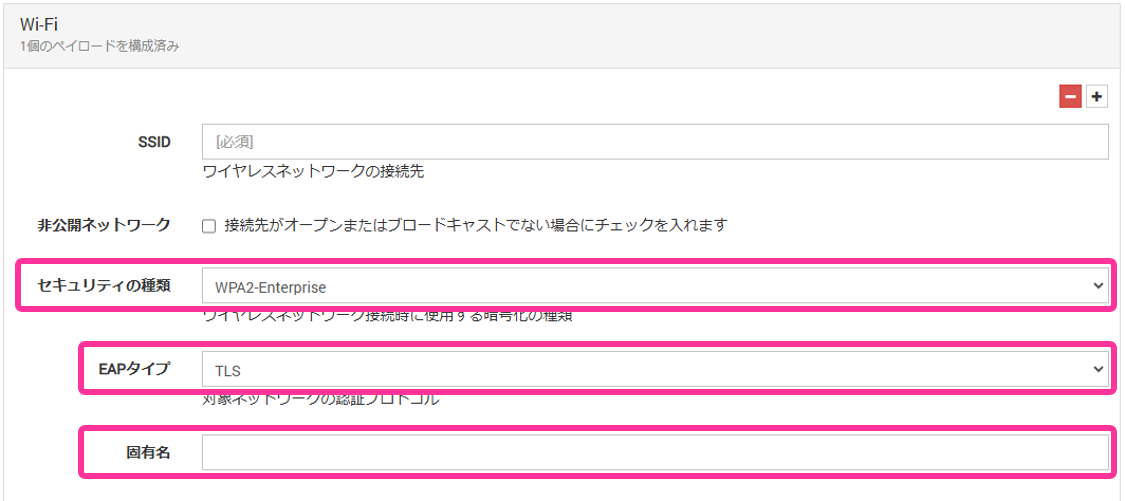
Select the
Security TypeandEAP Typeto use for certificate authentication, and enter theUnique Name.
-
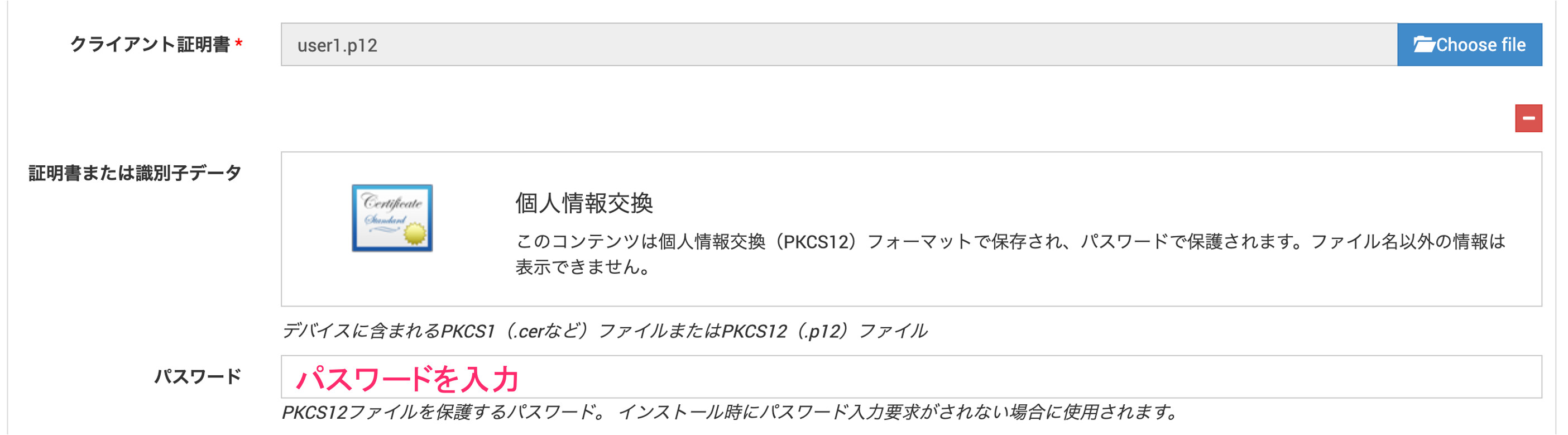
Specify the certificate to distribute.

-
Enter the password.
-
Click [Save] to save your entries.