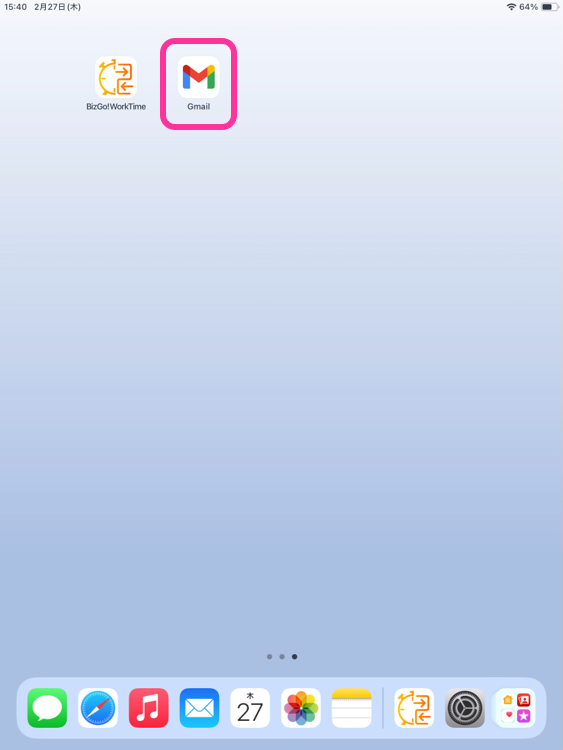
Start the BizGo! WorkTime App and Perform the Initial Setup
Start the app installed on the device and set it up.
warning
You must start the "BizGo! Air app" before you start the "BizGo! WorkTime app."
For the steps, see (iOS / iPadOS) How to Use the BizGo! Air App.
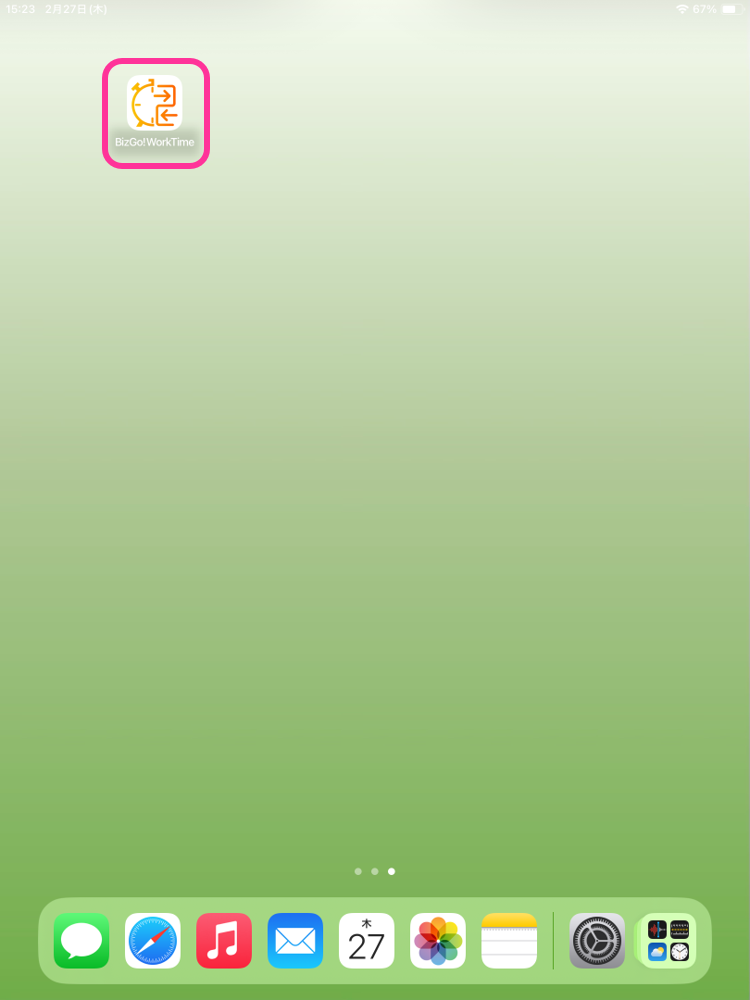
- Start BizGo! WorkTime.
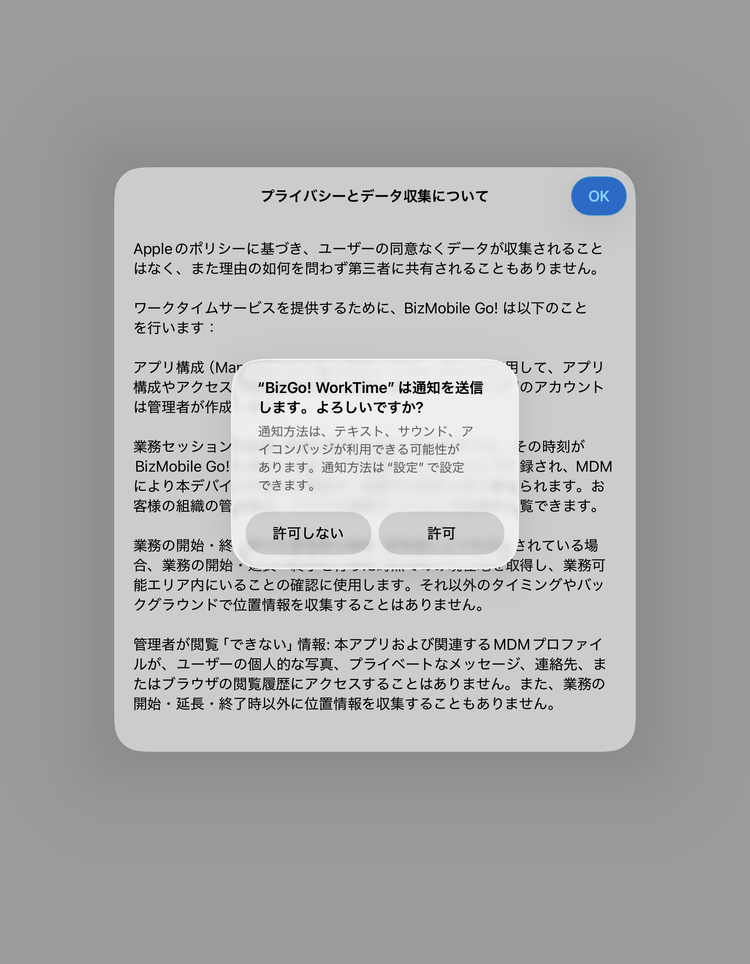
- The "About Privacy and Data Collection" screen and a pop-up asking whether to allow notifications appear. Tap "Allow" in the pop-up.
Note: If you have configured notifications for the BizGo! WorkTime app in the "Notifications" payload of the profile, the pop-up asking whether to allow notifications does not appear.
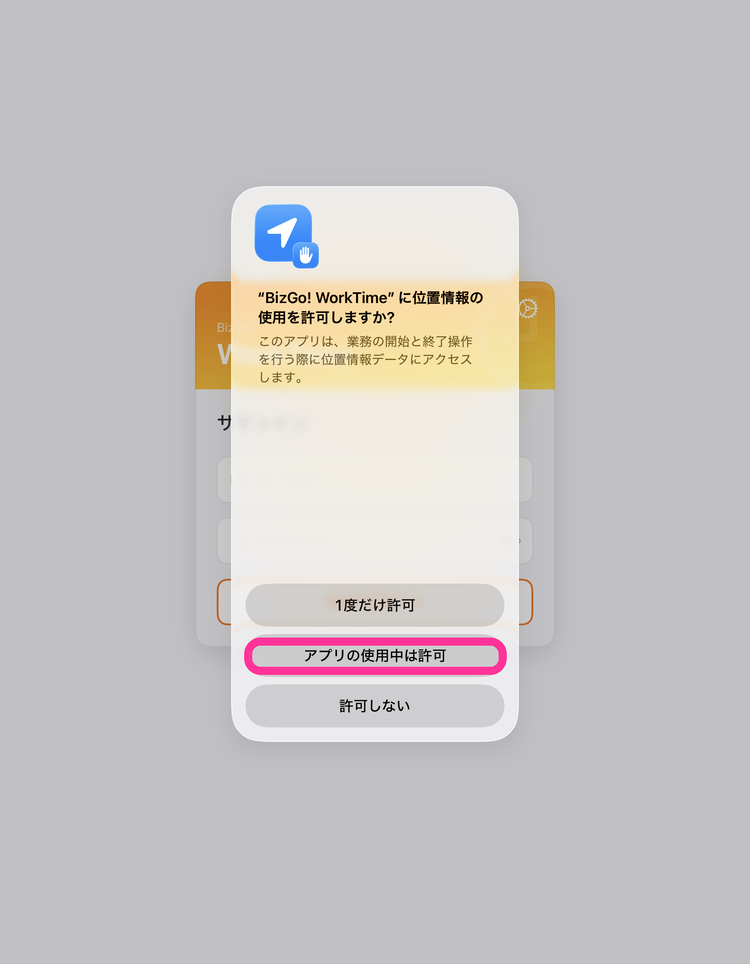
- In the pop-up asking whether to allow use of location, tap "Allow While Using App."
If Location Services is off on the device, a pop-up asking you to turn on Location Services appears. IfGet location when starting/ending workis enabled in the policy, tap "Settings" and turn on Location Services. If it is disabled, tap "Cancel."
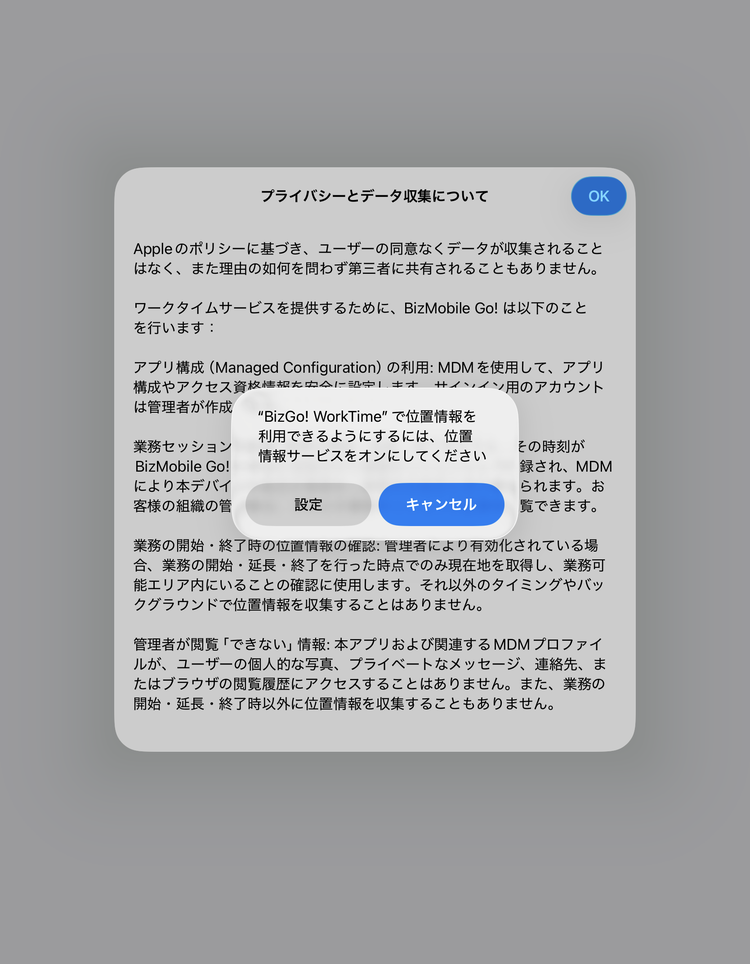
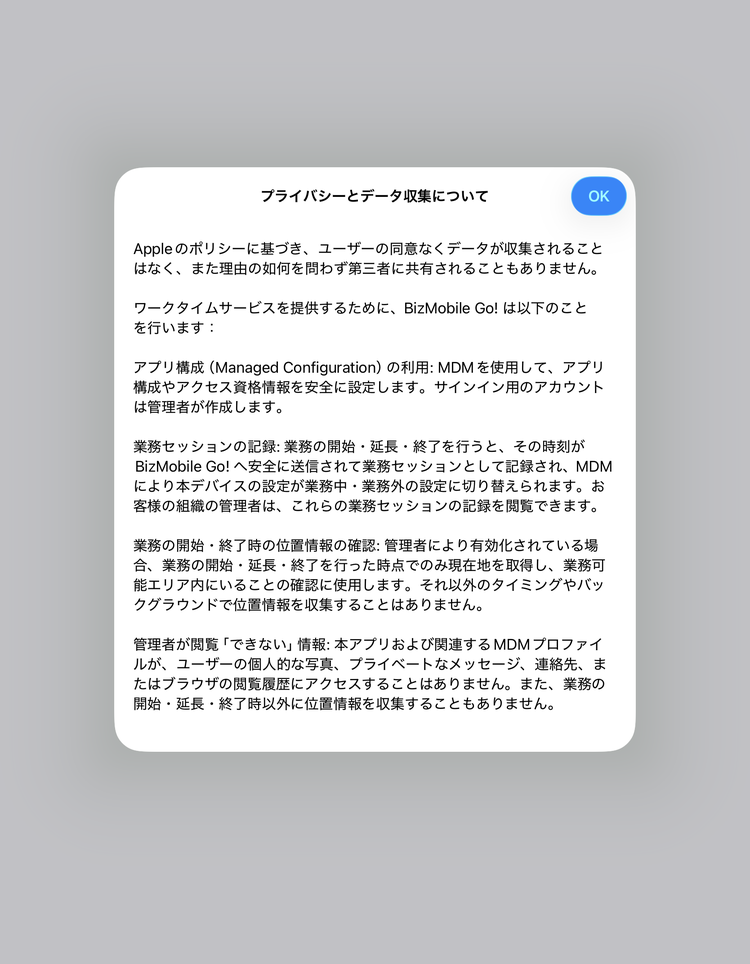
- Review the "About Privacy and Data Collection" content and tap "OK."
This screen appears only the first time you start the app.
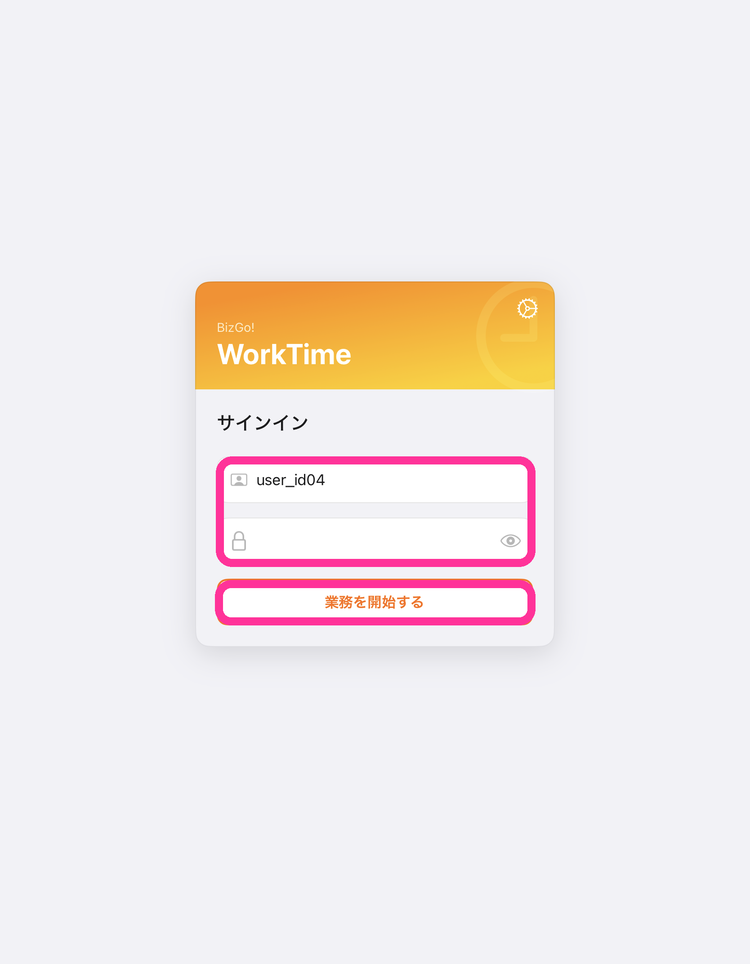
- The sign-in screen appears.
IfAuthentication Methodin the policy isUser, enter the "User ID (user_id)" and "Password (password)" and tap "Start Work."
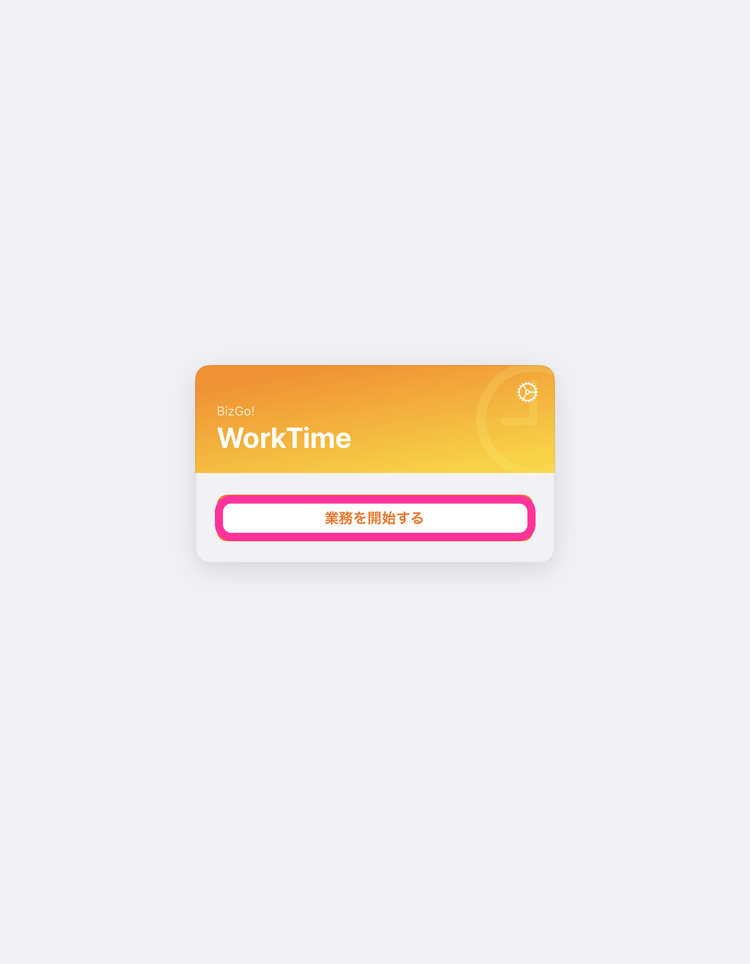
IfAuthentication Methodin the policy isNo User, the input fields are not shown. Tap "Start Work."
(Sign-in screen whenAuthentication MethodisNo User)
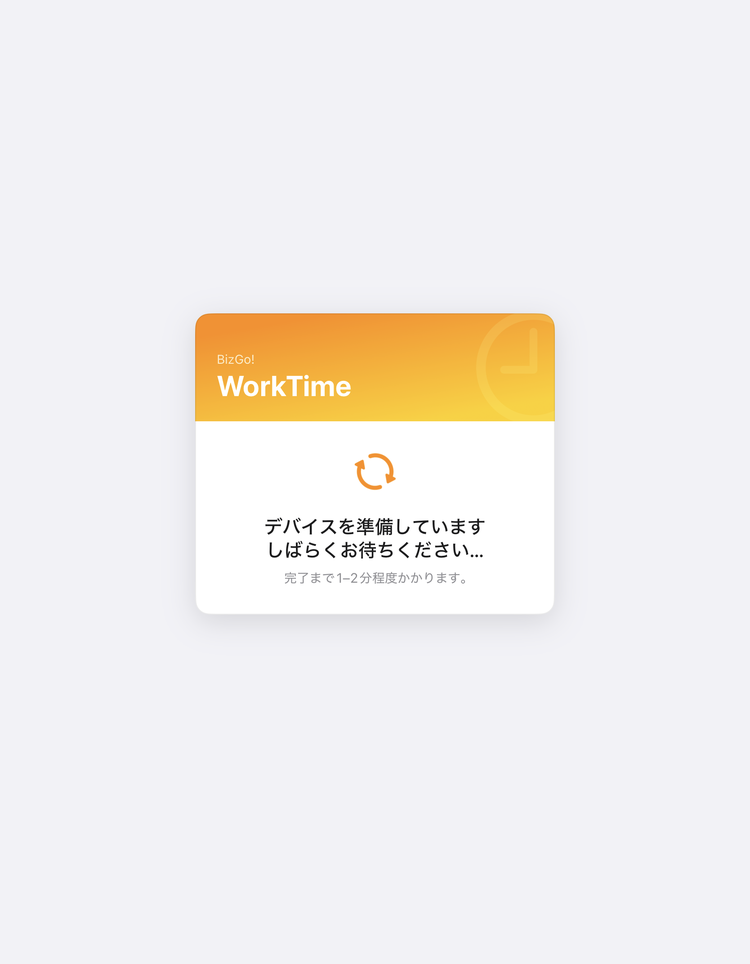
- The "Preparing your device" screen appears. When the device receives the sync command for switching templates, the next screen appears automatically (usually in about 1 to 2 minutes).
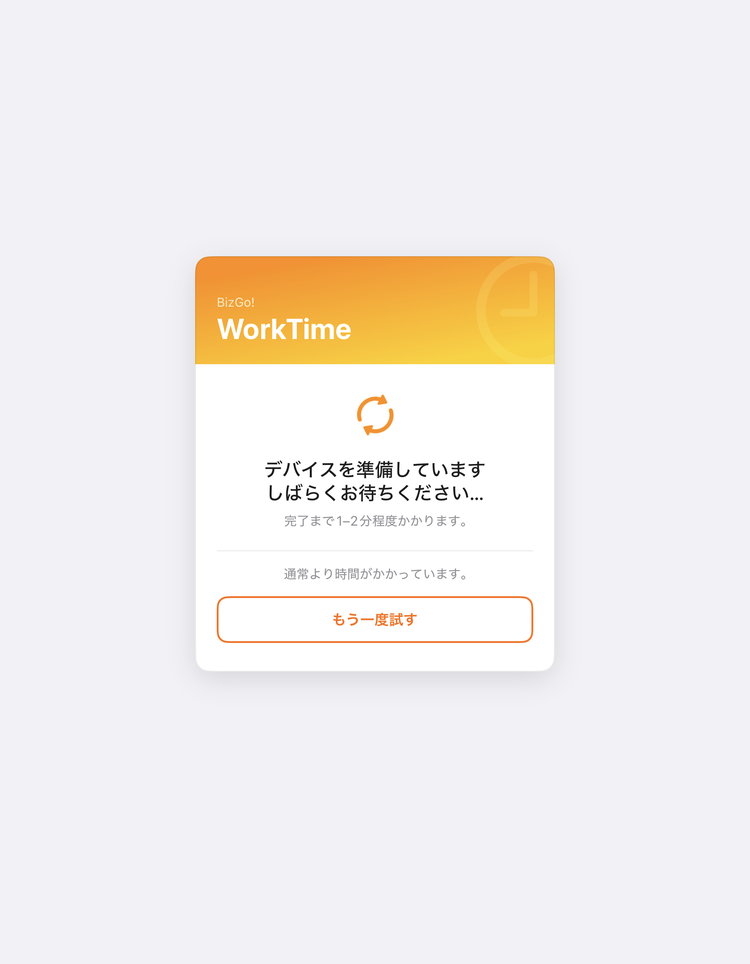
If the screen does not change for 5 minutes or more, "This is taking longer than usual." appears. Check the network connection and tap "Try Again."
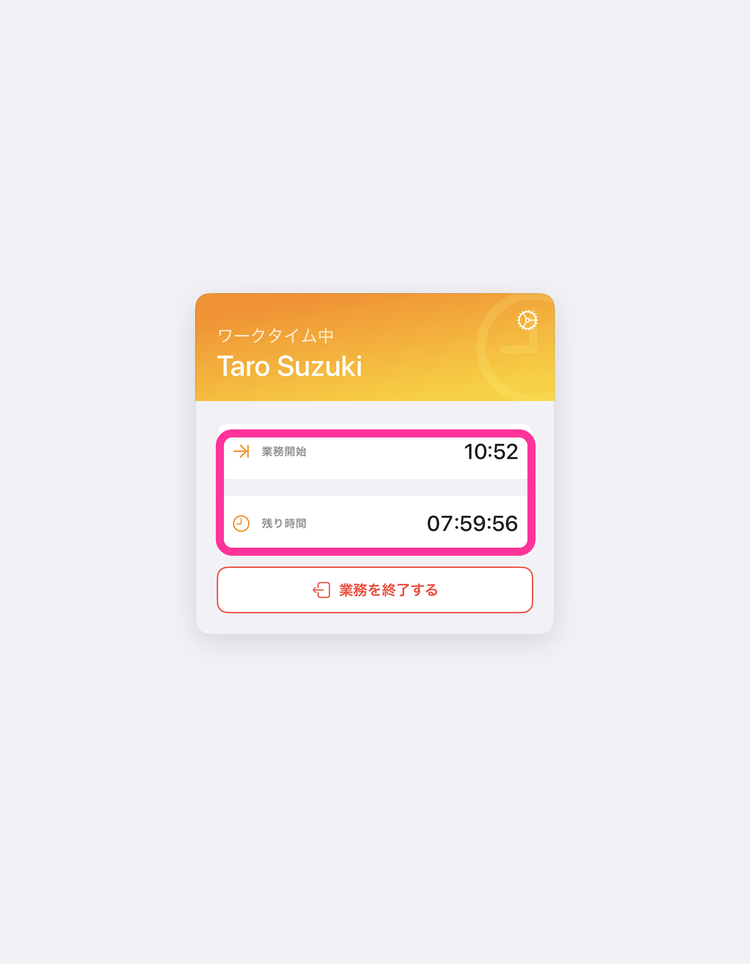
- Confirm that the registered name (first_name, last_name) and the time remaining until sign-out are displayed on the screen.
Note: IfAuthentication MethodisNo User, the name is not displayed.
- Close the BizGo! WorkTime app and confirm that the work apps are displayed.