(iOS / iPadOS) Distribute the BizGo! Air App
To use the geofence service, you must distribute the BizGo! Air app from the MDM.
The BizGo! Air app is provided only as a Custom B2B app (Custom App).
Note: Custom B2B is a method of providing an app only to specific customers through Apple Business (formerly Apple Business Manager) without listing it on the regular App Store. You must register with Apple Business in advance. (Registration page: https://business.apple.com/#/enrollment/form)
After you apply for the optional service, copy and paste the following information from Apple Business and notify the support desk.
- Organization name (Name)
- Organization ID
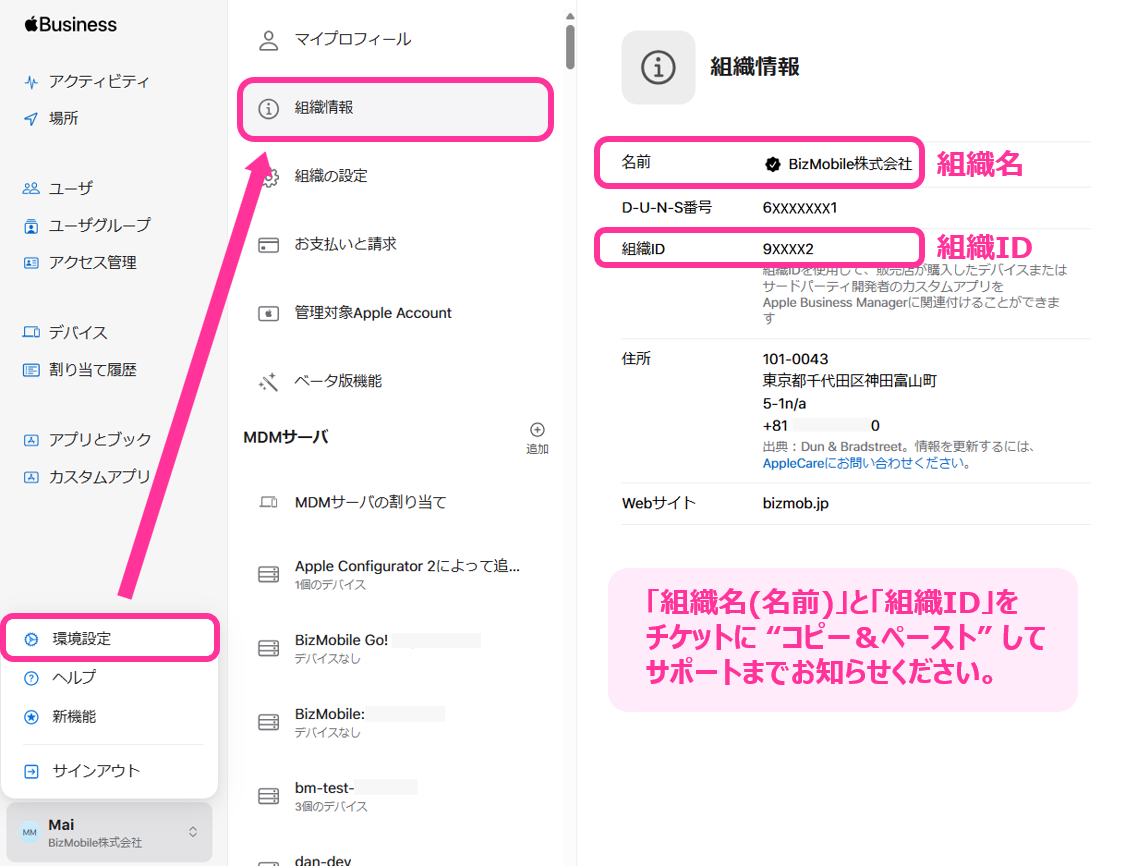
After we have finished registering your customer information, purchase and distribute the app using the following steps.
Note: To distribute a Custom B2B app, you must enable VPP beforehand. For the steps, see Enable VPP Features.
- Log in to Apple Business.
When you use a Custom App for the first time, set the following setting toEnabled.
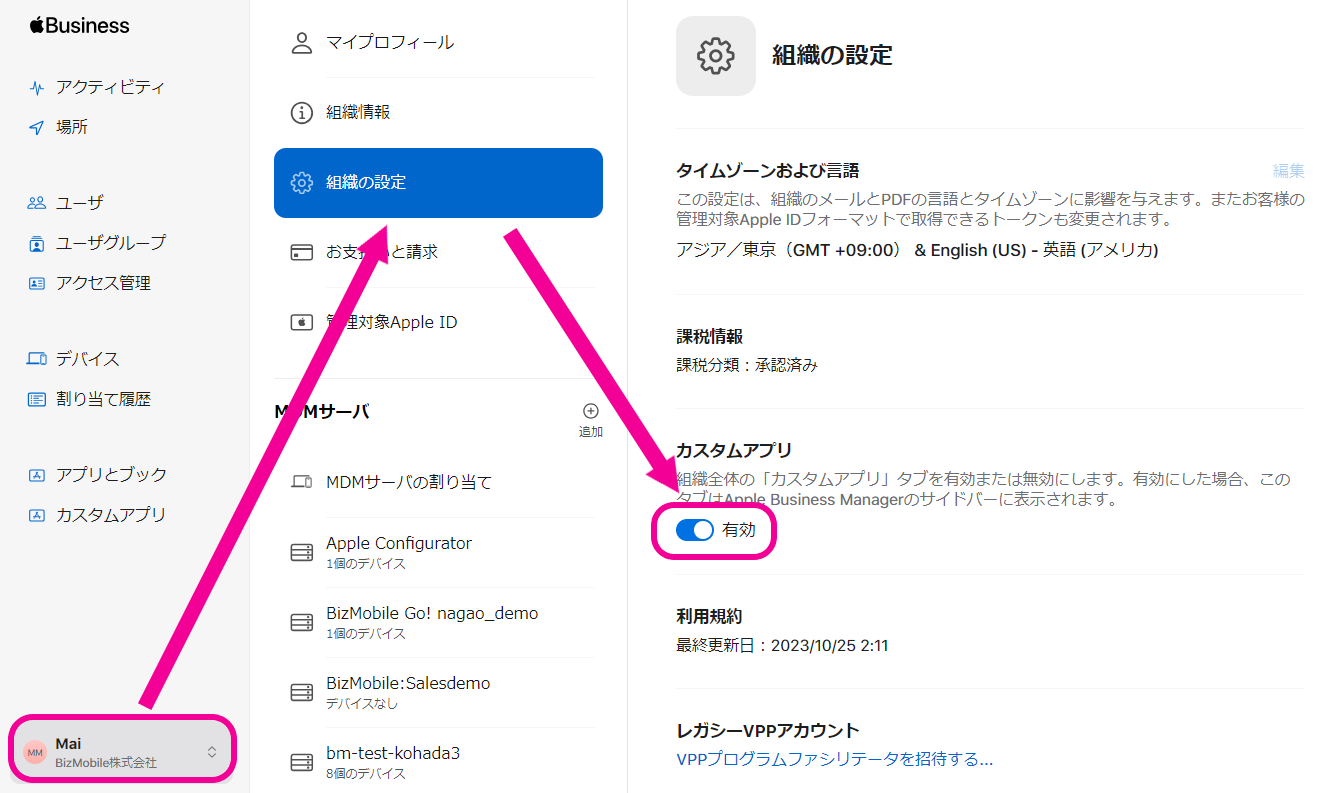
- Confirm that
Custom Appsappears in the menu on the left of the screen.
If it does not appear, try logging in to Apple Business again.
ClickCustom Appsand select the BizGo! Air app.
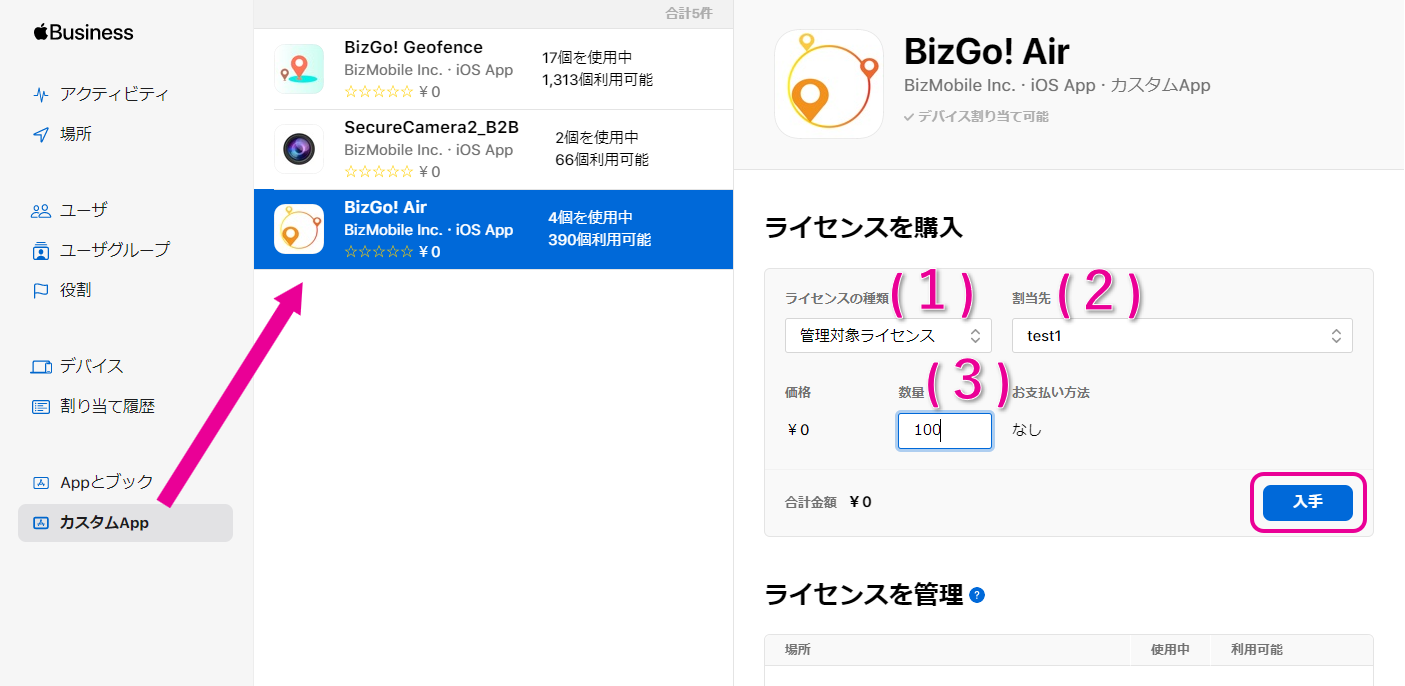
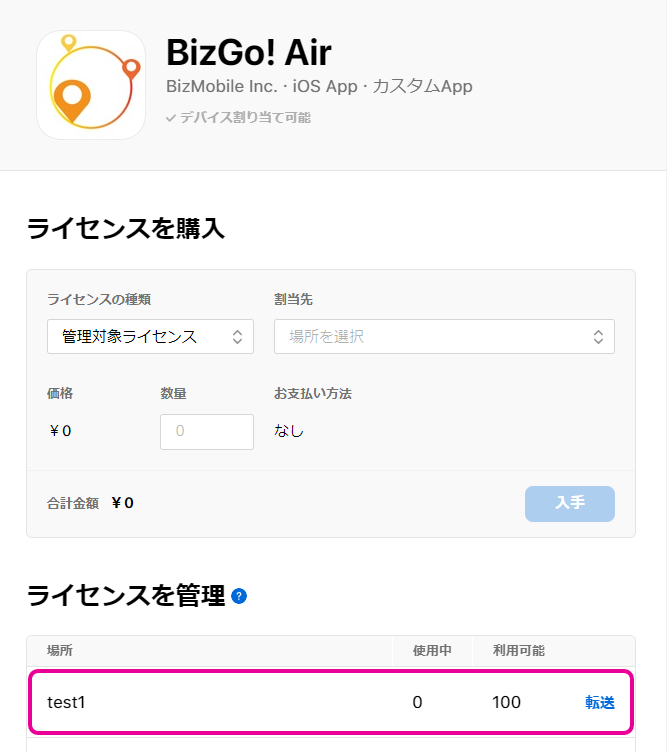
(1) Type of license
SelectManaged Licenses.
(2)Assign To
Select the destination MDM server.
(3) Quantity
Enter the number you need and click [Get] (the price is 0 yen, so we recommend purchasing a generous quantity). - When the process is complete and the app appears in
Manage Licenses, the purchase is complete.
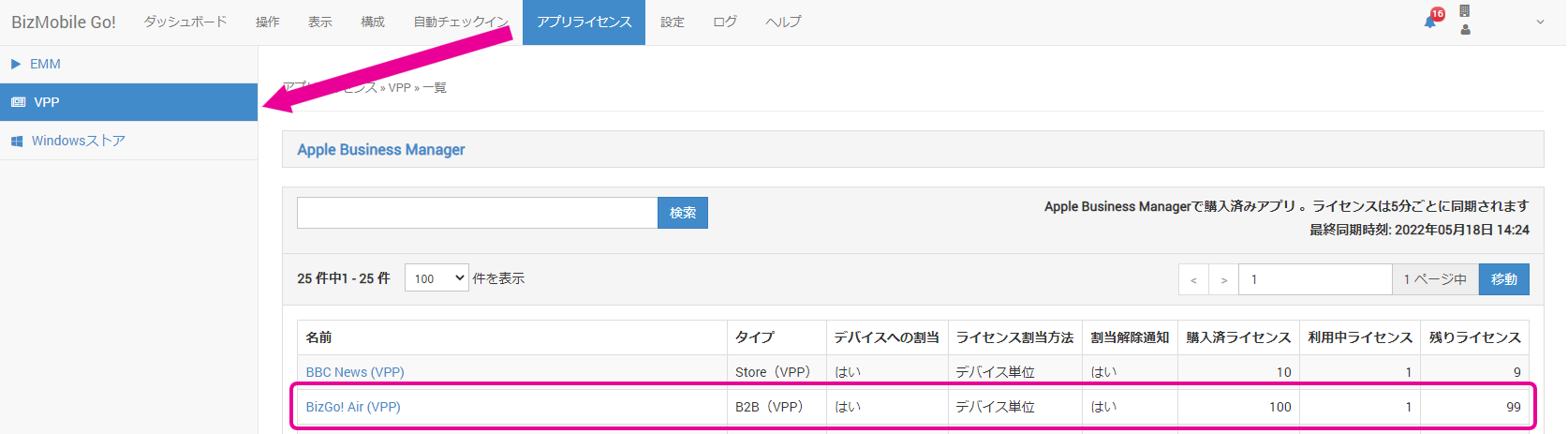
- Wait until the app appears in the list of purchased apps under App Licenses > VPP (licenses are synchronized every 5 minutes).
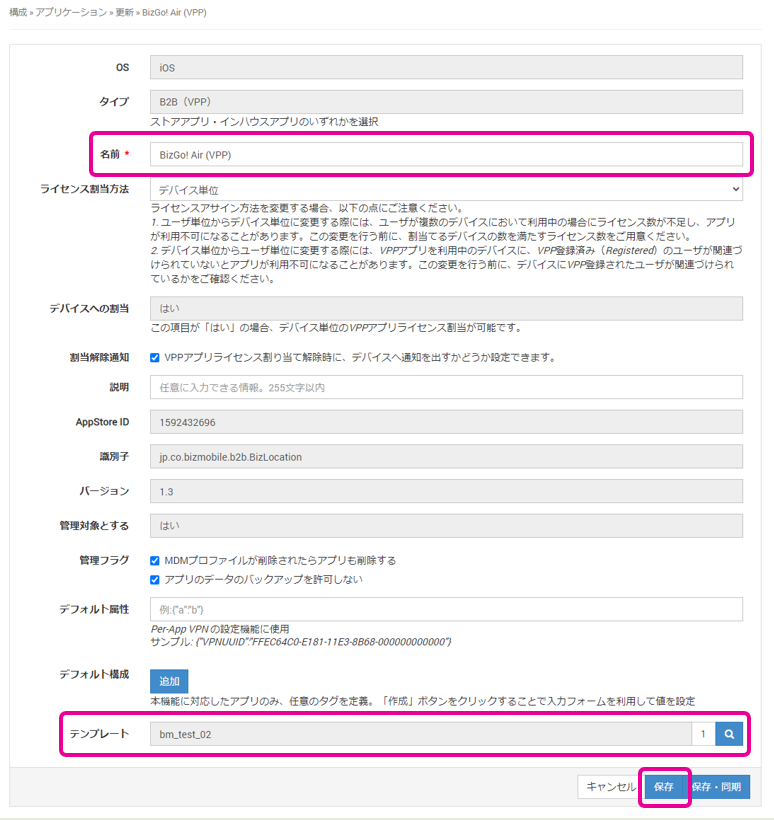
Click the app name link shown in the list to go to the app edit screen.
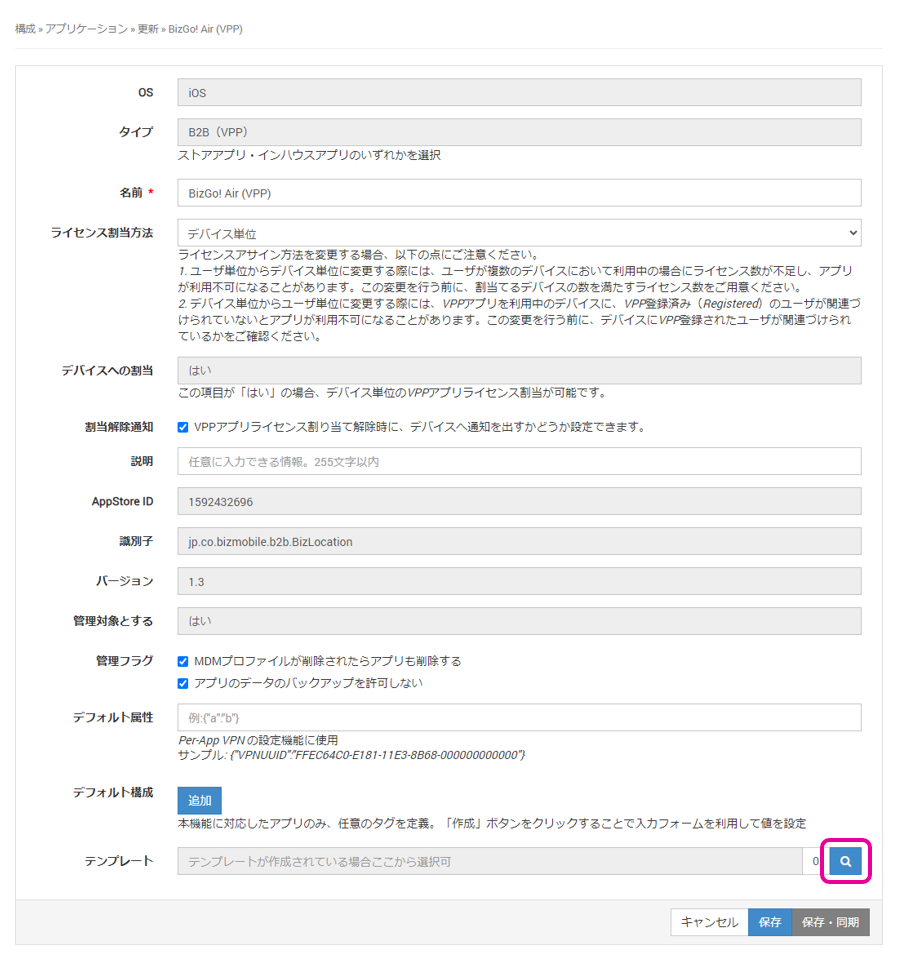
- On the screen that opens, confirm that it is the correct app,
then click for Template and search for the template to which you want to assign the app.
- Select the check box for the target template.
If you want to set Auto Management, Auto Update, or Prevent Deletion, select them now.
ClickCloseto close the selection screen.
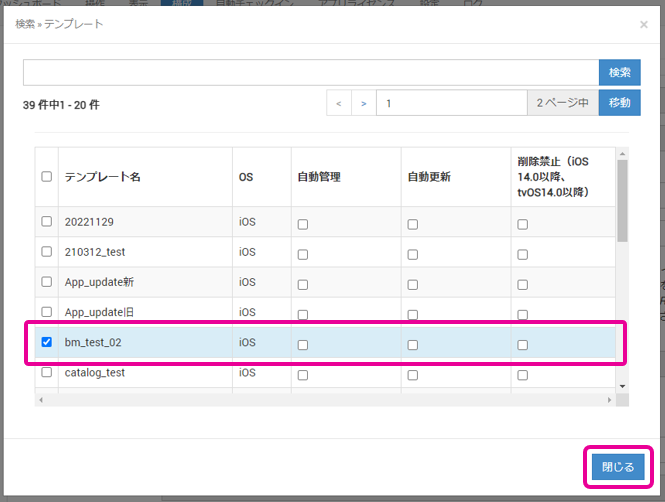
- Confirm the app name and template, and then click [Save].